How to Repair a Broken STL for 3D Printing

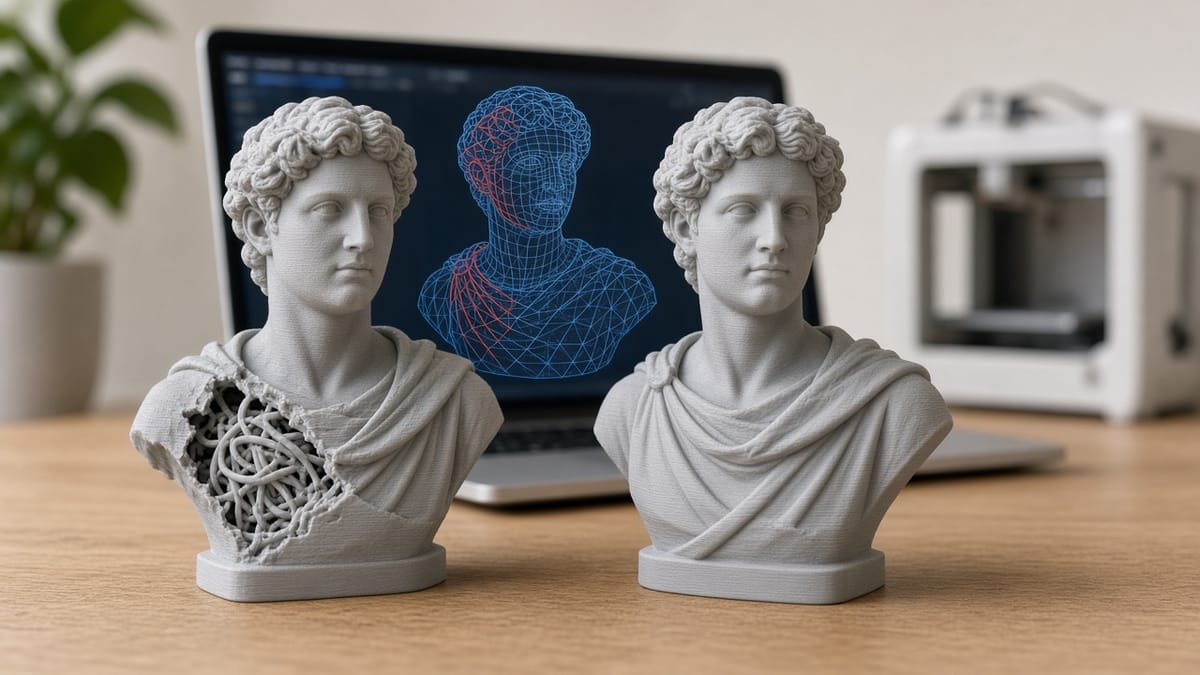
A slicer warning is usually a geometry problem, not a printer problem. Not watertight, non-manifold edges, model has errors — those mean the file does not have a clear inside and outside. Sometimes the slicer repairs it. Often it fills the wrong hole, drops a chunk of the shell, and you find out six hours into the print.
The old desktop tools for this are disappearing. Microsoft's 3D Builder is gone from the Store, Autodesk retired Meshmixer, and Netfabb is a paid CAD product. The PrintPal Mesh Repair tool does the everyday version in a browser tab. Drop in the file, read a health check in plain language, click Fix my model, and download. Nothing is uploaded, and there is no account to create.
The two-minute version
- Open Mesh Repair and drop in the file, or click Try a broken sample model. STL, OBJ, GLB, GLTF, 3MF, PLY, FBX, DAE, AMF, and 3DS all load. A point-cloud PLY, or a
.gltfthat points at a separate.bin, will not — export a meshed PLY or a single GLB first. - Read the health check. Green means Ready to print. Otherwise it lists holes, flipped faces, broken faces, non-manifold edges, and loose fragments, and it suggests the next button.
- Click Fix my model. That welds seams, deletes zero-area and duplicate faces, points every face the right way, and fills holes. The shape stays the same.
- If the card still lists holes or non-manifold edges, click Make solid at Normal. That rebuilds one watertight body. Detail smaller than the chosen level is smoothed over.
- If the file is huge, Simplify at Medium (keep 25%) before you open it in the slicer. Then Download STL or Download OBJ.
What the health check is actually saying
A watertight mesh has no open boundary. Every edge belongs to exactly two triangles, so the slicer can tell inside from outside. A manifold mesh also avoids edges shared by three or more faces. Printable shells are both.
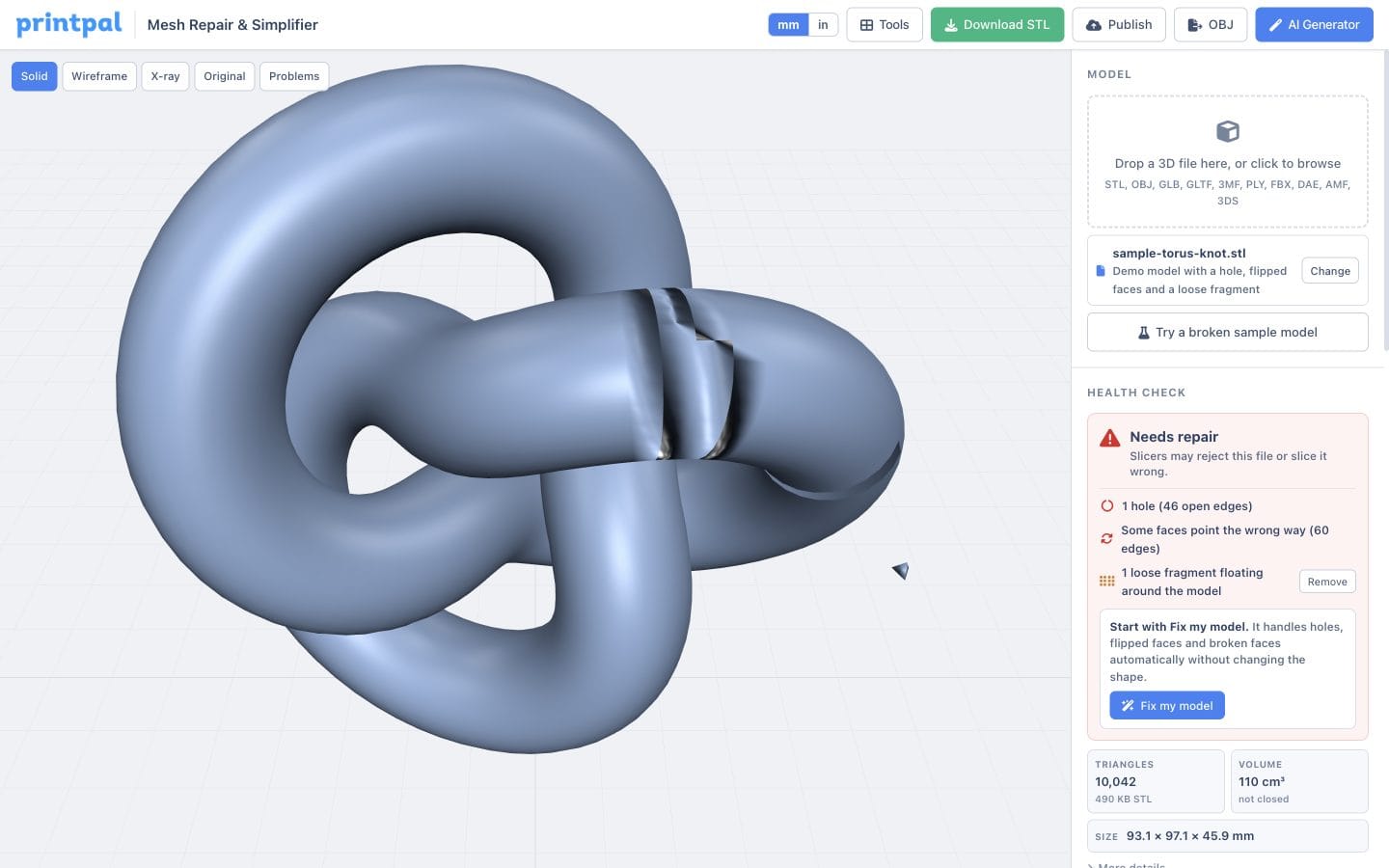
The sample torus knot is a useful decoder. It loads at about 10,000 triangles and the card says Needs repair: one hole (open edges), some faces pointing the wrong way, and one loose fragment floating nearby. Toggle Problems above the 3D view to see those on the model.
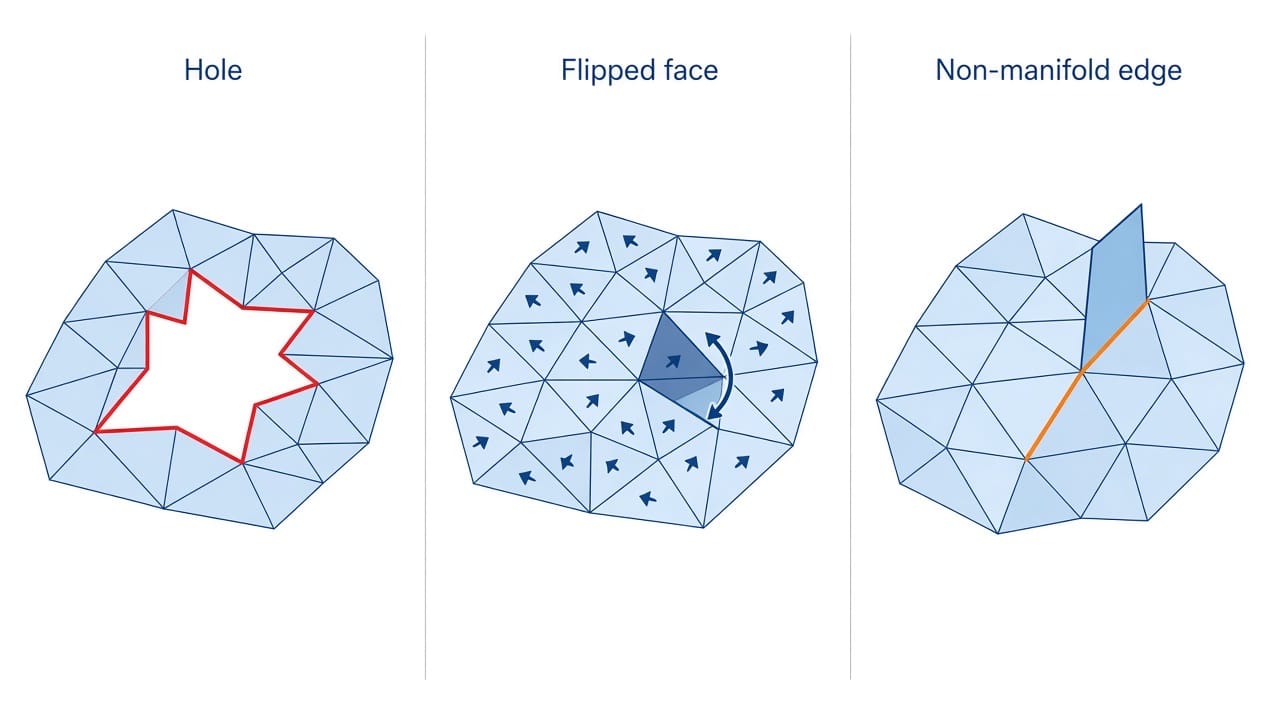
Fix my model covers that list without changing the silhouette. Open Individual steps only when you want one operation: Weld seams, Fill holes, Fix flipped faces, Turn inside-out, Remove broken faces, Remove fragments, or Keep only the largest part. Binary STL stores every triangle separately, so welding is what turns a triangle soup into a connected shell.
Make solid is the next step when faces pass through each other. Boolean leftovers, overlapping scan shells, and self-intersections survive a hole fill. Make solid samples the volume and extracts one clean surface. Fine keeps engraved text. Normal is the default. Coarse is fast and will close up a thin wall, a single-wall vase, or a lithophane, so do not use it on those.
When the file is fine but too heavy
Marketplace sculpts, photogrammetry, and AI meshes often arrive at 300,000 to 2 million triangles. Bambu Studio, OrcaSlicer, PrusaSlicer, and Cura will open them, then sit there. Simplify is quadric edge collapse: it deletes triangles and keeps silhouettes and sharp edges.
- Light keeps 50%.
- Medium keeps 25%. This is the usual first cut for a figurine.
- Strong keeps 10%. Fine for mechanical parts with flat faces.
- Custom takes an exact triangle count. For FDM figurines, 20,000 to 80,000 is usually enough.
The projection under the chips shows the triangle count and estimated STL size before you click. Undo, Redo, and Original are there if a pass goes too far.
Smooth (Light, Medium, Strong) is Taubin smoothing. It relaxes scan noise and stair-steps without shrinking the model. Even out makes triangles a similar size, which is the right pass before smoothing a messy scan. Add detail splits every triangle in four so a later smooth has more room to work. A sensible scan cleanup is Fix my model, Make solid at Fine, Smooth at Light, then Simplify at Medium.
Longest side fixes a file that imported in inches or meters. Type the real length in millimeters and click Apply. The 90° buttons and Center on bed only move the model.