How to 3D Print a Real Map of Anywhere on Earth

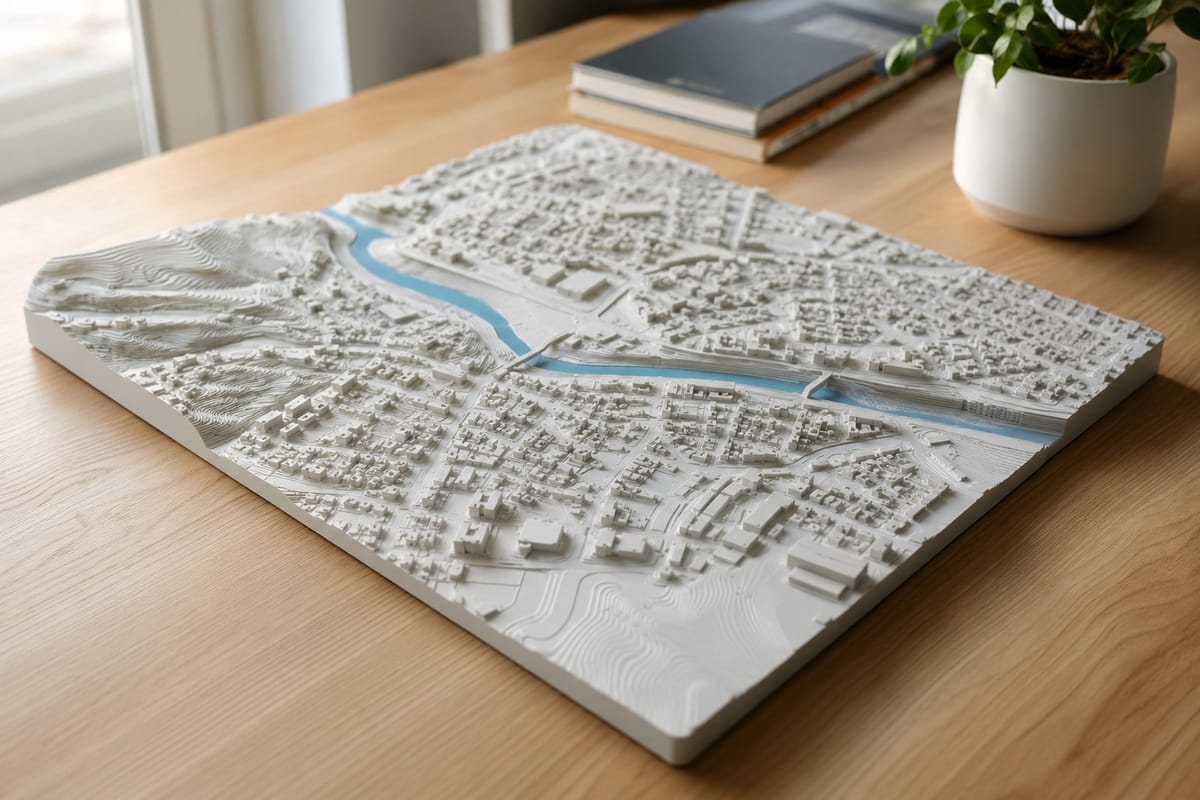
A few months ago a friend asked me to make a 3D print of the street where he grew up. Not a cute little diorama, but the actual place, with the real hills, the real river bend, and the real buildings standing where they really stand. I assumed it would mean a weekend of GIS software, elevation downloads, and a long session cleaning up broken mesh in Blender. It did not. It took about two minutes in a browser tab.
That is the whole point of the PrintPal Scale Map Generator. You search for a place, draw a box around the part you want, and download a watertight STL of the real terrain and real buildings at true scale. No GIS knowledge, no software install, no mesh repair.
This guide walks you through it from a blank map to a sliced, printable file.
What the Scale Map Generator Actually Does
Most map to 3D tools either give you stylized art that looks nice but is not to scale, or they hand you raw elevation data and leave the hard part to you. This one sits in the middle in the best way. It pulls real building footprints and heights from OpenStreetMap, real ground elevation from open terrain tiles, and water and parks from the map data, then meshes all of it into a single print-ready model.
Everything runs in your browser. The terrain and buildings are real 3D geometry, and rivers, lakes, and parks are detected and tinted in the preview so you can see them clearly before you print. When you export, the file is checked for you, welded, cleaned of bad triangles, and made watertight so it slices correctly the first time.
Quick Start: From Map to STL in Five Steps
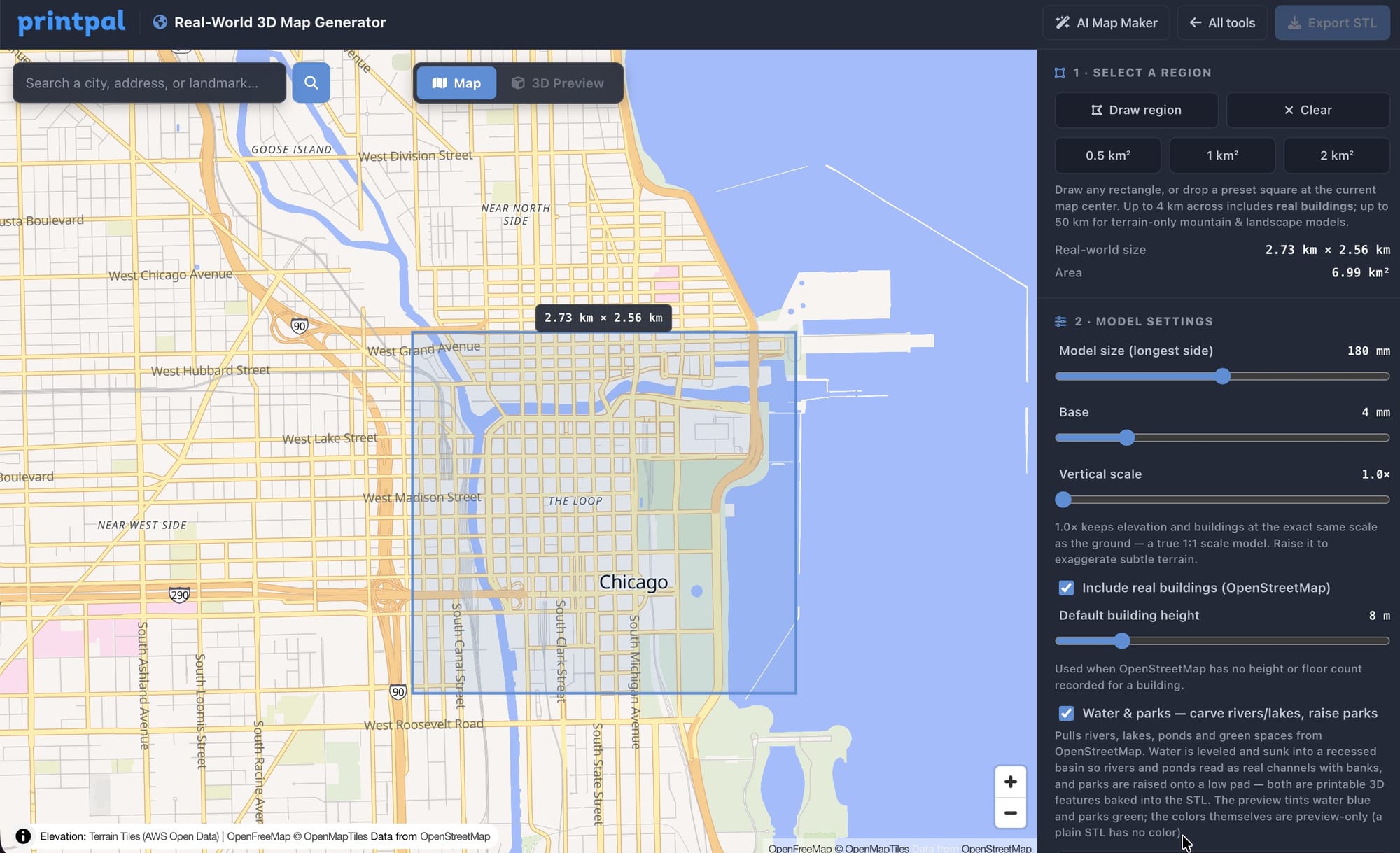
- Open the Scale Map Generator and type a city, address, or landmark into the search bar. The map flies straight to it.
- Set your area. Click a quick preset like 0.5, 1, or 2 square kilometers, or use Draw region to box in exactly the part you want.
- Tune the output in the sidebar. Set the physical model size, base thickness, and vertical scale, and decide whether to include buildings and water and parks.
- Click Generate 3D model. The tool samples the terrain, fetches the map features, builds the mesh, and runs its print-readiness checks.
- Switch to the 3D Preview, give it a spin, then click Download STL.
That is the entire workflow. The first generation of a new area pulls fresh map data, and after that the tool remembers it, so changing a setting and regenerating is fast and does not re-download anything.
The Settings That Actually Matter
You do not need to touch everything. Four controls do most of the work.
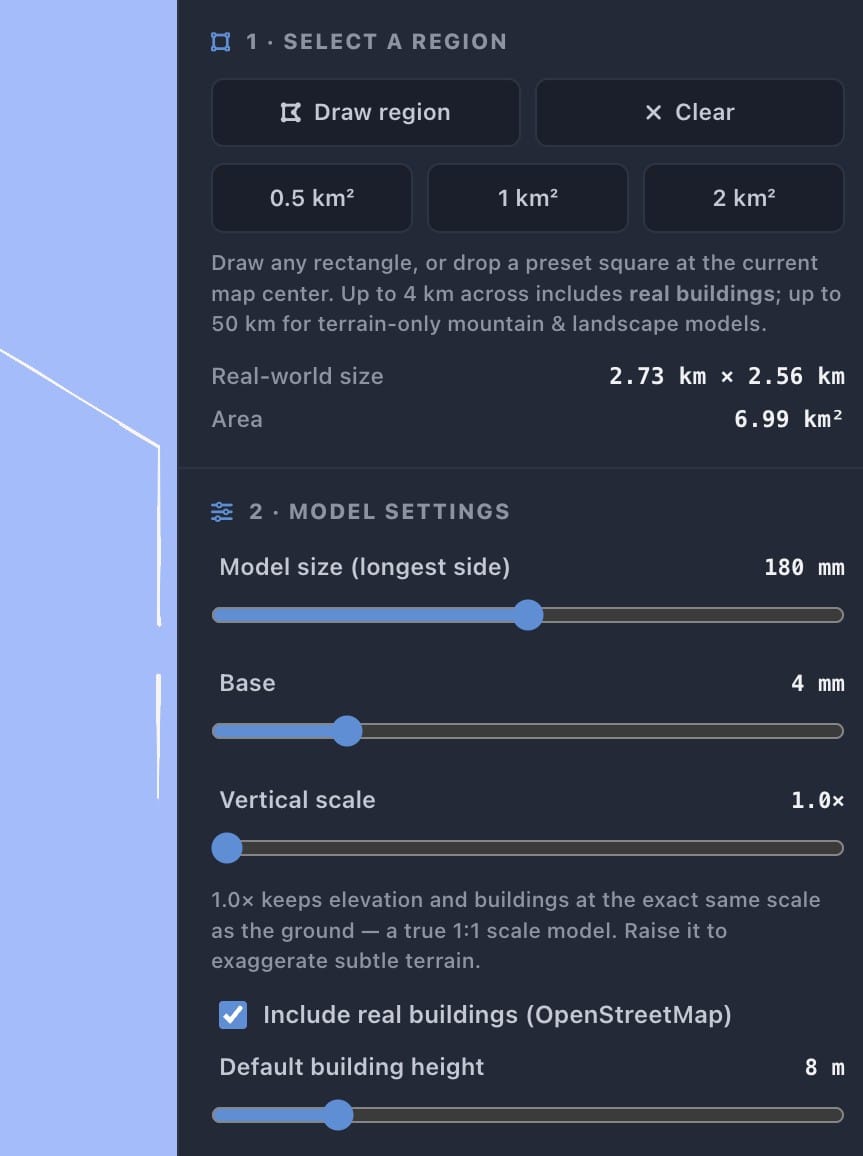
- Model size. This is the longest side of the finished print in millimeters. Match it to your printer bed. A 180 mm model fills most plates nicely and keeps building detail readable.
- Base. The solid slab under the terrain. Thicker bases print more reliably and feel sturdier in the hand. A few millimeters is plenty for most models.
- Vertical scale. Leave this at 1.0 for a true to life model where elevation matches the ground exactly. Raise it only when terrain is subtle and you want to exaggerate hills and valleys, which is great for flat regions or dramatic relief maps.
- Buildings and Water and parks. Toggle real OpenStreetMap buildings on or off, and decide whether to bring in rivers, lakes, ponds, and green spaces. Turning buildings off gives you a clean topographic terrain map.
A good habit is to generate once with default settings, look at the preview, then adjust one thing at a time. Smaller regions print with more visible building detail, while larger regions read more like a landscape.
Picking a Region That Prints Well
The size of the area you select changes the character of the model more than any slider does. A tight half square kilometer over a downtown gives you tall, crisp towers you can pick out individually. A wider selection over a mountain range or coastline turns into a sweeping relief landscape where the terrain is the star.
If a city looks too flat at true scale, nudge the vertical scale up slightly rather than shrinking the region. If buildings look too cramped, select a smaller area instead of a larger model size.
Printing Settings for Map Models
These work on any FDM printer and slice cleanly in Bambu Studio, OrcaSlicer, PrusaSlicer, and Cura.
| Setting | Value |
|---|---|
| Material | PLA or PETG |
| Layer height | 0.12 to 0.20 mm |
| Infill | 10 to 15 percent |
| Walls | 2 to 3 perimeters |
| Supports | Usually not needed, the base sits flat |
| Orientation | Base flat on the bed |
If you want a two color result, export terrain and buildings as separate STLs and print the buildings in a contrasting color or material. A white terrain with dark buildings, or a natural terrain with bright accents, makes the model pop on a shelf.
Project Ideas Worth Printing
- Your hometown or first apartment. The street layout you grew up with, at real scale, makes a genuinely personal gift.
- A favorite hike or national park. Topographic relief of a trail or peak, buildings off, vertical scale up a touch.
- A trip you took. The old town of a city you loved, printed small enough to sit on a desk.
- An architectural site model. Real surrounding buildings and terrain for a design presentation or class project.
- A coastline or river bend. Big region, low building count, all about the land.
Frequently Asked Questions
Is it really 1:1 scale? The model is built at the true relative proportions of the region you select, then shrunk down to the physical print size you choose. Distances, building placement, and terrain all stay accurate to the source data. Vertical scale can be exaggerated on purpose if you want more dramatic relief.
Do I need GIS software or elevation downloads? No. Search, terrain, buildings, meshing, geometry checks, and STL export all happen in your browser.
Will the STL slice without errors? Yes. Each shell is built watertight and runs through automatic checks for welding, degenerate triangles, and manifold geometry before you download it.
Why are some buildings missing or the wrong height? Building coverage comes from OpenStreetMap, which is excellent in cities and thinner in rural areas. Buildings without a mapped height use a sensible default, which you can adjust in the sidebar.
What does it cost? Browsing the map is free. Generating and downloading models is included with an active PrintPal subscription, with no per export fees since the work runs in your browser. See pricing for current plans.
Is this better than Terrain2STL, TouchTerrain, or Cadmapper? For a fast, browser based way to get both terrain and buildings as one print-ready STL with the geometry checks done for you, yes. For specialized survey grade GIS exports, a dedicated GIS pipeline may still be the right tool.
Want a Stylized Version Instead?
If you do not need exact accuracy and just want a charming diorama style city or landscape, the PrintPal AI 3D Map Maker builds decorative miniatures from a text prompt. Many makers use both, this tool for accurate scale models and the AI tool for artistic city scenes.
Summary
| Goal | What to Do |
|---|---|
| Print a true scale model of a real place | Open the Scale Map Generator |
| Make a stylized diorama from a prompt | Open the AI 3D Map Maker |
| Explore more free 3D design tools | Browse all tools |
The whole process is search, select, generate, download. Two minutes from a blank map to a real place you can hold in your hand. Pick somewhere that means something to you and print it.