Fidget Clicker Maker: Add an MX-Style Click Mechanism to Any 3D Model

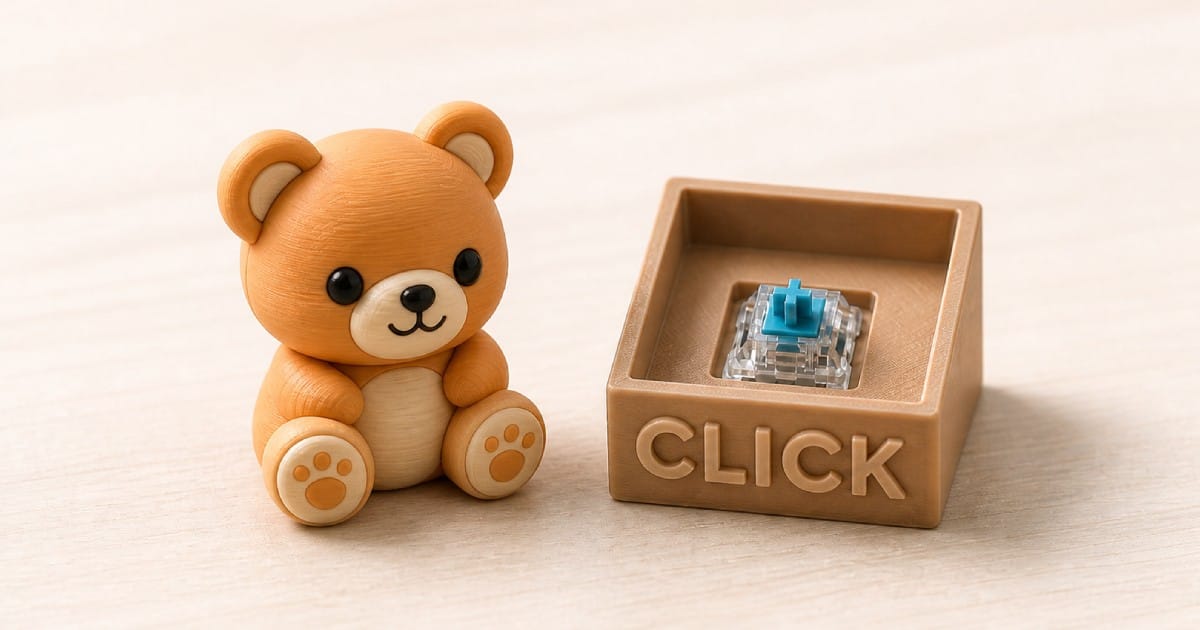
A 3D printed fidget clicker delivers a crisp, audible MX-style click with no metal switch, spring, or electronics — just two interlocking halves with a precision-shaped clicker negative carved between them.
The PrintPal Fidget Clicker Maker is a free browser tool that does it for you. Upload an STL or OBJ, place the cutter, export two snap-together STLs ready to print. Also called an MX clicker negative cutter, fidget clicker generator, or click mechanism generator — same idea, same workflow.
Quick Start (5 Steps)
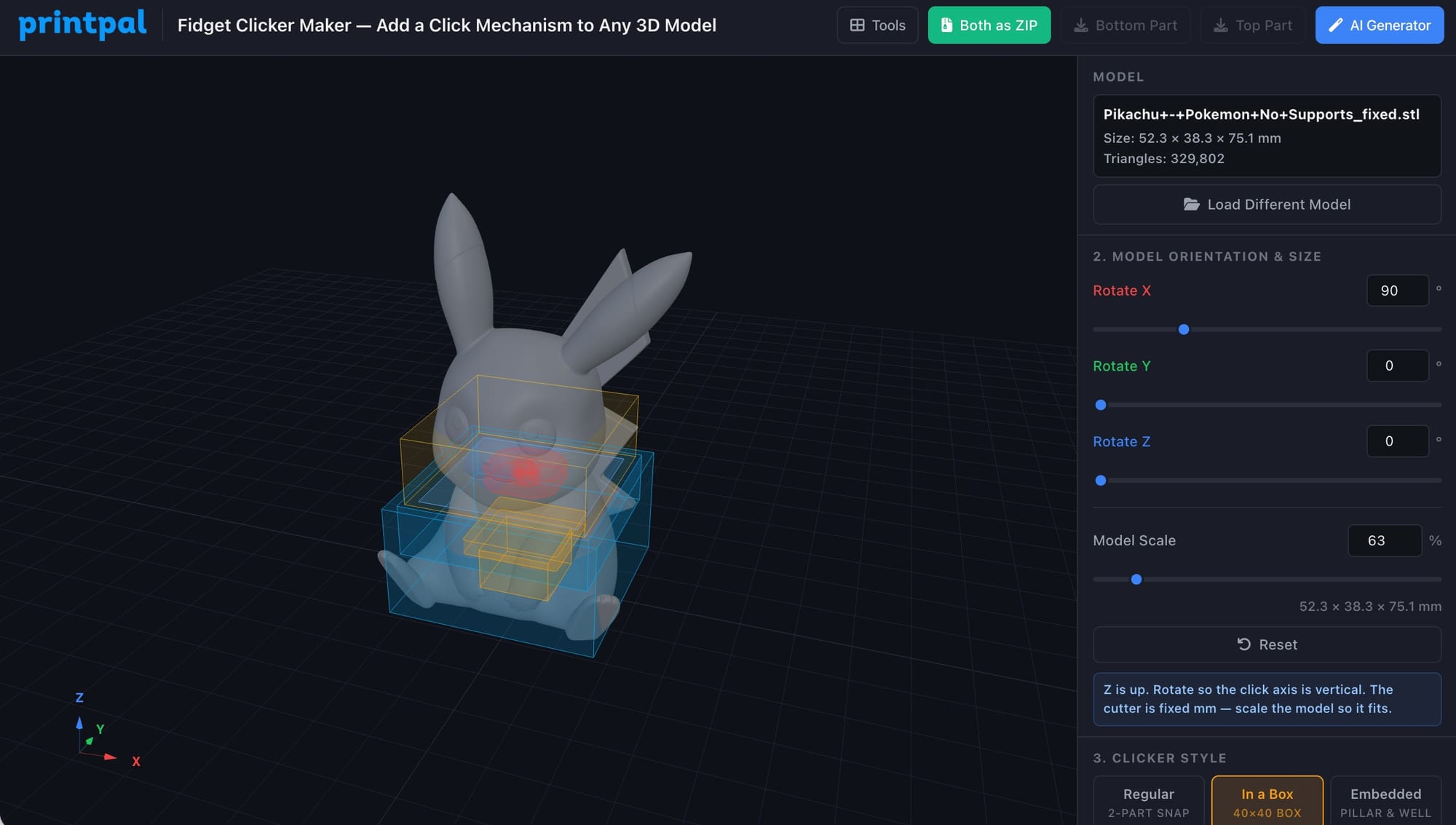
- Open the Fidget Clicker Maker and drop in an STL or OBJ. The cutter auto-places at the most-interior point at mid-height, and the model auto-scales up if needed to fit.
- If your model loaded sideways, use the Orientation sliders (Z = up, XY = cut plane).
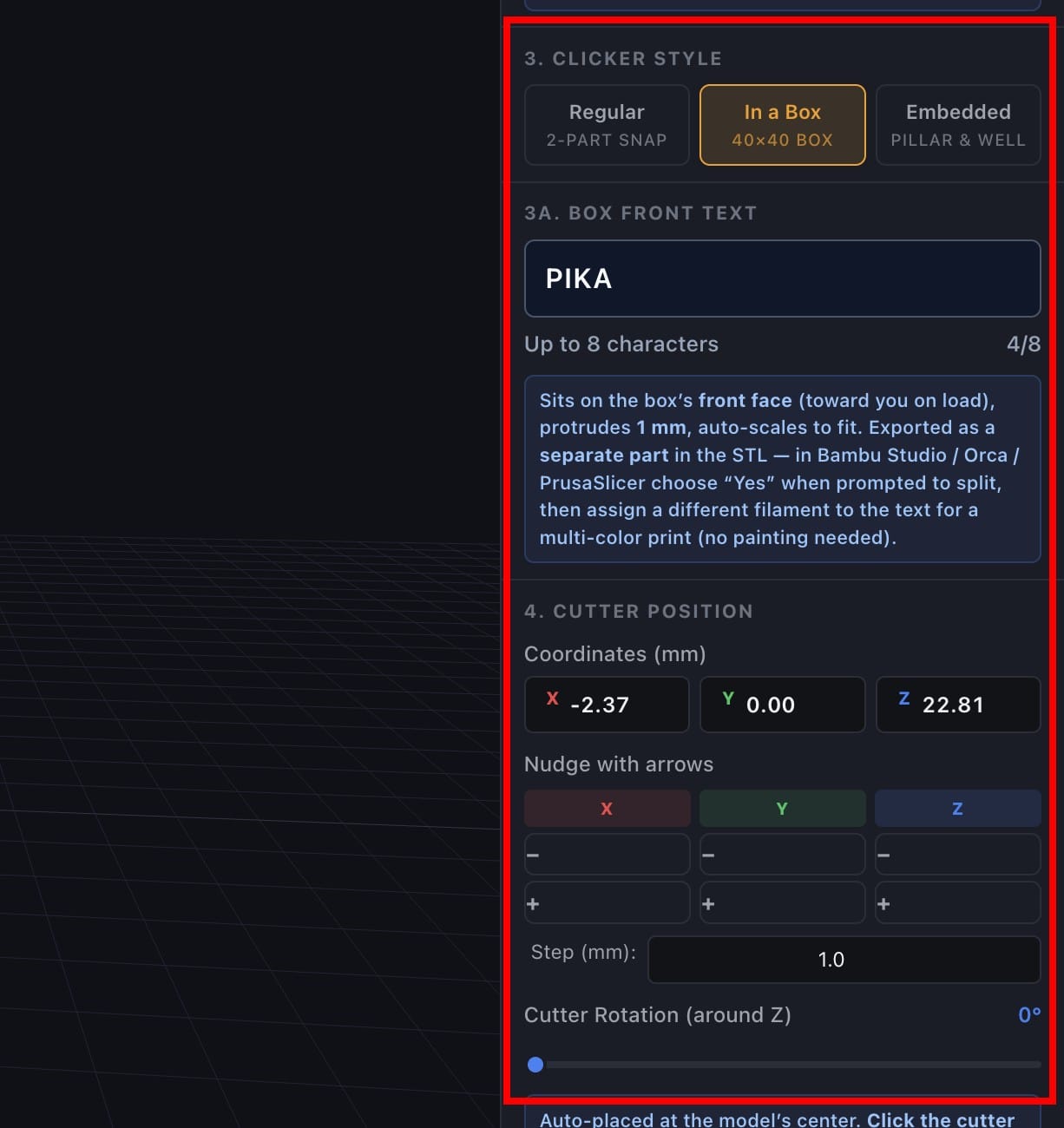
- Pick a Clicker Style — Regular, Embedded, or In a Box (see below).
- Optional: drag the in-viewer gizmo to fine-tune cutter position, or type X / Y / Z values.
- Click Cut Model into 2 Parts, then download the parts as separate STLs or a ZIP.
Print both halves cut-side-down, deburr the cut edges, snap together. Done.
The Three Click Modes
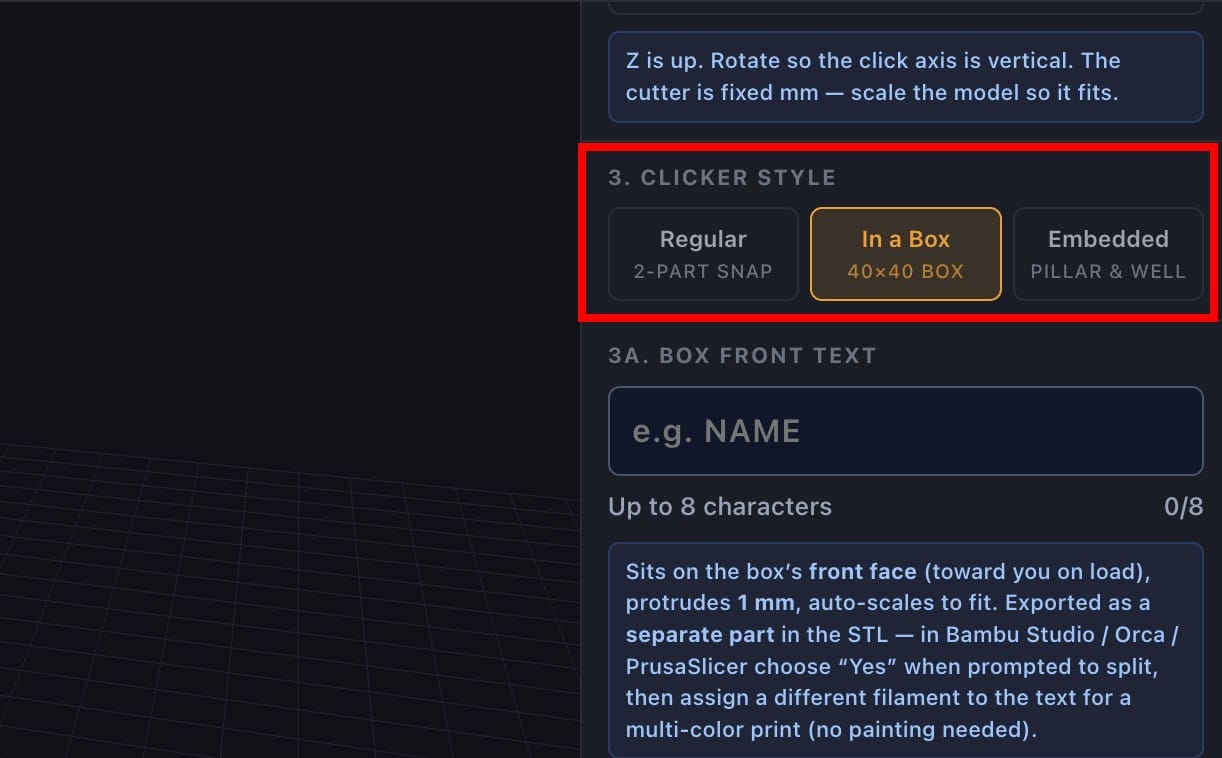
- Regular — clean horizontal seam at the cut plane. Best for keychains, plaques, simple desk toys, or any model where a visible seam is fine.
- Embedded — top half grows a 5 mm-inset pillar that nests into a 1.5 mm-walled well in the bottom half. The click cavity sits inside the body and the seam disappears. Best for character figurines.
- In a Box — auto-scales the model to ~40×40 mm, replaces the bottom half with a printable 40×40×22 mm box (36×36×10 mm cavity), and trims the top to a 34×34 mm footprint for the first 13 mm so it slots into the cavity with 1 mm clearance. Best for figurine plinths, character display stands, and modular click bases.
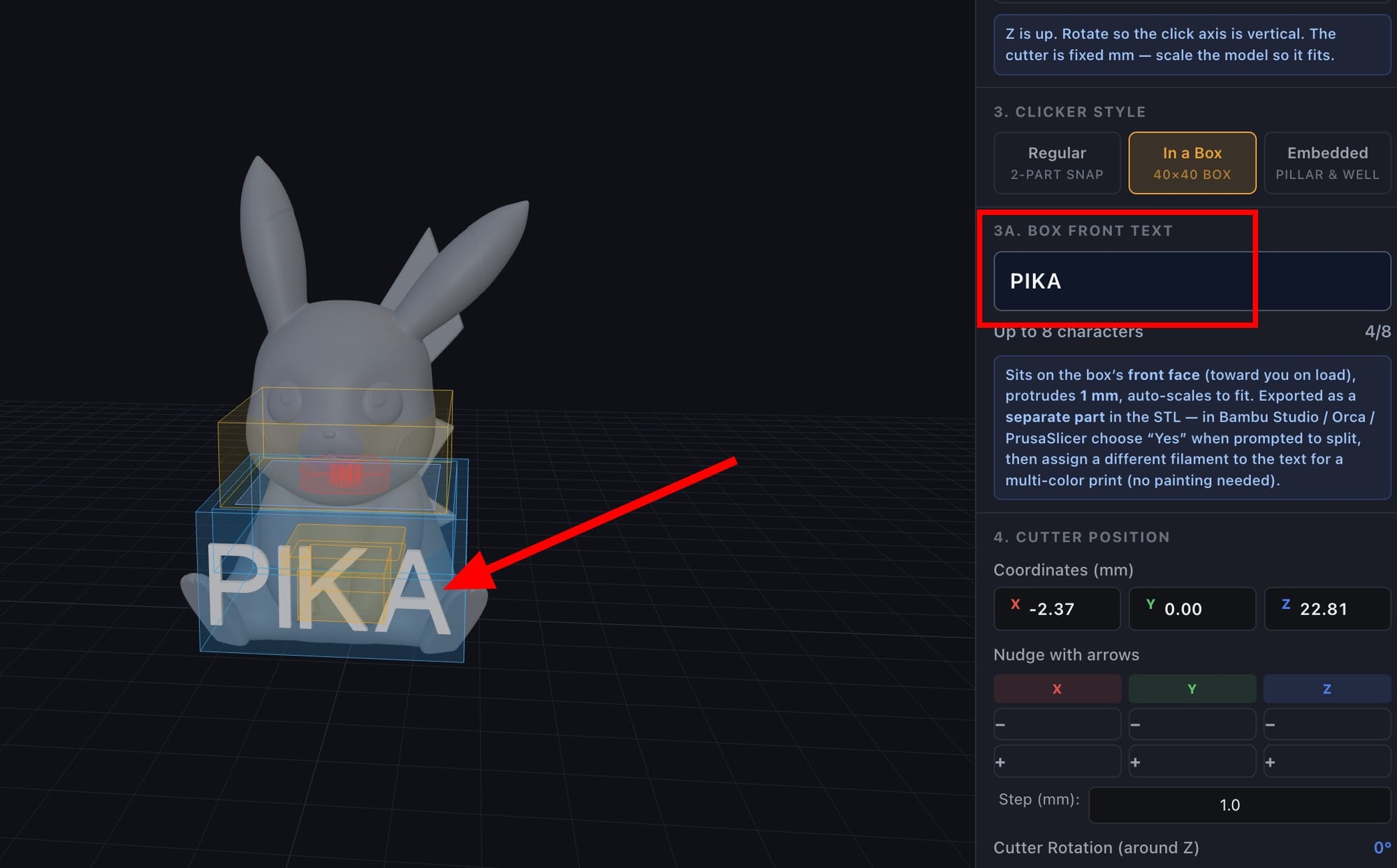
Bonus (In a Box): type up to 8 characters into the Box Front Text field. The text extrudes 1 mm out of the front face as a topologically separate shell in the STL — Bambu Studio and Orca detect it as a distinct part, so you can assign a different filament for clean multi-color printing without painting.
Settings That Matter
- Clicker Style — start with Regular if unsure.
- Model Scale (1–2000 %) — the cutter is fixed-size mm (it has to be), so scale the model to fit. Auto-place handles this on load.
- Cutter Position — drag the gizmo or type exact X / Y / Z. In a Box forces (0, 0) since the base is centered.
Print Settings
| Setting | Value |
|---|---|
| Material | PLA (snappiest), PETG (durable), TPU (quieter) |
| Layer height | 0.16–0.20 mm |
| Walls | 3–4 perimeters (snap features must not shear) |
| Infill | 20–30 % |
| Orientation | Cut face flat on the bed, click features up |
| Supports | None for flat halves; In-a-Box base prints flat with cavity up, no supports needed |
| Brim | Optional, recommended for small parts |
Project Ideas
MX keyboard fidgets and switch testers · keycap clickers · pop-it style desk toys · custom keychain clickers · character figurine plinths (In a Box) · streamer mascot clickers with engraved handle · novelty buttons · Etsy fidget toys · escape room props · ADHD focus aids.
No Model Yet?
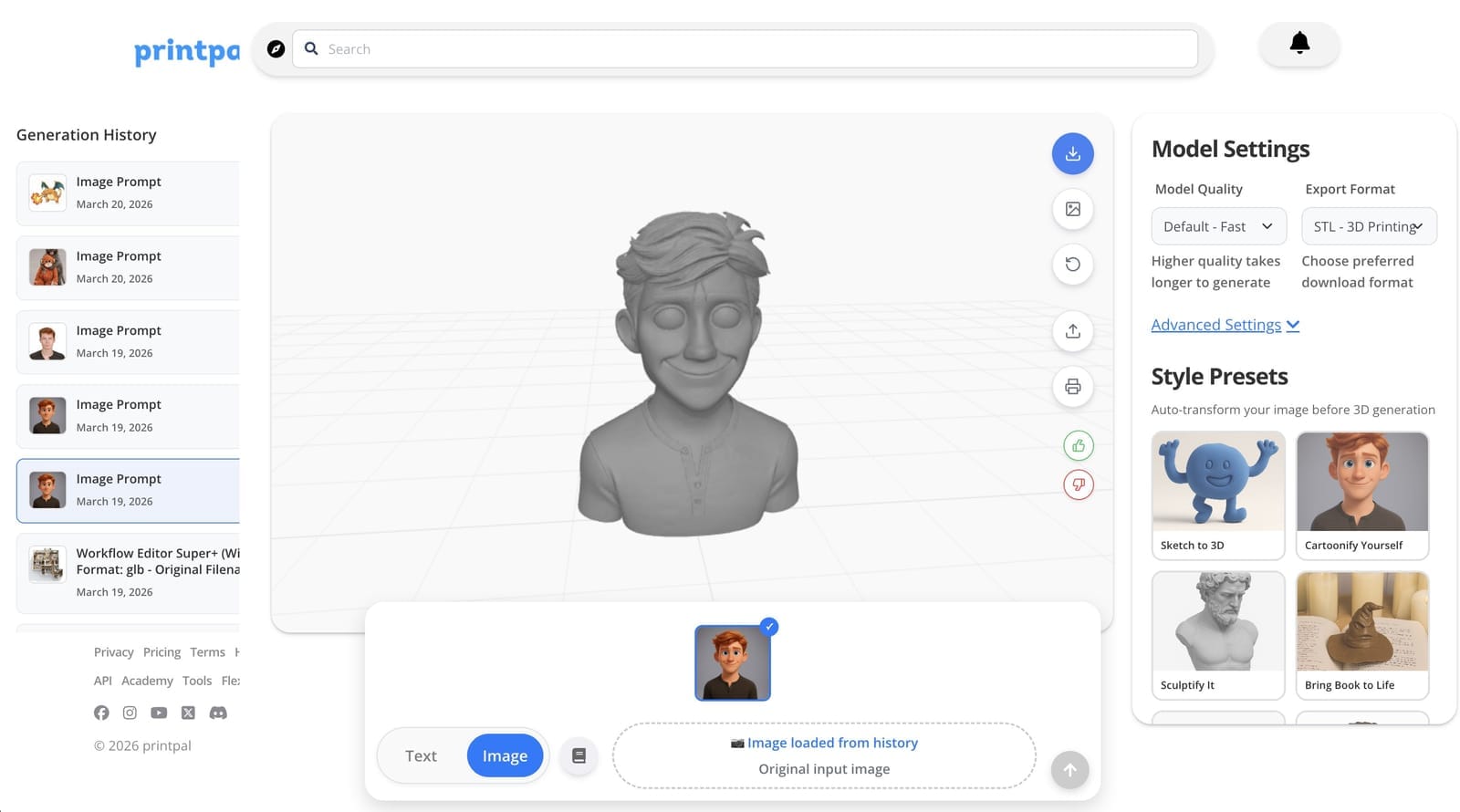
Use the PrintPal AI 3D Generator — type a prompt or upload a photo, get a print-ready STL back, then take it straight into the Fidget Clicker Maker.
Summary
| Goal | Action |
|---|---|
| Add an MX click to a model you have | Fidget Clicker Maker |
| Snap-on plinth + engraved text for a figurine | In a Box mode |
| Hide the seam inside the body | Embedded mode |
| Generate a 3D model from text or a photo | AI 3D Generator |
| Browse other free tools | All PrintPal tools |
Upload, place, cut, download, print, click.