Nano Banana for 3D Model Generation: Best Prompts, Tips, and Workflows

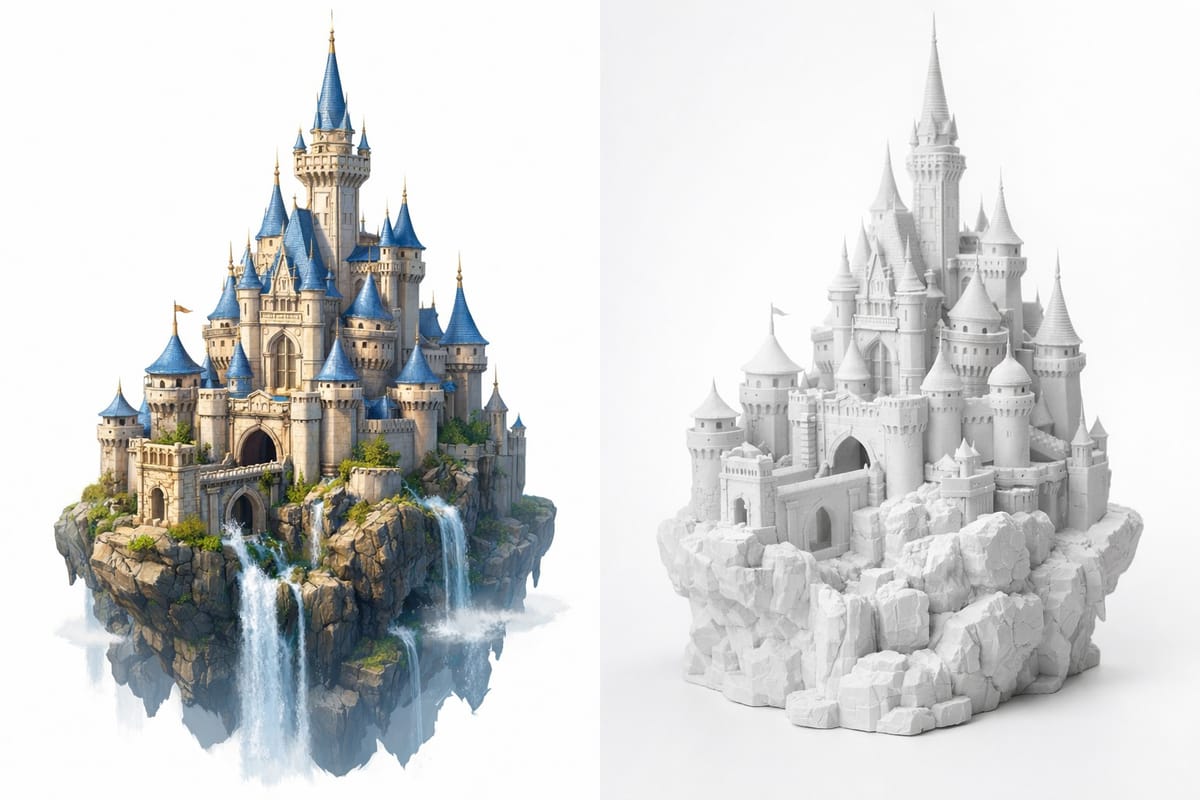
Google's Nano Banana (also known as Gemini 3 Pro Image) changed what is possible with AI image generation. It can create photorealistic images from text, edit existing photos with natural language instructions, and handle complex visual tasks that older models struggled with. But here is something most people have not tried yet: using Nano Banana as the first step in a 3D model generation pipeline.
By pairing Nano Banana's image generation and editing capabilities with PrintPal's AI 3D Generator, you can go from a text description or a rough photo to a finished, 3D printable model in minutes. No sculpting. No CAD experience. Just prompts.
This guide covers how Nano Banana powers PrintPal's tools under the hood, the best prompts for different types of 3D models, and practical workflows you can start using today.
Table of Contents
- What Is Nano Banana?
- How Nano Banana Powers 3D Model Generation
- Ways to Access Nano Banana for 3D Creation
- Text-to-3D: Best Prompts for Generating Models from Scratch
- Image-to-3D: Turning Photos into Printable Models
- Pet Photo to 3D Figurine
- Face Photo to 3D Figurine
- Architecture Photo to 3D Scale Model
- Map to 3D Diorama
- Prompt Engineering Tips for Better 3D Results
- Nano Banana vs Nano Banana 2 vs Nano Banana Pro
- Using the PrintPal API for Automated Workflows
What Is Nano Banana?
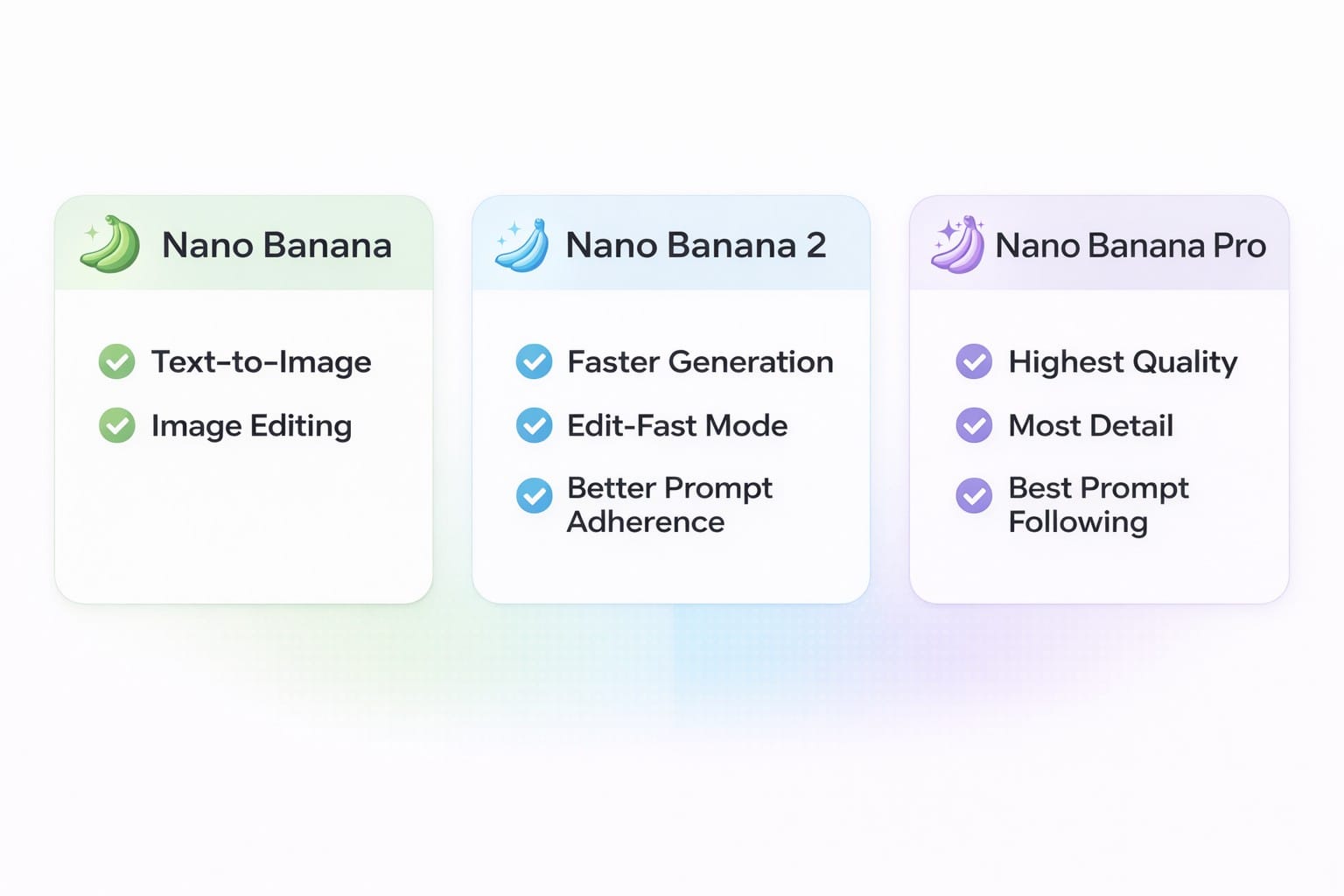
Nano Banana is the code name for Google's Gemini 3 Pro image generation and editing model. It comes in several variants:
- Nano Banana (original): Text-to-image generation and image editing via natural language prompts
- Nano Banana 2: Improved quality, faster generation, and better prompt adherence. Includes a fast edit mode for quick turnaround
- Nano Banana Pro: The highest quality tier with the most detailed output and strongest prompt following
All three variants support two core operations:
- Text-to-image: Generate a new image from a text description
- Image editing: Upload an existing image and describe changes in plain language
These capabilities are what make Nano Banana so useful for 3D model creation. High-quality, well-composed images are the ideal input for AI 3D generation pipelines, and Nano Banana produces exactly that.
How Nano Banana Powers 3D Model Generation
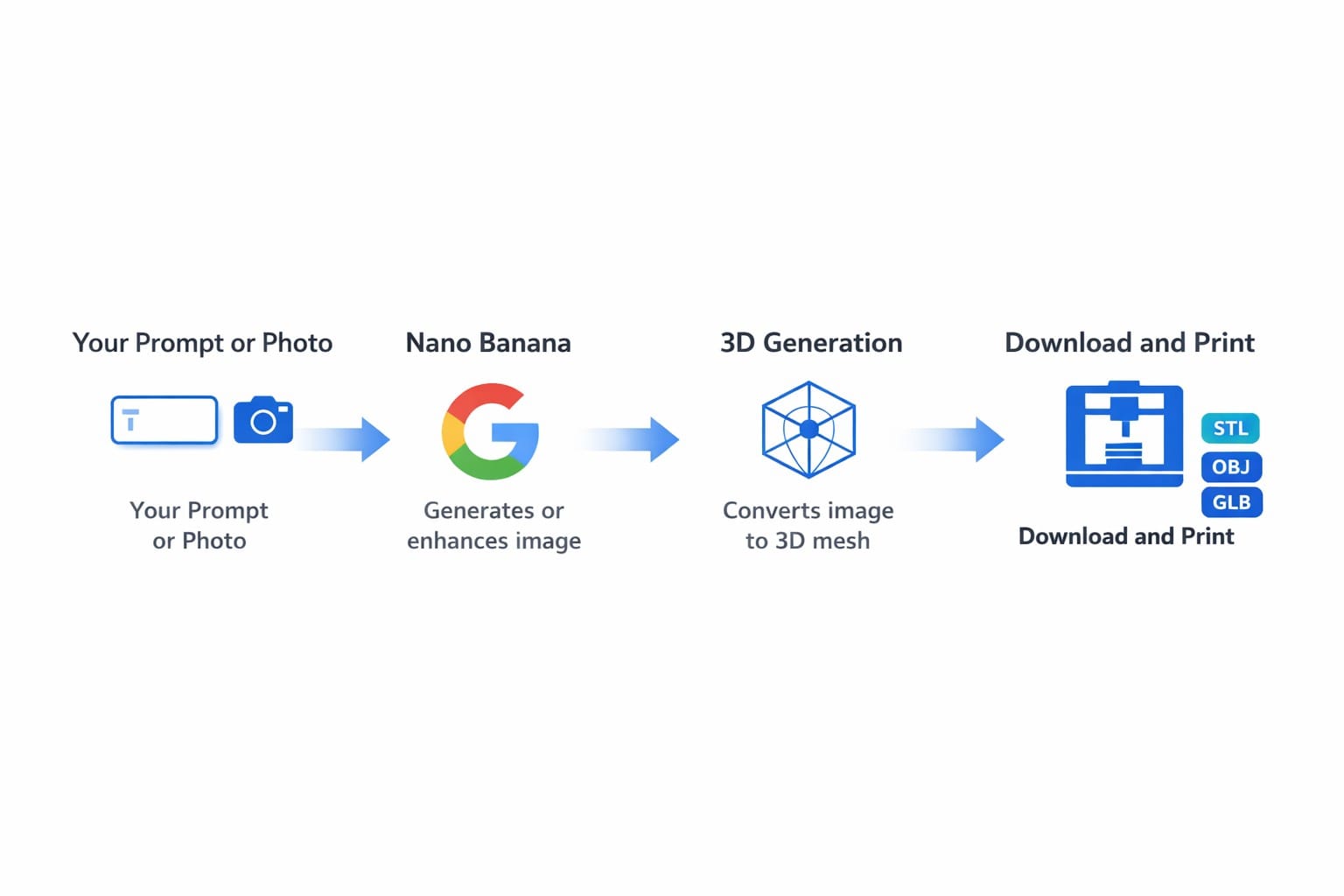
The path from a Nano Banana image to a 3D printable file works in stages. Here is the general pipeline:
- Image creation or enhancement: Nano Banana generates a new image from text, or takes your uploaded photo and transforms it into a clean, 3D-friendly version
- 3D reconstruction: The enhanced image is fed into a 3D generation model that produces actual geometry with vertices, faces, and mesh data
- Output: You download the result as an STL, OBJ, GLB, or PLY file ready for slicing and printing
PrintPal handles this entire pipeline automatically. When you use any of PrintPal's AI tools, Nano Banana runs behind the scenes to prepare the image before 3D generation begins. You do not need to interact with Nano Banana directly unless you want to.
But understanding what Nano Banana does helps you write better prompts and get better results.
Ways to Access Nano Banana for 3D Creation
There are several ways to use Nano Banana, depending on how much control you want over the process.
Nano Banana Directly (Advanced)
For users who want full control over the image generation step before sending it to PrintPal, you can use Nano Banana directly through:
- Google AI Studio: Free access in your browser at aistudio.google.com
- Gemini mobile app: Generate and edit images on your phone
- WaveSpeed API: Programmatic access to Nano Banana, Nano Banana 2, and Nano Banana Pro
Generate your image with Nano Banana using carefully crafted prompts, then upload that image to PrintPal's Image-to-3D tool. This gives you the most control over the visual style before 3D conversion.
Text-to-3D: Best Prompts for Generating Models from Scratch
When you type a prompt into PrintPal's AI 3D Generator, Nano Banana generates the intermediate image before 3D reconstruction. Writing your prompt with this in mind produces significantly better results.
Characters and Figurines
Characters work best when you describe them as if they are physical objects, not illustrations.
Good prompts:
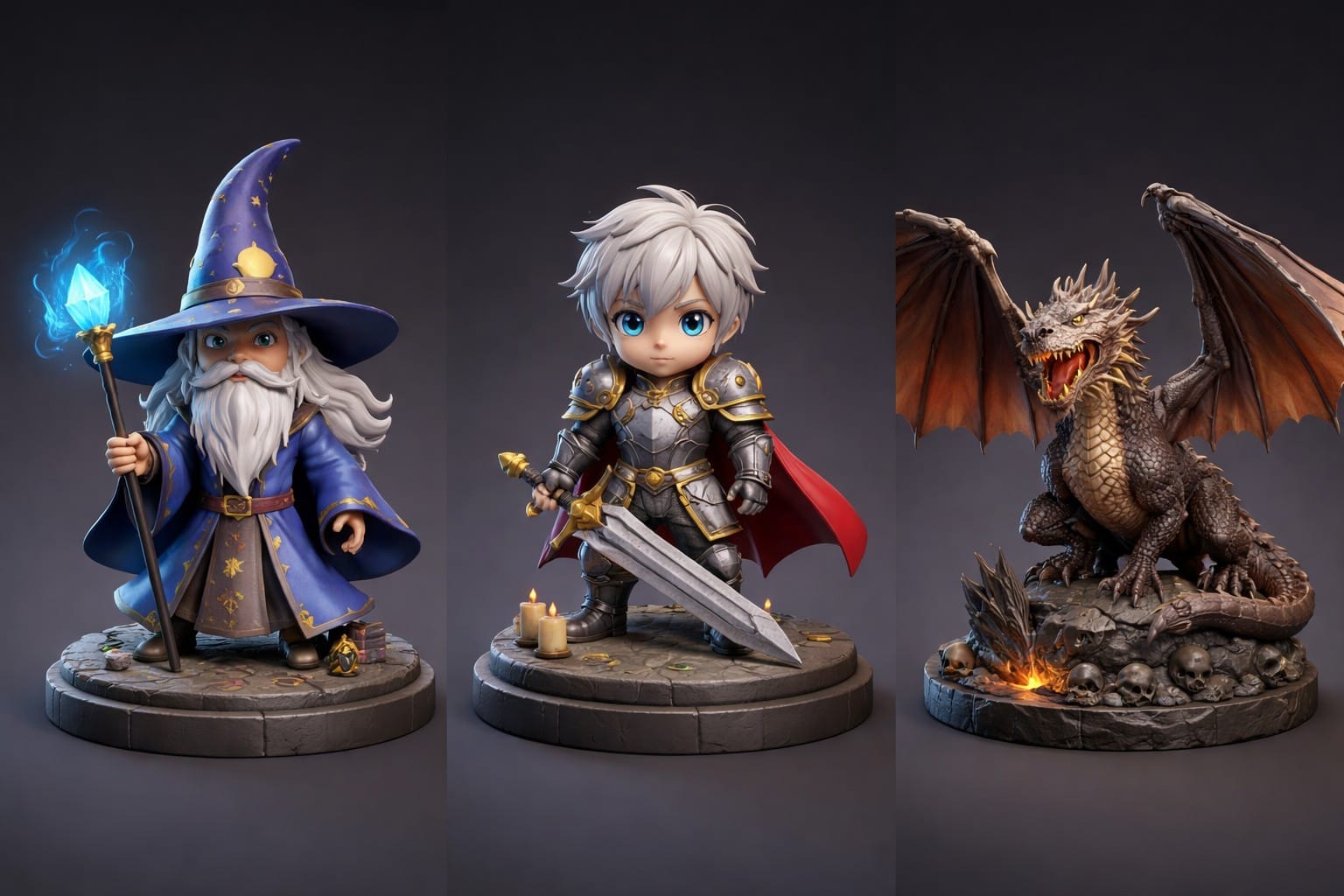
- "a cartoon wizard figurine holding a glowing staff, smooth rounded shapes, solid base"
- "a chibi-style knight in silver armor with a red cape, standing on a circular pedestal"
- "a realistic dragon miniature with spread wings, detailed scales, perched on a rock"
Why these work: Words like "figurine," "miniature," "pedestal," and "solid base" tell Nano Banana to generate an image that looks like a physical 3D object rather than a flat illustration. This makes the 3D reconstruction step much more accurate.
Vehicles and Mechanical Objects
Mechanical objects benefit from specific descriptions of proportions and key features.
Good prompts:
- "a 1967 Ford Mustang Shelby GT500 viewed from 3/4 front angle, glossy blue paint, chrome details"
- "a sci-fi hoverbike with exposed engine, angular design, matte black finish"
- "a detailed steam locomotive with tender car, side view, brass and iron materials"
Why these work: Specifying the viewing angle ("3/4 front angle," "side view") gives Nano Banana a clear composition target. Mentioning materials ("glossy," "matte," "chrome," "brass") adds surface detail that translates into better mesh geometry.
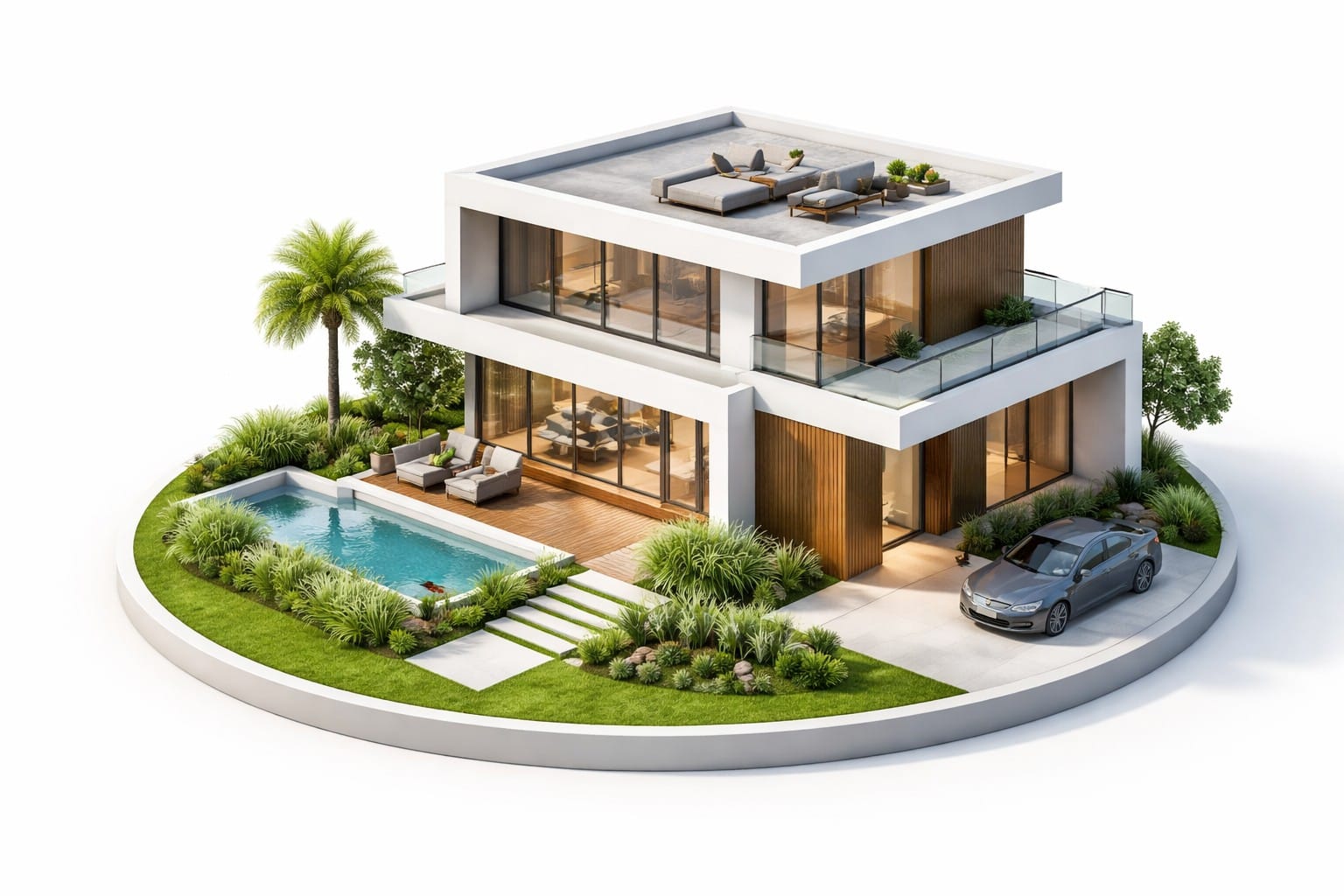
Architecture and Buildings
Architectural models need clear structural descriptions and a defined viewing angle.
Good prompts:
- "isometric view of a modern minimalist house with flat roof, floor-to-ceiling windows, white exterior, surrounded by a small garden"
- "a Gothic cathedral with flying buttresses, rose window, and twin bell towers, viewed from a slight angle"
- "a cozy log cabin in a snowy forest clearing, warm light glowing from windows, 3/4 view"
Why these work: The word "isometric" or specific angle descriptions help Nano Banana produce images with visible depth and structure on all sides, which the 3D reconstruction model needs to infer full geometry.
Tabletop Gaming Miniatures
Tabletop miniatures are one of the most popular use cases for AI 3D generation.
Good prompts:
- "a 28mm tabletop miniature of an orc warrior with a battle axe and wooden shield, dynamic pose, round base"
- "a D&D-style halfling rogue crouching with two daggers, hooded cloak, 32mm scale, detailed base with cobblestones"
- "a Warhammer-style space marine in power armor holding a bolter, heroic pose, 28mm miniature on a textured base"
Why these work: Including the scale ("28mm," "32mm"), the base style ("round base," "textured base with cobblestones"), and pose descriptions ("dynamic pose," "heroic pose," "crouching") gives Nano Banana strong composition guidance that produces miniatures proportioned correctly for the tabletop.
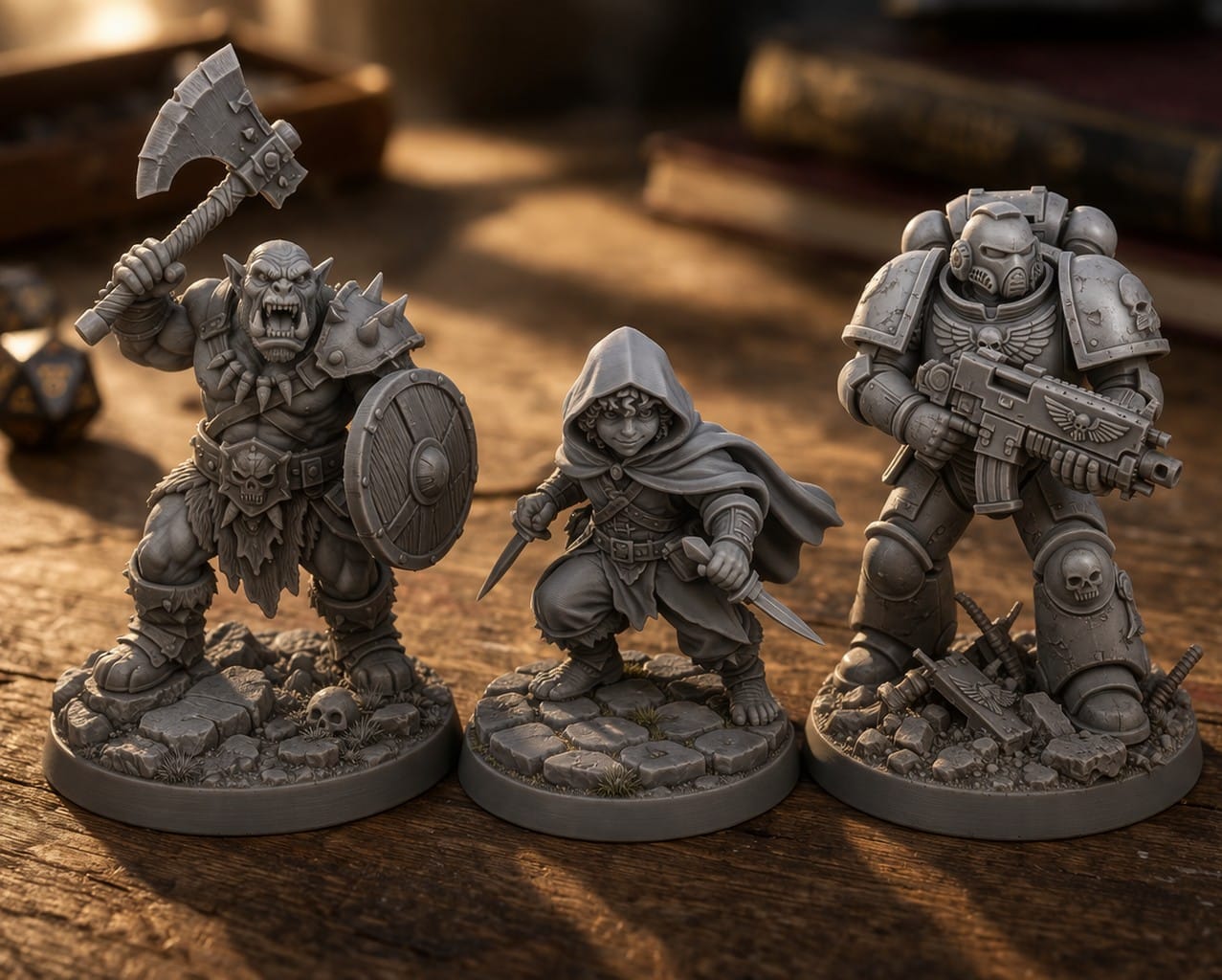
Image-to-3D: Turning Photos into Printable Models
The Image-to-3D workflow uses Nano Banana's editing capabilities rather than its generation capabilities. When you upload a photo to PrintPal, Nano Banana processes the image to make it optimal for 3D reconstruction: cleaning up backgrounds, enhancing edges, improving lighting consistency, and sometimes restyling the subject into a form that translates better to 3D geometry.
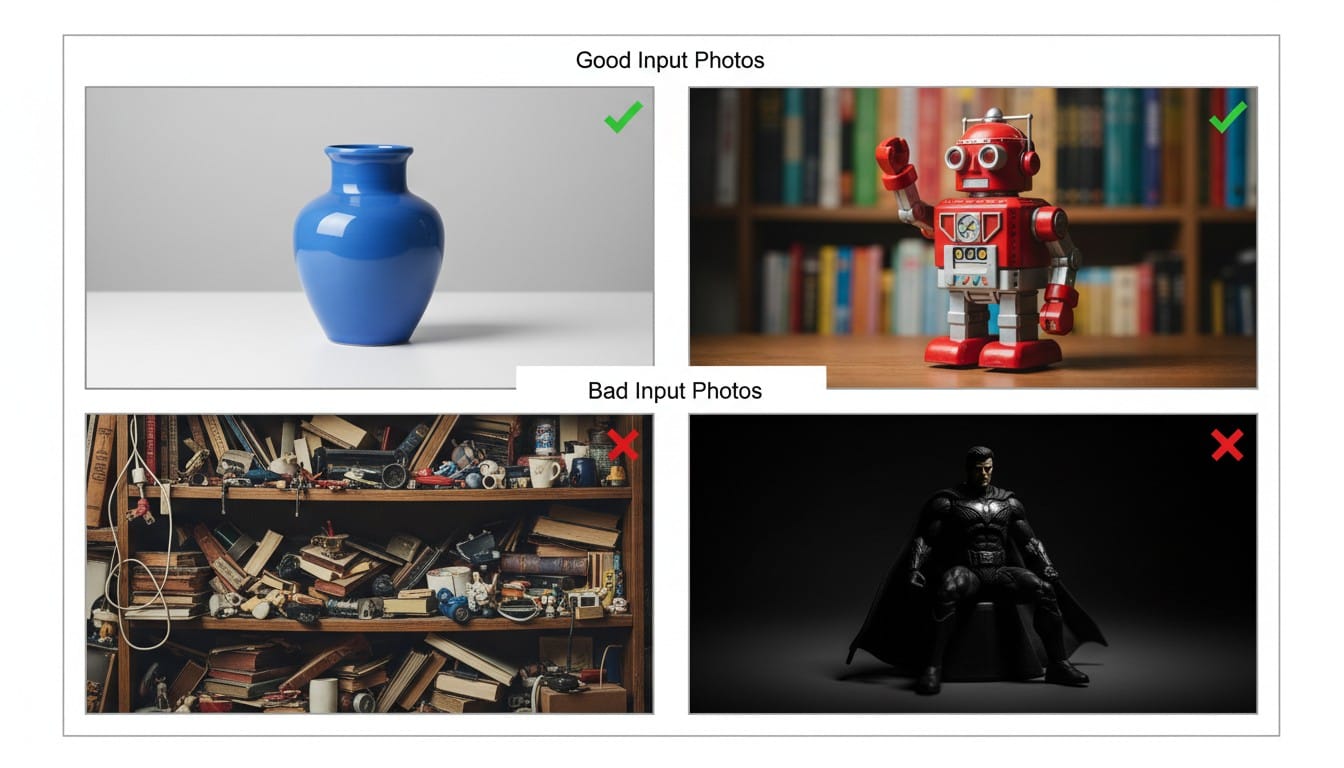
What Makes a Good Input Photo
Not all photos produce equally good 3D models. Here is what to aim for:
- Single subject, centered: The object you want to convert should be clearly the main focus
- Clean or simple background: Busy backgrounds confuse the 3D reconstruction. Plain walls, tables, or outdoor settings with blurred backgrounds work best
- Good lighting: Even, diffuse lighting with visible details on all surfaces. Avoid harsh shadows that obscure parts of the object
- 3/4 angle preferred: A slight angle showing the front and one side gives the AI the most geometric information. Straight-on front views work but produce less depth detail
- Full object visible: Make sure nothing is cropped or hidden behind other objects
What Makes a Bad Input Photo
- Multiple overlapping objects with no clear subject
- Extreme close-ups showing only a portion of the object
- Very dark or very overexposed images
- Heavy motion blur
- Straight top-down views (limited depth information)
Pet Photo to 3D Figurine
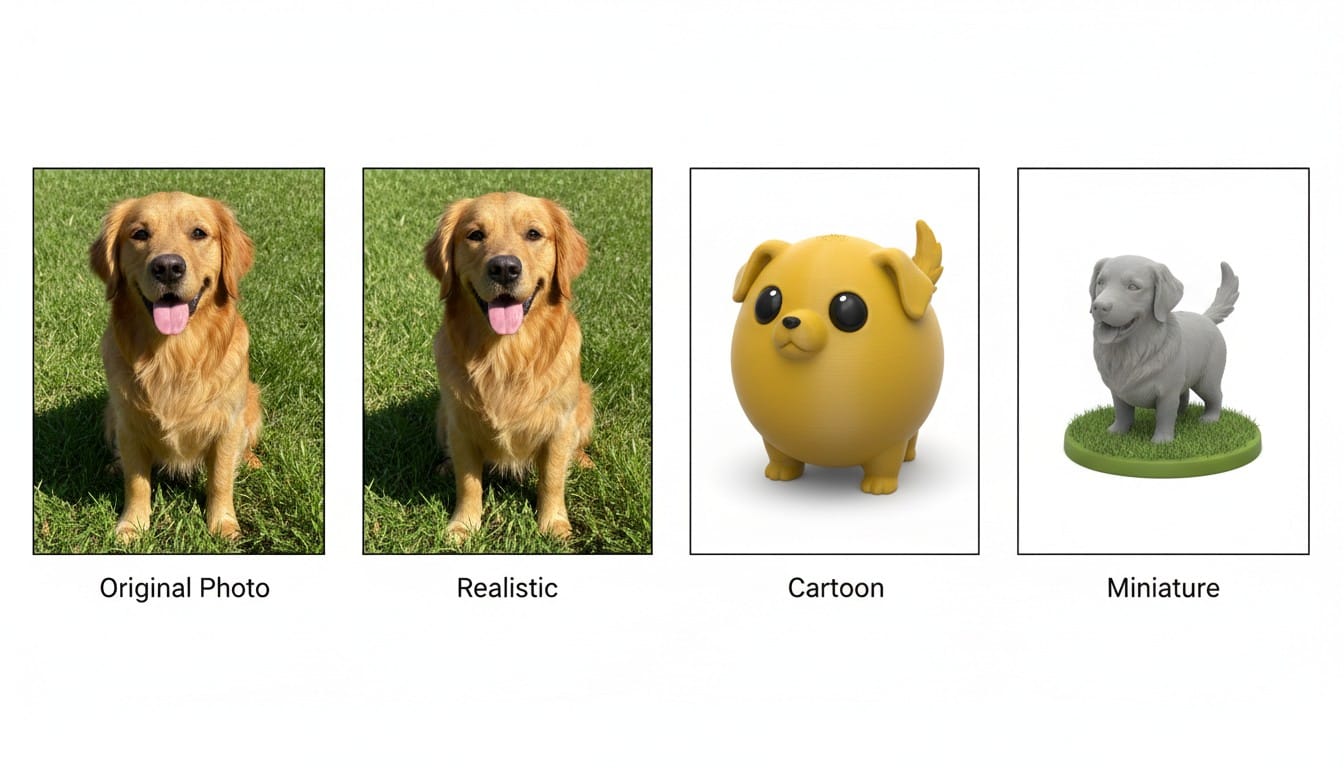
PrintPal's Pet 3D Figurine Generator uses Nano Banana to transform your pet photo into a stylized image before generating the 3D model. You choose a style, and Nano Banana handles the visual transformation.
Available Styles
- Realistic: Keeps your pet looking like your pet, with natural proportions and details
- Cartoon: Transforms your pet into a stylized cartoon character with exaggerated features and smooth surfaces
- Tabletop Miniature: Creates a miniature-scale figure suitable for display or tabletop gaming
Tips for the Best Pet Photo
- Capture the full body of your pet, not just the face
- Get down to your pet's eye level rather than shooting from above
- Make sure ears, tail, and paws are all visible and not cropped
- Natural outdoor lighting or bright indoor lighting both work well
- A sitting or standing pose produces better results than action shots
Face Photo to 3D Figurine
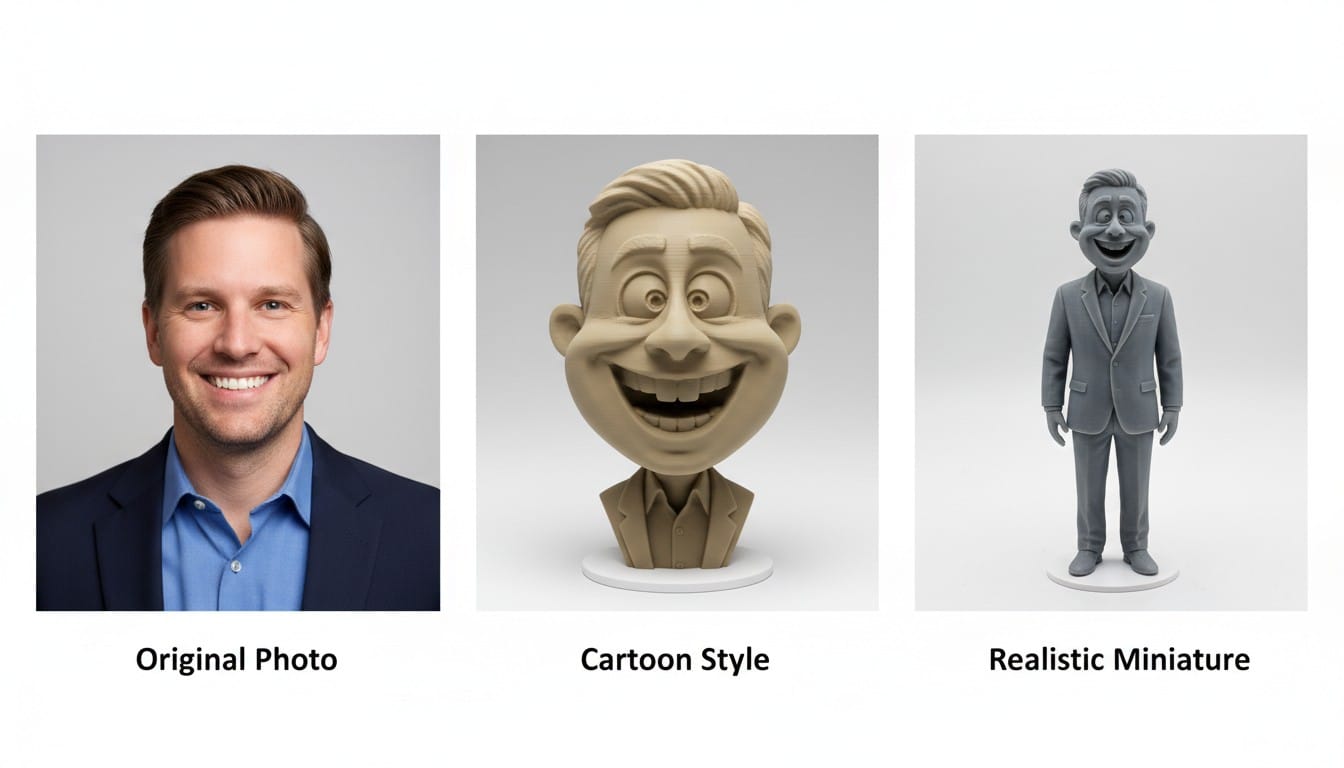
The Face 3D Figurine Generator works similarly to the pet tool. Upload a selfie or portrait, pick a style, and Nano Banana creates a stylized version that the 3D pipeline converts into a figurine.
Tips for the Best Face Photo
- Use a well-lit portrait with the face clearly visible from the front or at a slight angle
- Avoid sunglasses, hats, or anything that obscures facial features (unless you want those in the figurine)
- A neutral or smiling expression works best
- Head-and-shoulders framing gives enough context for the AI to generate a full bust or figurine
This tool is great for personalized gifts, cake toppers, desk figurines, and custom game characters based on real people.
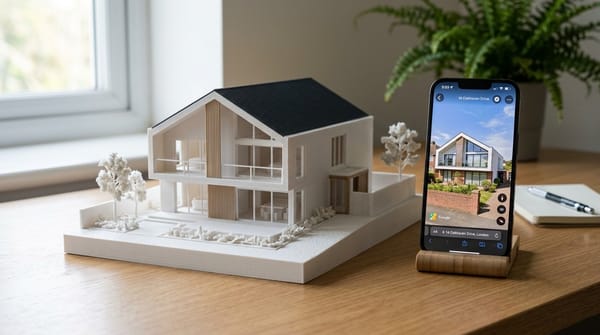
Architecture Photo to 3D Scale Model
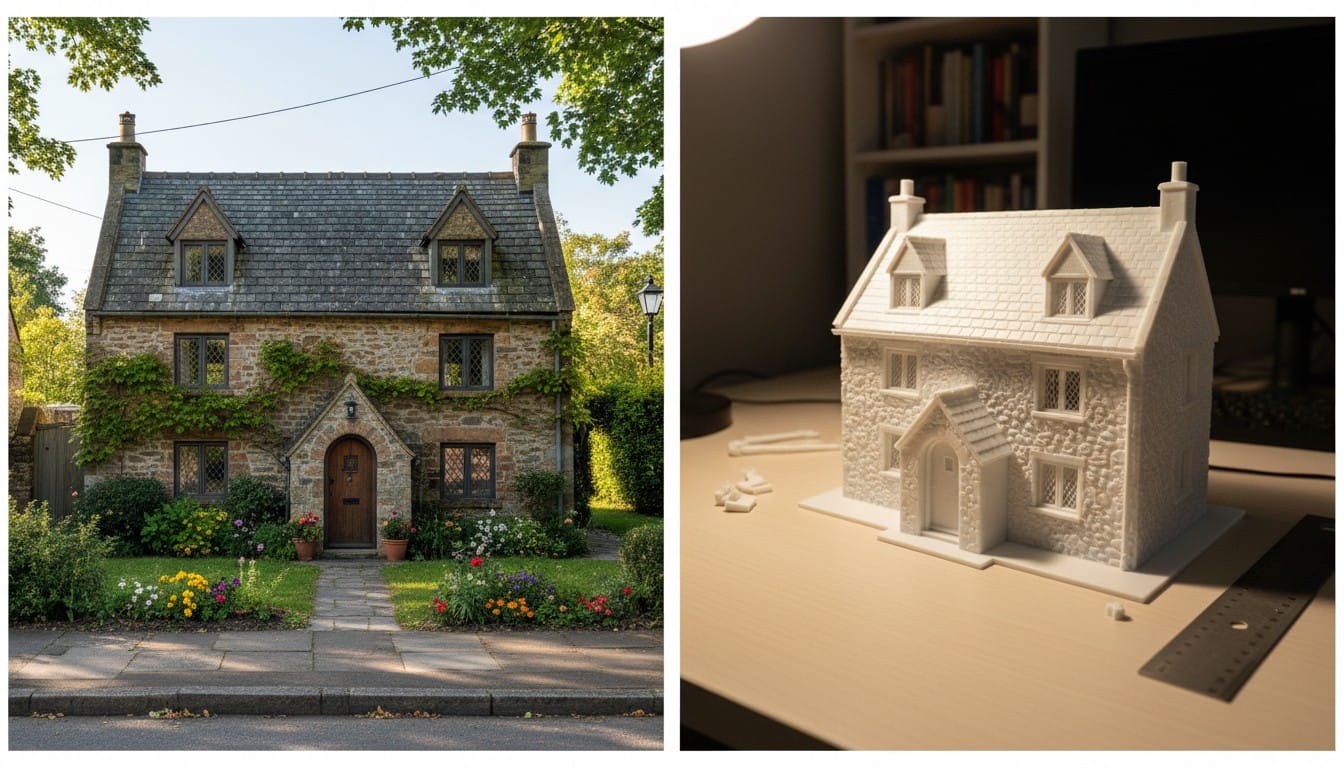
The Architecture 3D Generator takes a photo of any building and produces a 3D printable scale model. Nano Banana processes the building photo to create a clean, well-defined image that the 3D pipeline can reconstruct accurately.
What Works Well
- Houses, churches, skyscrapers, bridges, monuments, and historical buildings
- Photos taken from across the street with the full facade visible
- Architectural renderings and concept art
- Even hand-drawn sketches of building designs
Example Prompts for Text-to-Architecture
If you do not have a photo, you can describe the building:
- "a three-story Victorian rowhouse with bay windows, ornate trim, and a front stoop, viewed from across the street"
- "a modern glass office tower with a curved facade, 40 stories tall, ground-level 3/4 view"
- "the Colosseum in Rome, exterior view from a slight angle, dramatic lighting"
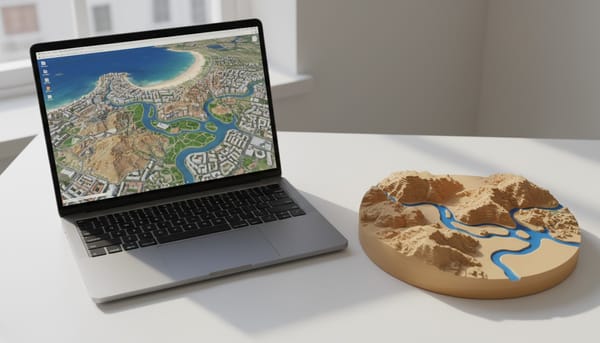
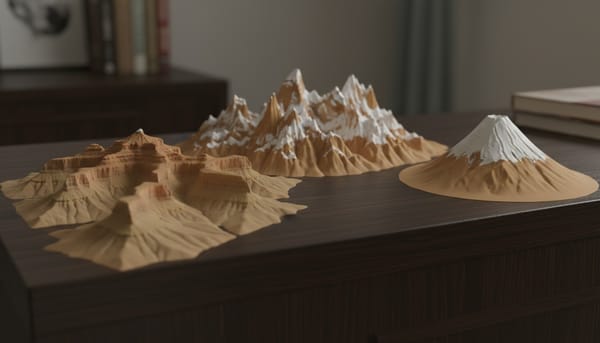
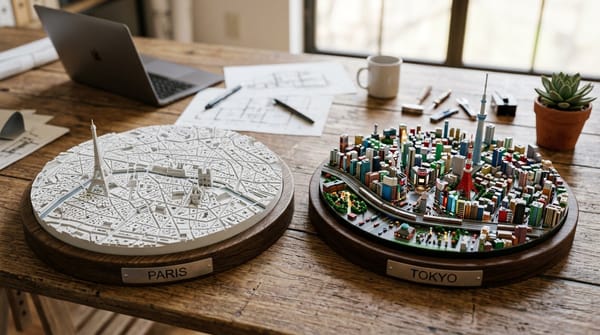
Map to 3D Diorama
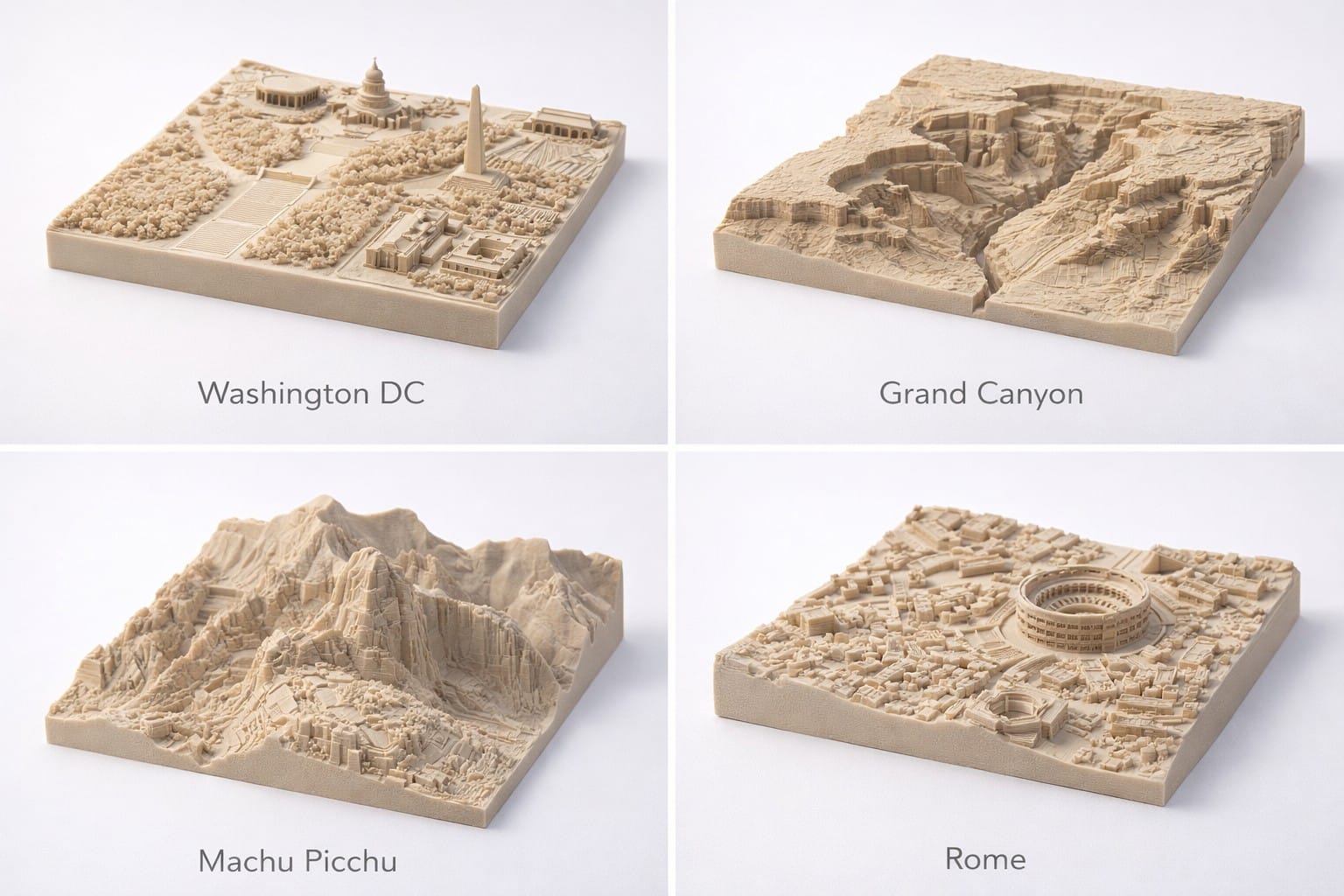
The 3D Map Maker uses Nano Banana 2 to generate a styled aerial or diorama image from a city or landscape name, then converts it into a 3D printable model.
How It Works
- Type any city, landmark, or landscape name (e.g., "Grand Canyon," "Rome," "Manhattan")
- Choose a visual style (architectural maquette, miniature diorama, terrain model)
- Optionally specify additional landmarks or features to include
- Nano Banana 2 generates a detailed aerial image of the location in your chosen style
- The 3D pipeline converts it into a downloadable model
Best Map Prompts
You can add specifics to get more targeted results:
- "San Francisco, include the Golden Gate Bridge and Alcatraz Island"
- "Paris, focused on the Eiffel Tower and Champs-Elysees area"
- "Mount Fuji, winter scene with snow-covered peak and surrounding forest"
- "Manhattan, southern tip including the Statue of Liberty, Battery Park, and Brooklyn Bridge"
Prompt Engineering Tips for Better 3D Results
Whether you are using Nano Banana directly or writing prompts for PrintPal's tools, these tips will consistently produce better 3D models.
1. Describe Physical Objects, Not Illustrations
The 3D pipeline works best when Nano Banana generates images that look like real physical objects rather than flat artwork.
| Instead of this | Write this |
|---|---|
| "a drawing of a wizard" | "a wizard figurine with a solid round base" |
| "an illustration of a dragon" | "a detailed dragon miniature sculpture" |
| "a picture of a house" | "an architectural scale model of a house on a display base" |
2. Specify the Viewing Angle
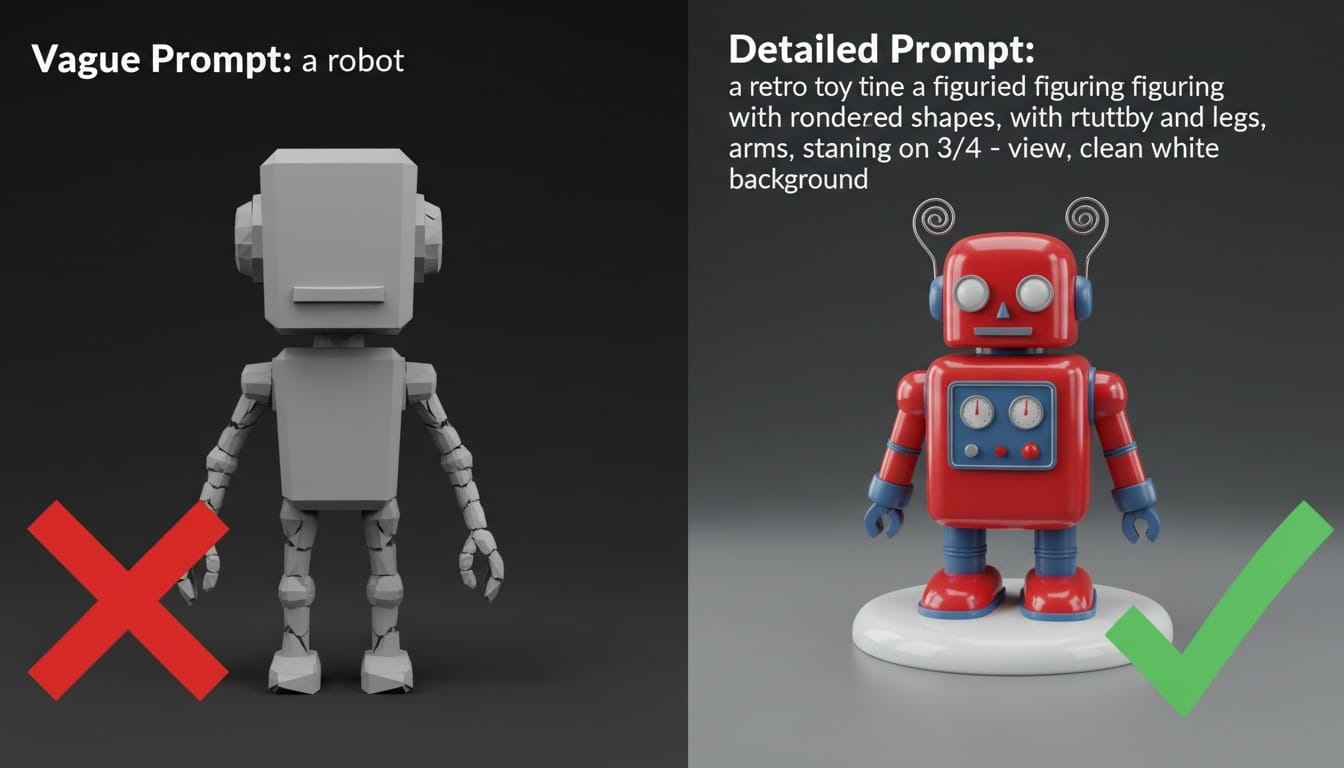
Including a viewing angle in your prompt prevents Nano Banana from choosing an angle that might not work well for 3D reconstruction.
- "3/4 front view": The sweet spot for most objects. Shows front and one side.
- "isometric view": Great for architecture and scenes.
- "front view": Works for symmetrical objects like faces and vehicles.
- Avoid "top-down view": The 3D pipeline cannot infer depth from a flat overhead perspective.
3. Mention the Base or Pedestal
Adding "on a round base," "on a circular pedestal," or "on a square plinth" to your prompt does two things: it tells Nano Banana to compose the image with a clear bottom edge, and it gives the 3D reconstruction a flat surface to anchor the model to. This produces models that sit flat on the print bed without needing manual adjustments.
4. Keep Backgrounds Simple
"Clean white background," "plain gray background," or "studio lighting on a dark background" all work well. Complex backgrounds with scenery, crowds, or detailed environments can confuse the 3D reconstruction and produce artifacts in the mesh.
5. Use Material and Texture Words
Words like "smooth," "glossy," "matte," "textured," "weathered," "polished," and "rough" give Nano Banana surface detail guidance that translates into better mesh quality. A prompt that says "a weathered bronze statue" produces richer geometry than one that just says "a statue."
6. Be Specific About Proportions
If you want a chunky, stylized character, say "chibi proportions with a large head and small body." If you want realistic proportions, say "realistic human proportions." Vague prompts let Nano Banana choose, and the result might not be what you expected.
Using the PrintPal API for Automated Workflows
If you want to integrate Nano Banana-powered 3D generation into your own projects, PrintPal's API makes it straightforward.
Install the Library
pip install printpal
or
npm install printpal
Text-to-3D Example
import printpal

client = printpal.Client(api_key="your_api_key")

result = client.generate(
    prompt="a detailed steampunk airship with propellers and brass fittings, floating above a cloud base, isometric view",
    quality="super",
    format="stl"
)

result.save("airship.stl")
print(f"Model generated in {result.elapsed_time}s")
Image-to-3D Example
import printpal

client = printpal.Client(api_key="your_api_key")

result = client.generate(
    image="my_pet_photo.jpg",
    quality="ultra",
    format="glb"
)

result.save("pet_figurine.glb")
Quality Tiers
| Quality | Resolution | Credits | Time | Best For |
|---|---|---|---|---|
| default | 256 cubed | 4 | ~20s | Quick previews and prototyping |
| high | 384 cubed | 6 | ~30s | Good detail for small prints |
| ultra | 512 cubed | 8 | ~60s | Detailed models for standard printing |
| super | 768 cubed | 20 | ~3min | High-detail figurines and complex geometry |
| super_texture | 768 cubed + texture | 40 | ~6min | Textured models for full-color printing |
| superplus | 1024 cubed | 30 | ~4min | Maximum geometric detail |
| superplus_texture | 1024 cubed + texture | 50 | ~12min | Maximum detail with full texture maps |
Batch Generation
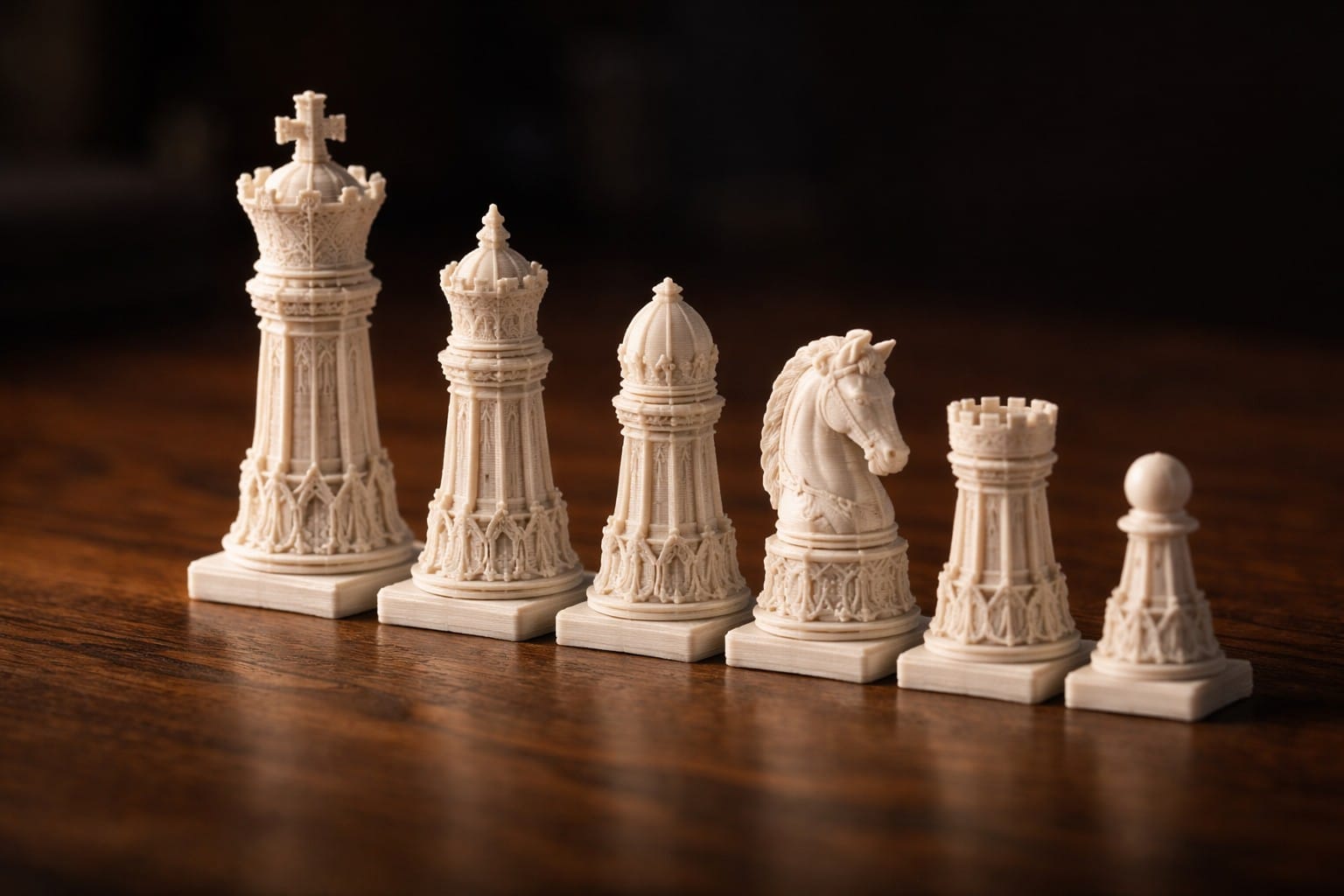
You can use the API to generate multiple models in sequence, which is useful for creating product lines, miniature sets, or variations on a theme:
import printpal

client = printpal.Client(api_key="your_api_key")

prompts = [
    "a chess king piece in ornate medieval style, on a square base",
    "a chess queen piece in ornate medieval style, on a square base",
    "a chess bishop piece in ornate medieval style, on a square base",
    "a chess knight piece in ornate medieval style, on a square base",
    "a chess rook piece in ornate medieval style, on a square base",
    "a chess pawn piece in ornate medieval style, on a square base",
]

for i, prompt in enumerate(prompts):
    result = client.generate(prompt=prompt, quality="super", format="stl")
    result.save(f"chess_piece_{i}.stl")
    print(f"Generated: {prompt[:40]}...")
Get Started
Nano Banana has made AI image generation good enough that the output works reliably as input for 3D reconstruction. That is the unlock. You no longer need to be a 3D modeler or a CAD expert to create detailed, printable 3D models. You just need to write a good prompt.
Start with PrintPal's free tier (10 generations per month, no credit card required) and experiment with different prompts using the tips in this guide. Once you find a workflow that clicks, the API Playground and developer API let you scale it up.
Quick links: