Unity Asset Store Guide: Find Assets and Create Custom 3D Models

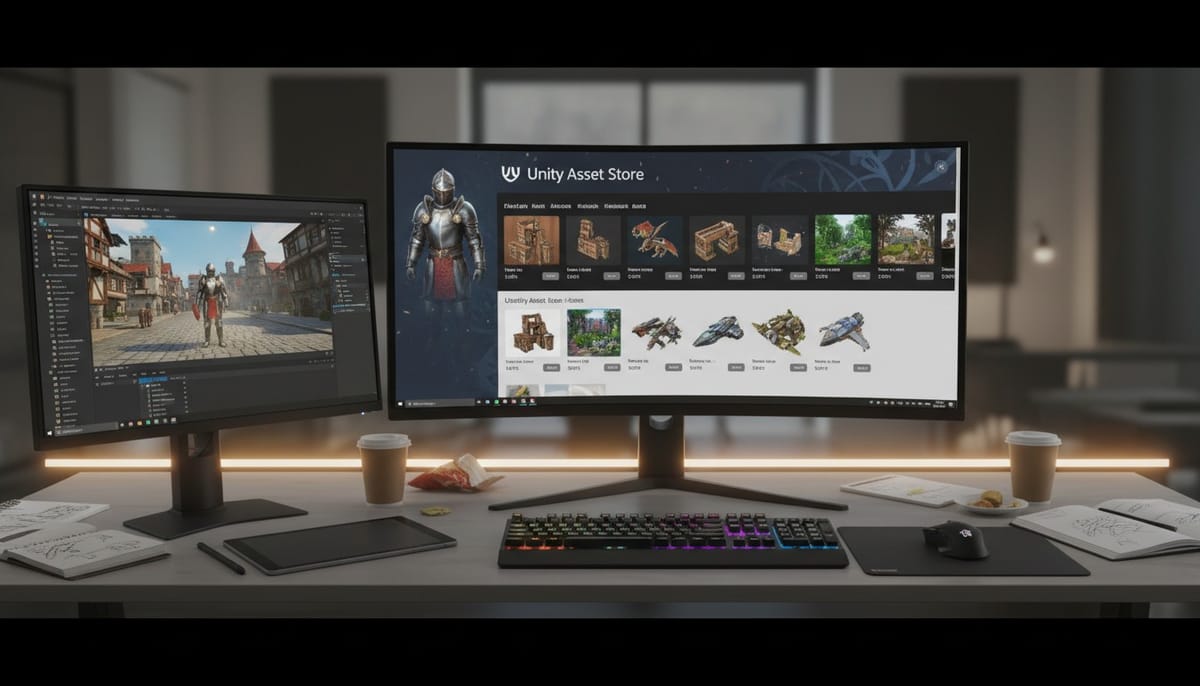
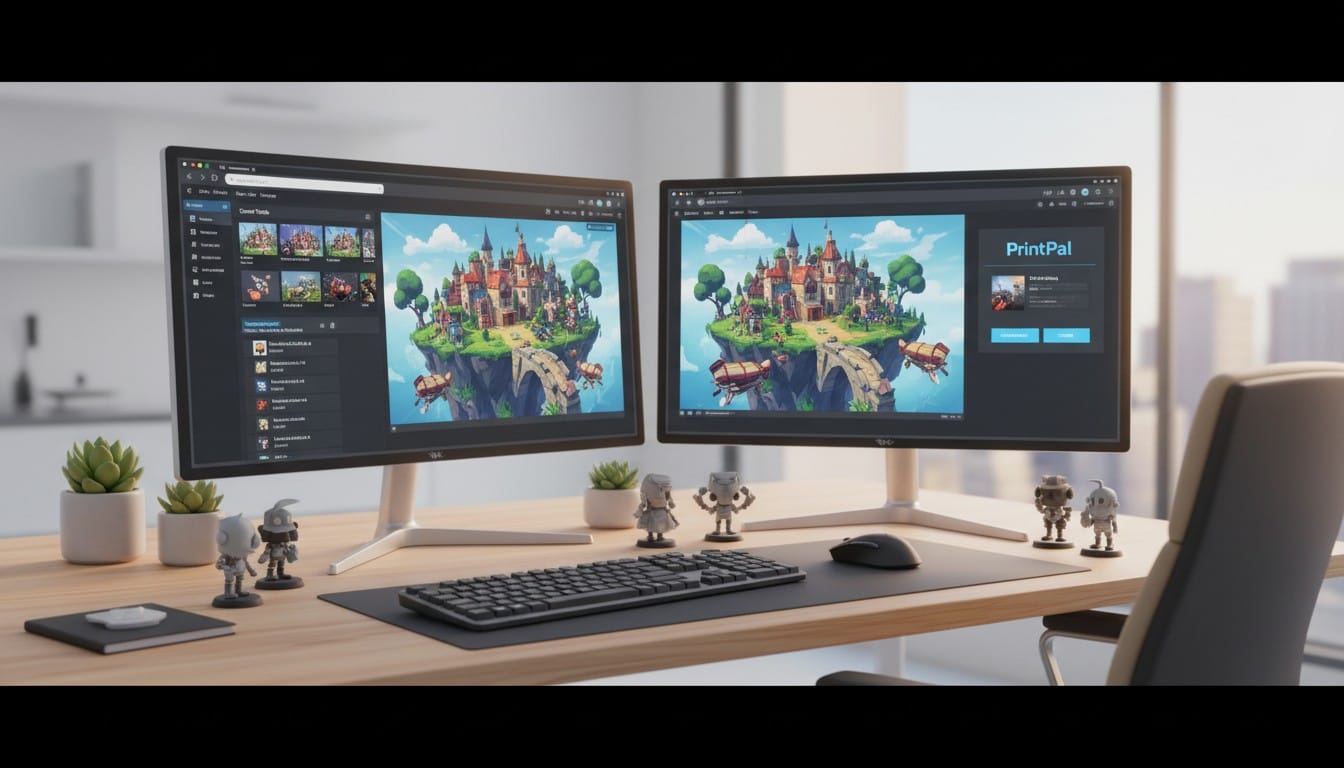
The Unity Asset Store transforms game development by providing thousands of ready-made assets, tools, and templates that accelerate your workflow. Whether you need character models, environmental props, or specialized scripts, the Asset Store offers solutions that save development time and reduce costs. However, even with thousands of assets available, developers often need unique models that match their specific vision. This is where combining Asset Store resources with AI-powered custom 3D generation from PrintPal creates the perfect workflow for modern Unity developers who want both ready-made efficiency and creative customization.
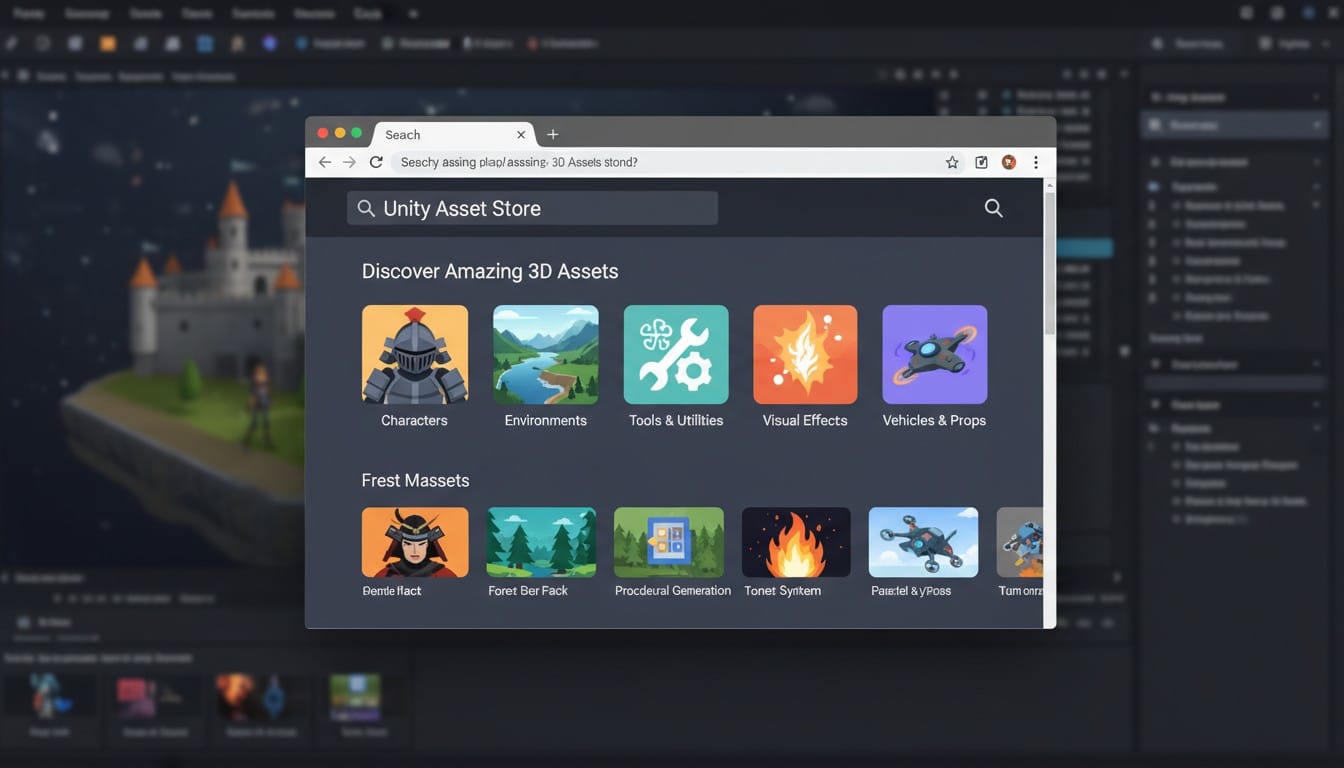
Understanding Unity Assets and the Asset Store
Unity assets are pre-made components that form the building blocks of your game projects. These include 3D models, textures, animations, audio files, scripts, and complete tools.
The Unity Asset Store is Unity's official marketplace where developers buy, download, and integrate these assets directly into projects. It eliminates the need to create everything from scratch.
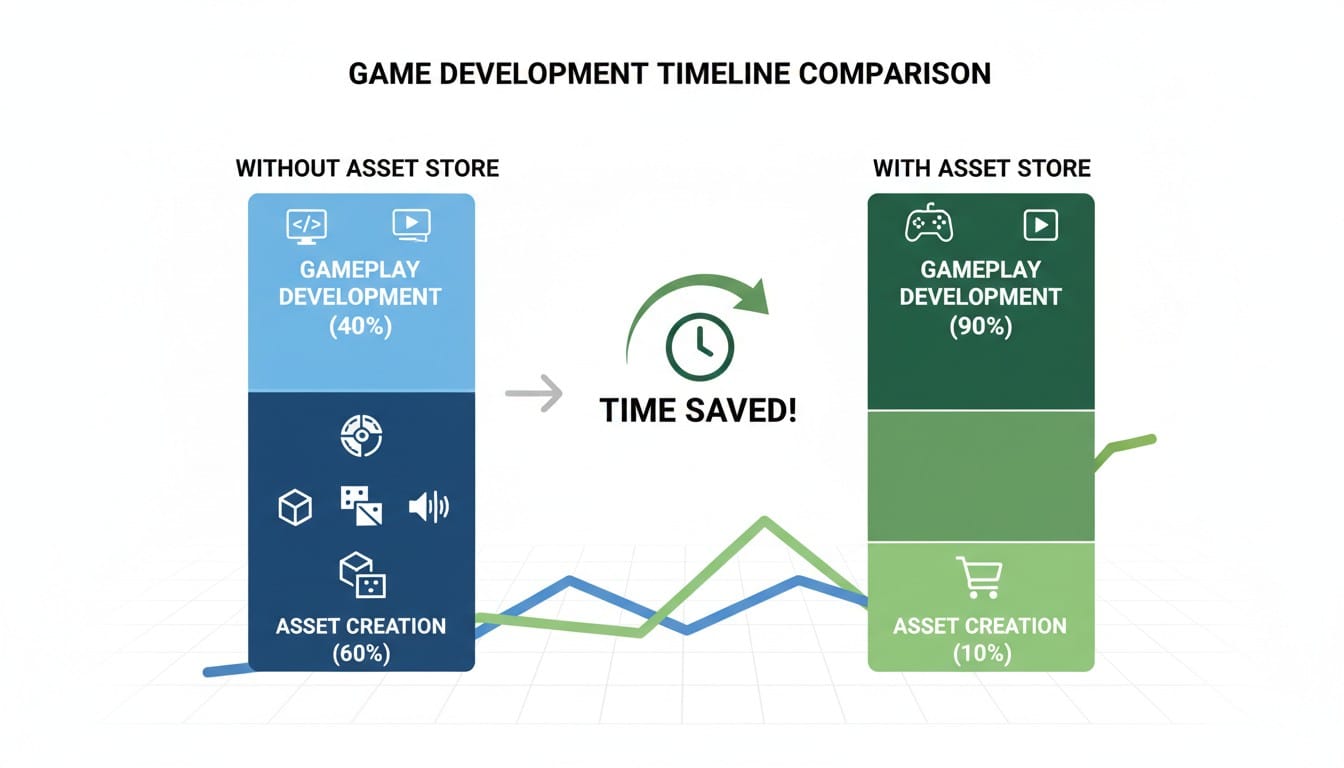
Why It Matters: Building every asset yourself consumes time better spent on gameplay mechanics, level design, and polish. The Asset Store lets you focus on what makes your game unique rather than reinventing standard components.
Accessing the Unity Asset Store
Finding and browsing the Unity Asset Store is straightforward with multiple access methods.
Through Unity Editor: Open the Window menu and select Asset Store. This allows browsing and importing assets without leaving your development environment.
Via Web Browser: Visit the Unity Asset Store website to browse from any device. Perfect for researching assets before starting your development session.
Unity Account Required: Log in with your Unity account to purchase, download, and manage your asset library across projects.
Finding the Best Unity Assets
With thousands of options available, effective search strategies save frustration and ensure quality assets.
Search and Filter Effectively
Use Specific Keywords: Search for exact asset types rather than broad terms. "low poly character" yields better results than just "character."
Apply Filters: Narrow results by price range, asset type, ratings, and update date. Recent updates indicate active developer support.
Sort by Popularity: Top-rated and best-selling assets typically offer better quality and documentation.
Browse by Category
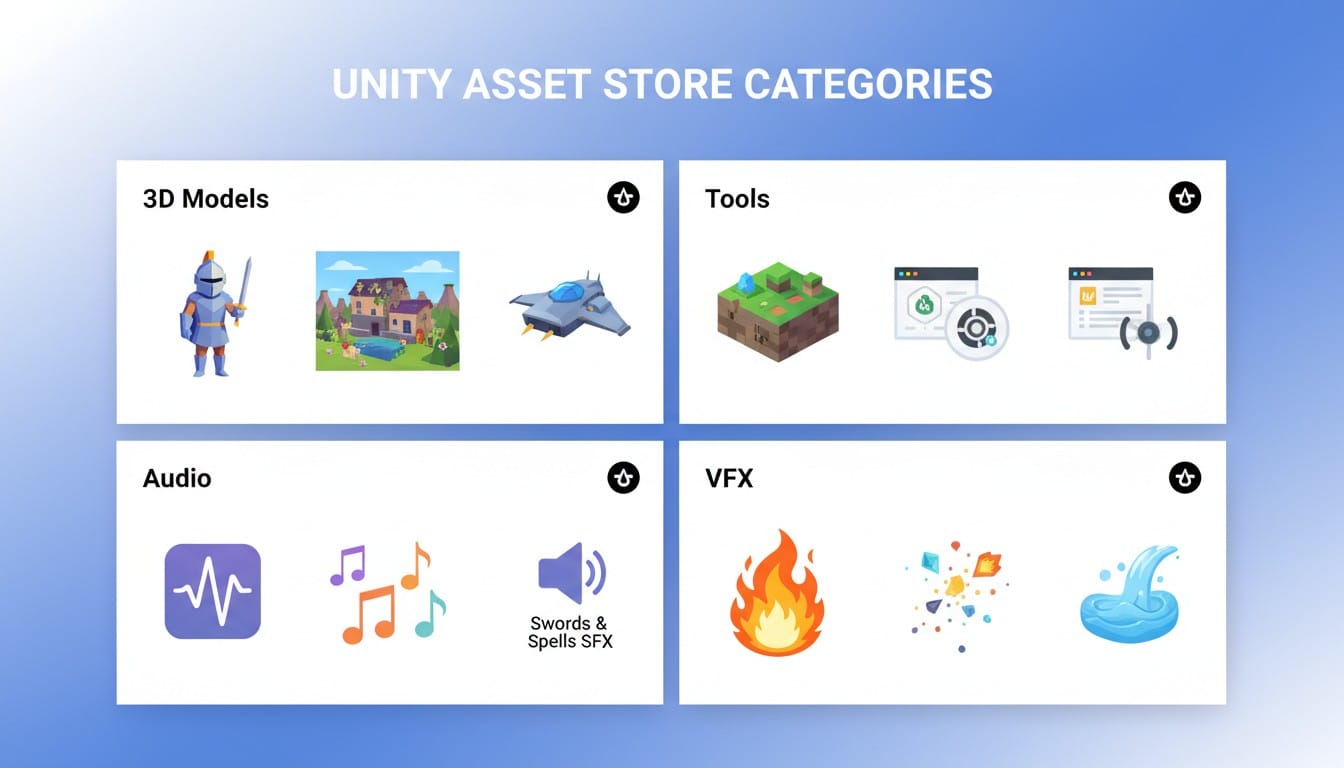
3D Models: Characters, environments, props, and vehicles organized by style and genre.
Tools and Extensions: Editor enhancements, animation systems, AI pathfinding, and specialized scripts.
Audio and VFX: Sound effects, music, particle systems, and visual effects that bring scenes to life.
Evaluate Before Purchasing
Read Reviews: User feedback reveals compatibility issues, performance concerns, and quality surprises not visible in screenshots.
Check Compatibility: Verify assets work with your Unity version and target platforms before purchasing.
Review Documentation: Quality assets include tutorials, documentation, and responsive developer support.
Maximizing Your Asset Store Experience
Smart strategies help you build an efficient asset workflow and save money.
Start with Free Assets: Unity offers numerous free assets perfect for prototyping and learning. Test workflows before investing in premium options.
Watch for Sales: Major discount events happen during Unity conferences, seasonal holidays, and anniversary sales. Wishlist assets to track price drops.
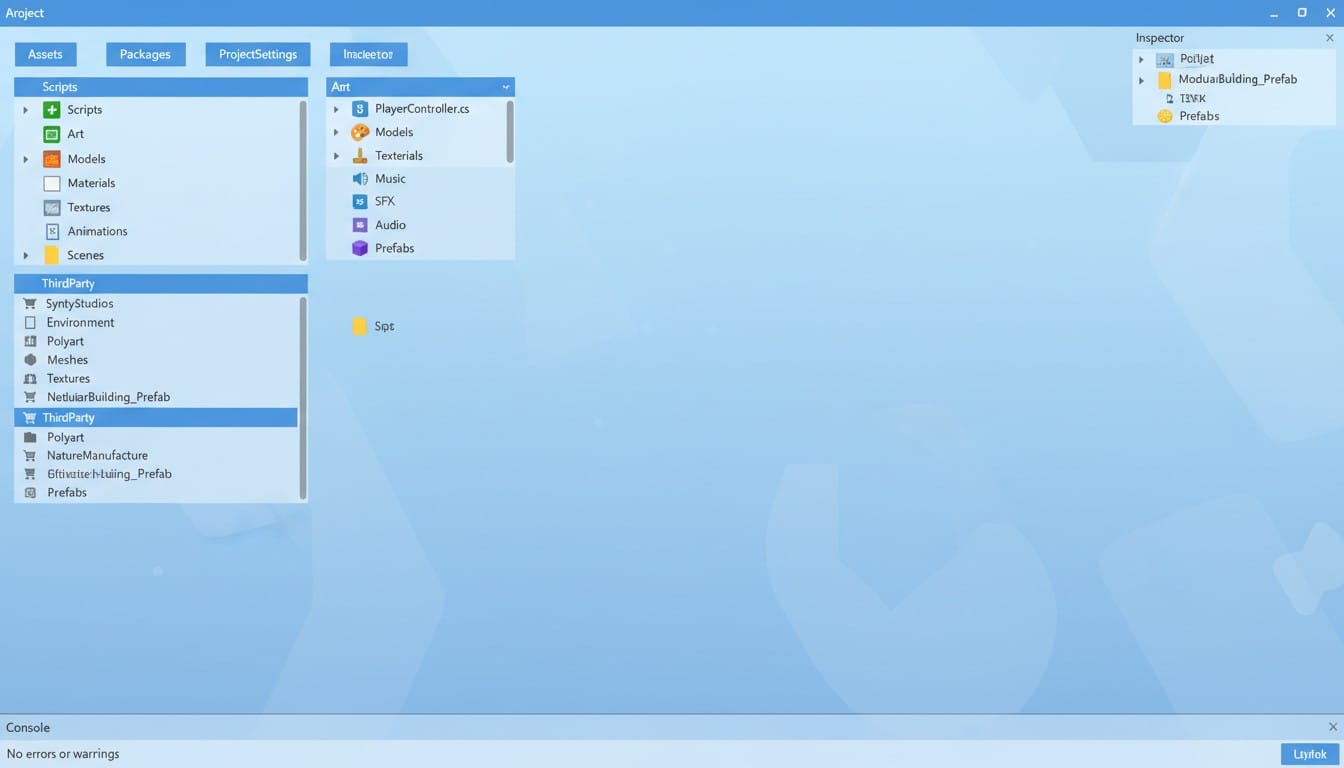
Organize Your Library: Create logical folder structures in Unity projects. Name imported assets descriptively and maintain consistent organization across projects.
Use Asset Bundles: Many publishers offer bundles that provide better value than individual purchases when you need multiple related assets.
Integrating Assets into Unity Projects
Proper integration ensures assets work seamlessly within your game.
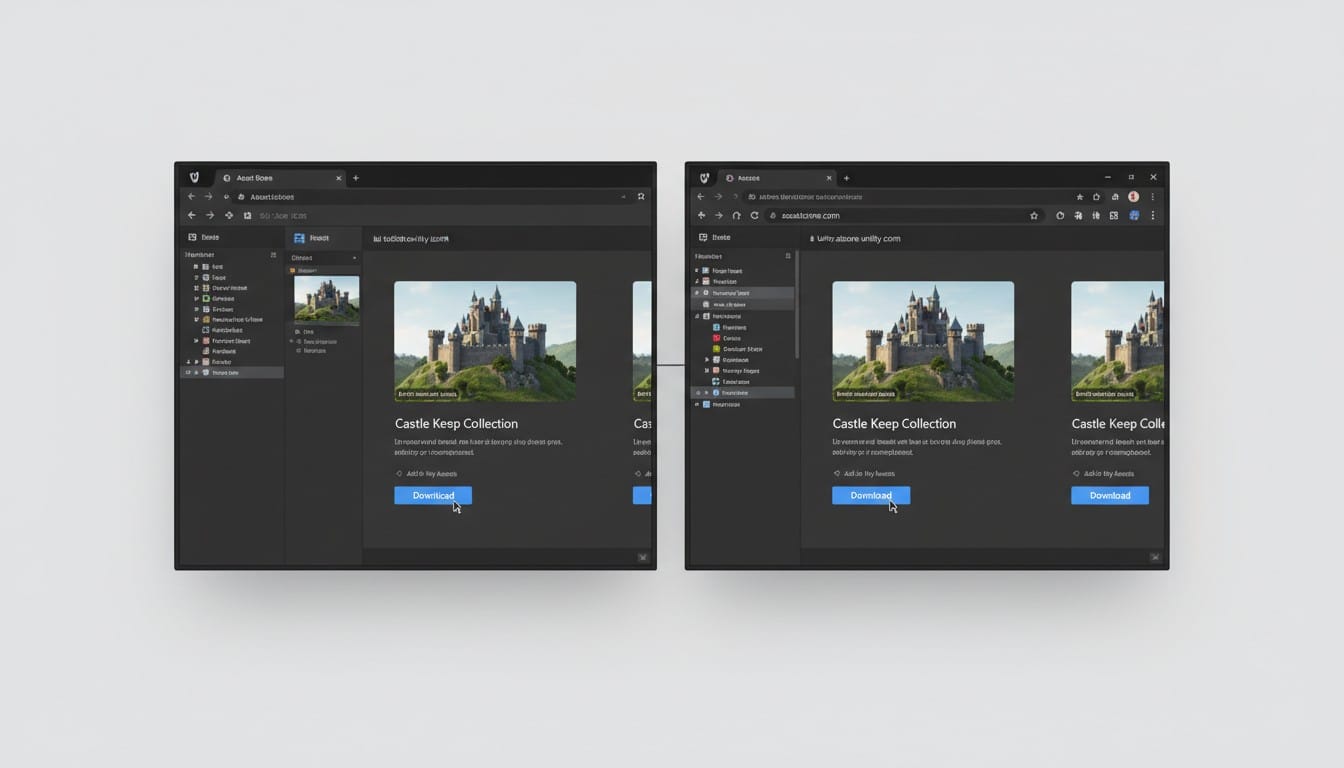
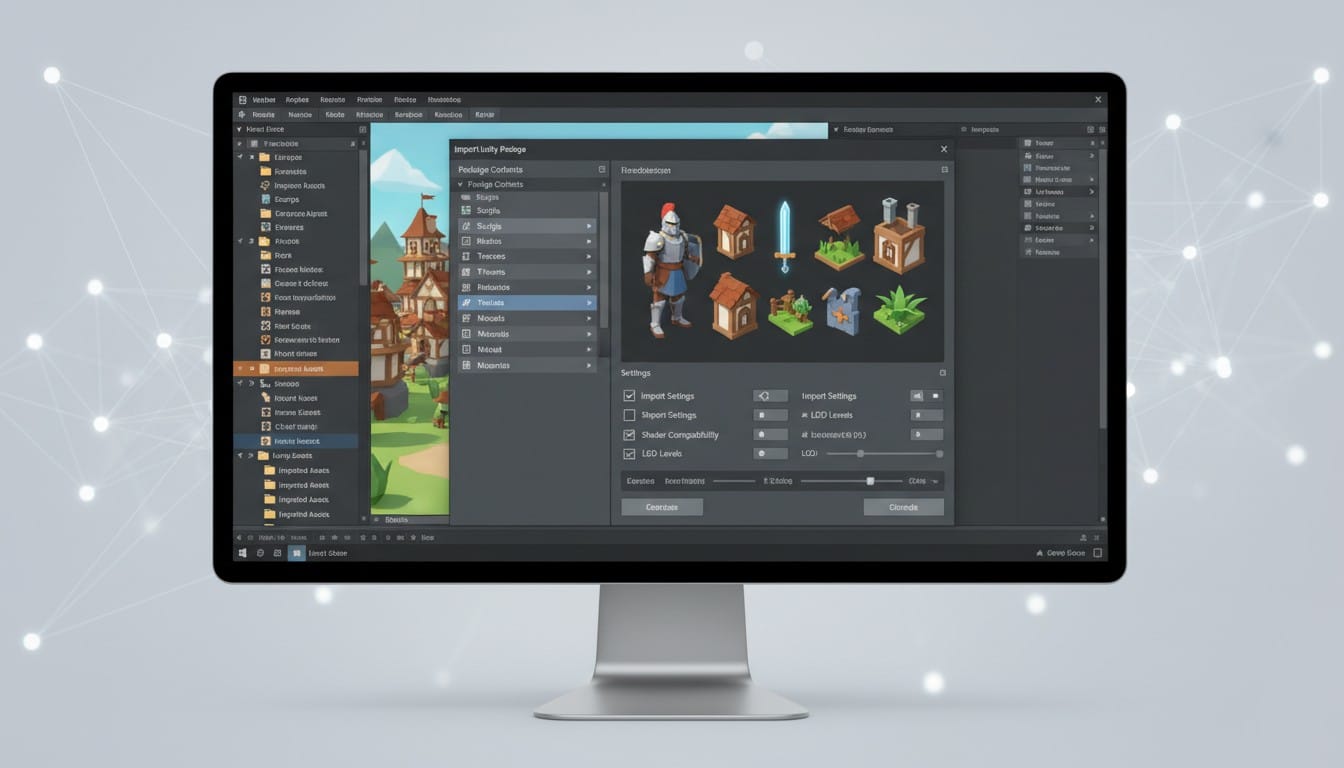
Import Process: Use Assets menu and Import Package to bring Asset Store downloads into your project. Review package contents before importing to avoid unwanted files.
Customize to Fit: Modify materials, adjust textures, and tweak scripts to match your game's aesthetic. Most assets expect customization rather than direct use.
Optimize Performance: Test asset performance on target platforms. Reduce polygon counts, compress textures, and remove unnecessary components for mobile or VR projects.
Test Thoroughly: Assets may conflict with existing code or other packages. Test in isolated scenes before integrating into main project.
Creating Custom 3D Models When Asset Store Lacks Options
Even with thousands of Asset Store offerings, you will encounter situations where no existing asset matches your vision. Custom character designs, unique props, or specific architectural elements often require custom creation.
PrintPal Fills the Gap: When Asset Store assets do not quite fit, PrintPal's AI-powered 3D generation creates custom models from text descriptions or images. Describe your vision or upload reference images to generate unique models.
Rapid Prototyping: Generate placeholder models quickly during development. Replace with final assets later or use AI-generated models as starting points for customization.
Text to 3D: Describe any game object and generate 3D models instantly. "Fantasy sword with ornate handle" or "sci-fi medical equipment" become printable models ready for Unity import.
Image to 3D: Convert concept art, sketches, or reference photos into 3D models. Your unique designs become game-ready assets without 3D modeling expertise.
Your Complete Unity Asset Workflow
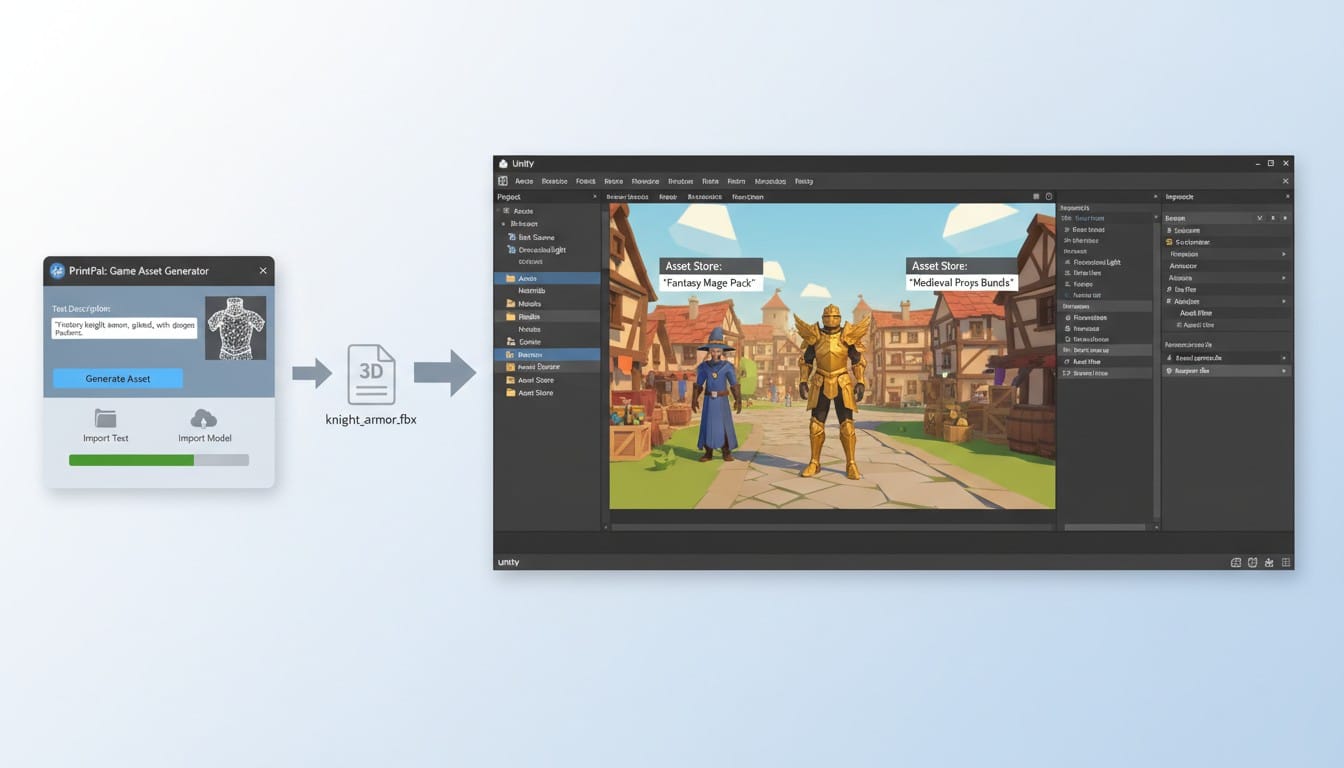
Successful Unity developers combine multiple asset sources for optimal results. Use Asset Store for standard components, templates, and tools. Create custom assets with PrintPal when unique designs are needed. This hybrid approach provides both efficiency and creative freedom.
The Unity Asset Store offers incredible resources, but it cannot cover every creative need. Combining ready-made assets with AI-powered custom generation ensures your game vision becomes reality without compromise.
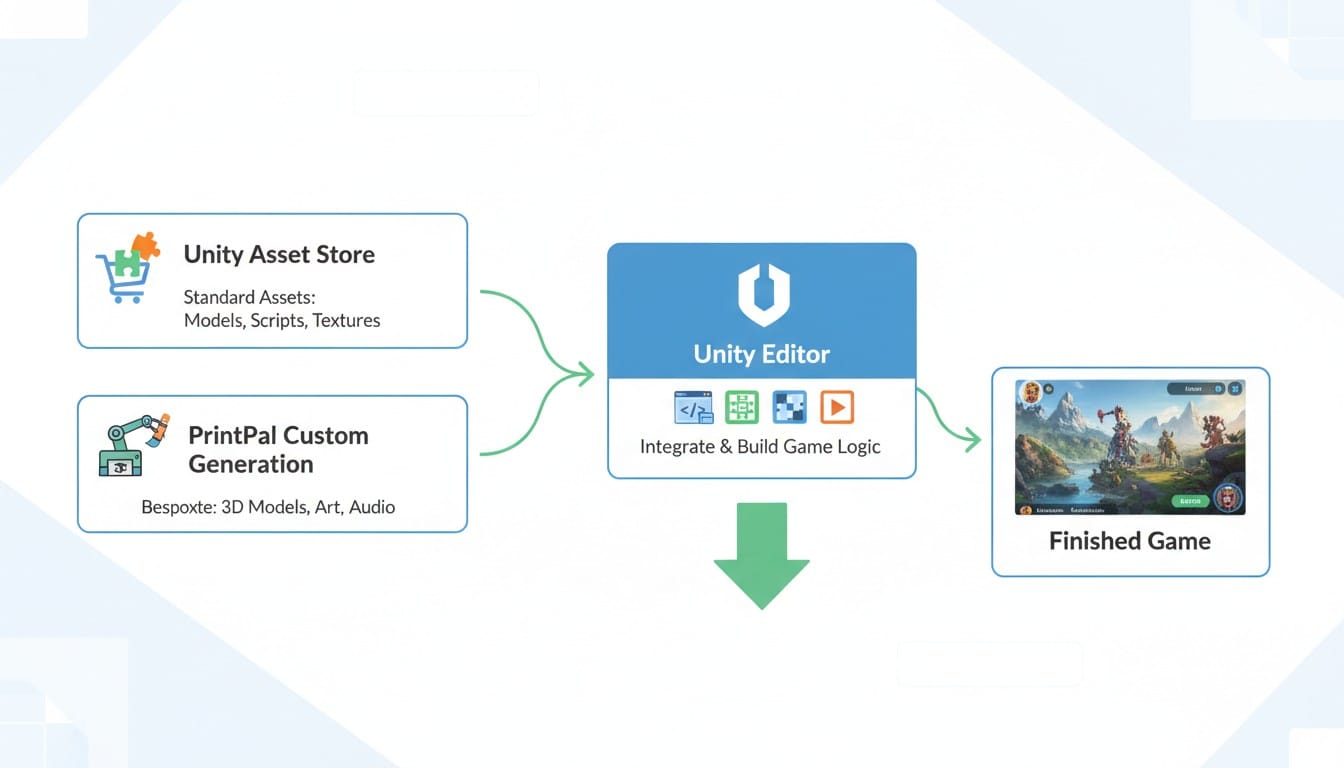
Build Your Unity Game with the Right Assets
Ready to streamline your Unity development with smart asset strategies? Browse the Unity Asset Store for quality ready-made components and templates. When you need custom assets that do not exist yet, use PrintPal's AI-powered 3D generator to create unique models from text descriptions or reference images. Download models in Unity-compatible formats and integrate seamlessly into your projects. Combine the efficiency of ready-made assets with the creative freedom of custom AI generation. Start building your Unity game with the perfect asset workflow today.