How to Use the AI Product Listing Generator for Etsy Sellers

Writing Etsy listings takes forever. Coming up with the right title, stuffing in keywords without sounding robotic, writing a description that actually converts, picking 13 tags that cover your bases, and then taking decent product photos on top of all that. For 3D print sellers, multiply that by every model you list.
PrintPal's AI Product Listing Generator handles all of it in a single step. You give it a photo or 3D model, a short description, and your target audience. It gives you back a complete, SEO-optimized listing and a set of professional product photos. Here is exactly how to use it.
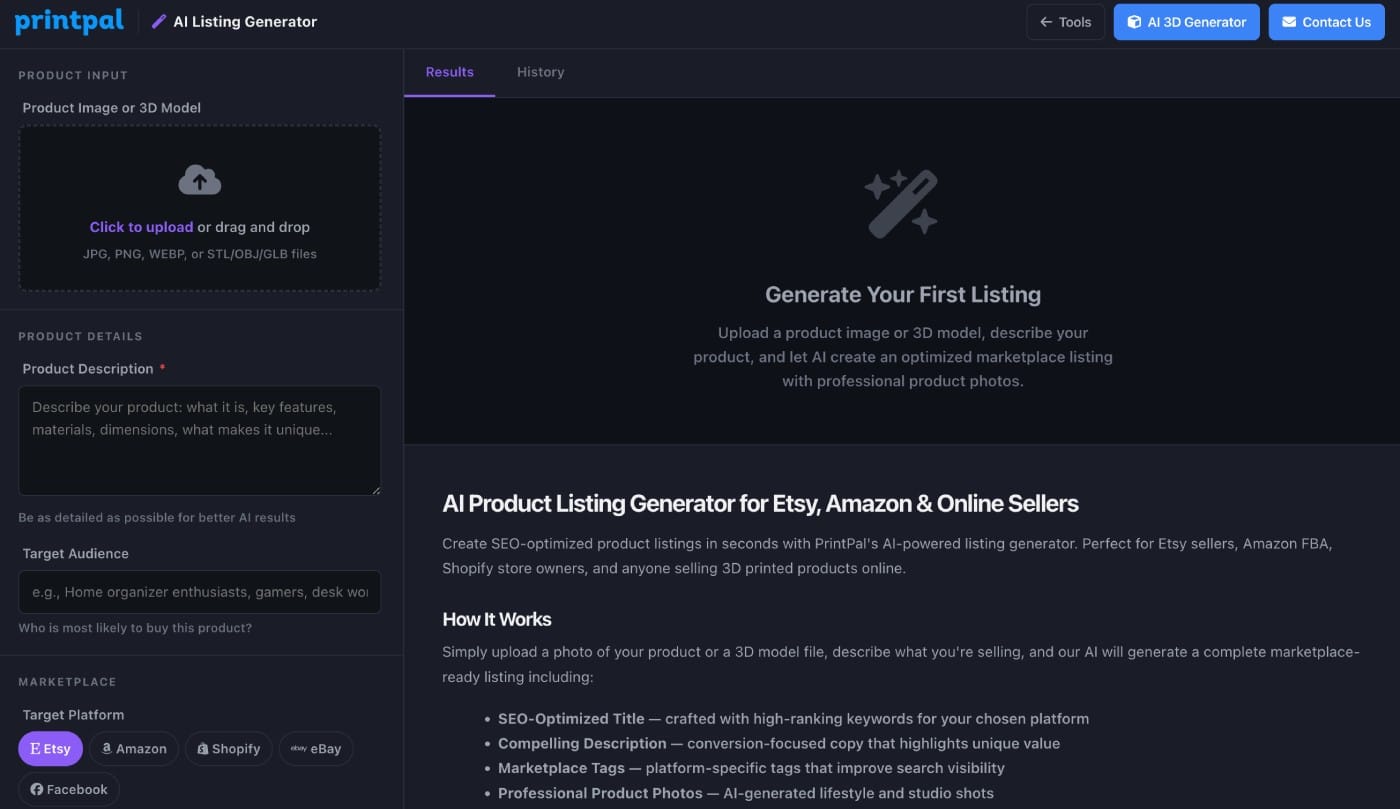
Step 1: Upload Your Product Image or 3D Model
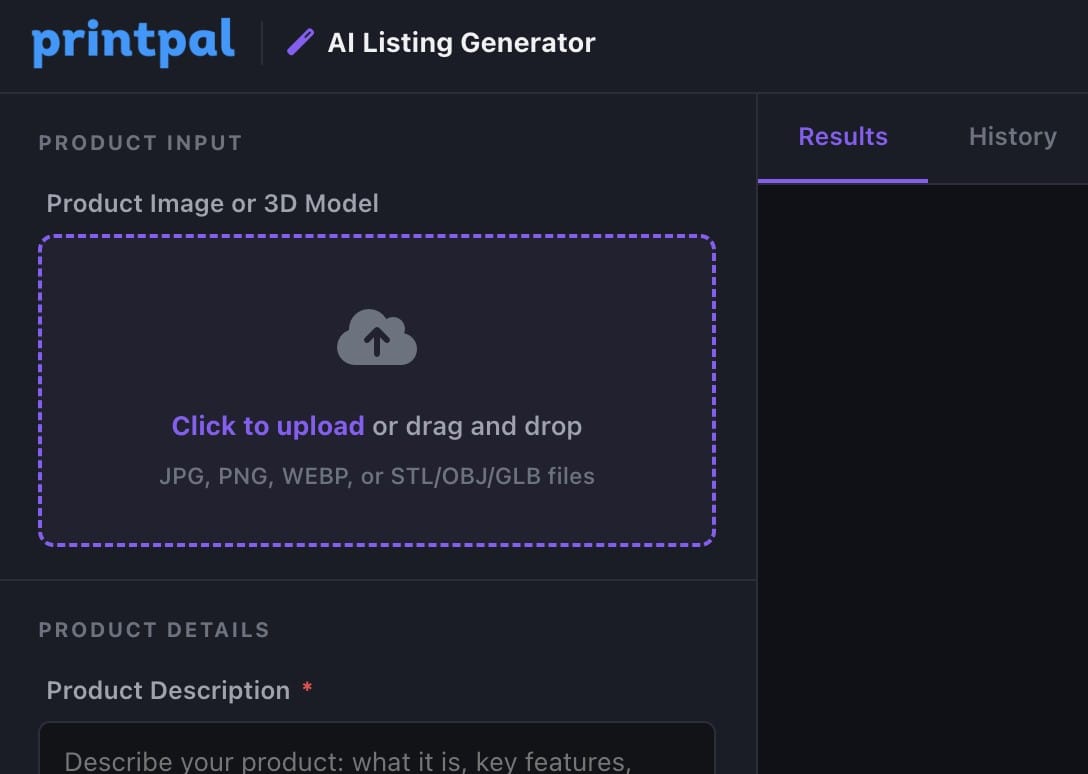
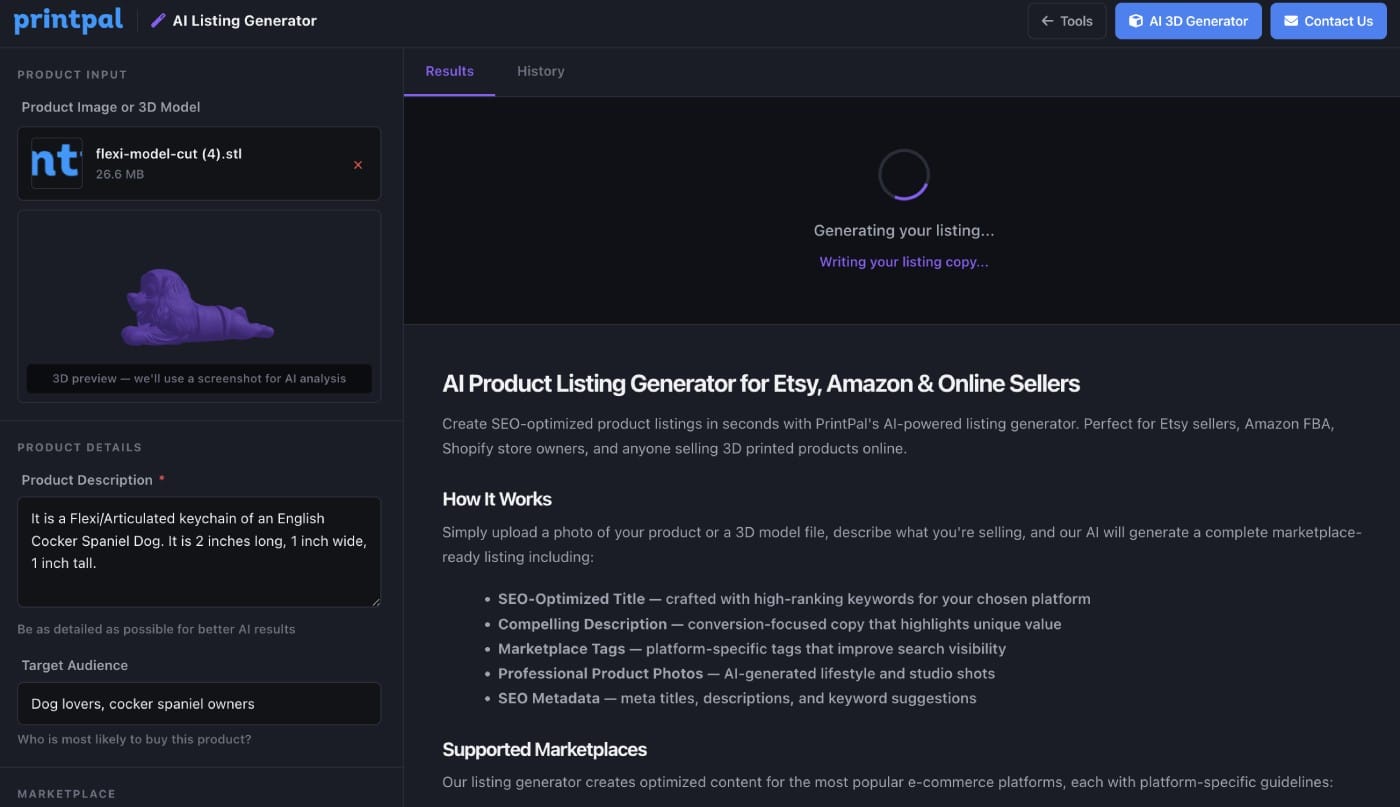
Go to printpal.io/tools/listing-generator and upload either a photo of your 3D print or the actual 3D model file (STL, OBJ, etc.). If you upload a 3D model, the tool renders a preview and captures a clean screenshot automatically. If you upload a photo, use the best image you have. The AI uses this as a reference when generating your product photos later. A clear, well-lit image produces better results. But even a basic phone photo off your print bed works.
Step 2: Describe Your Product
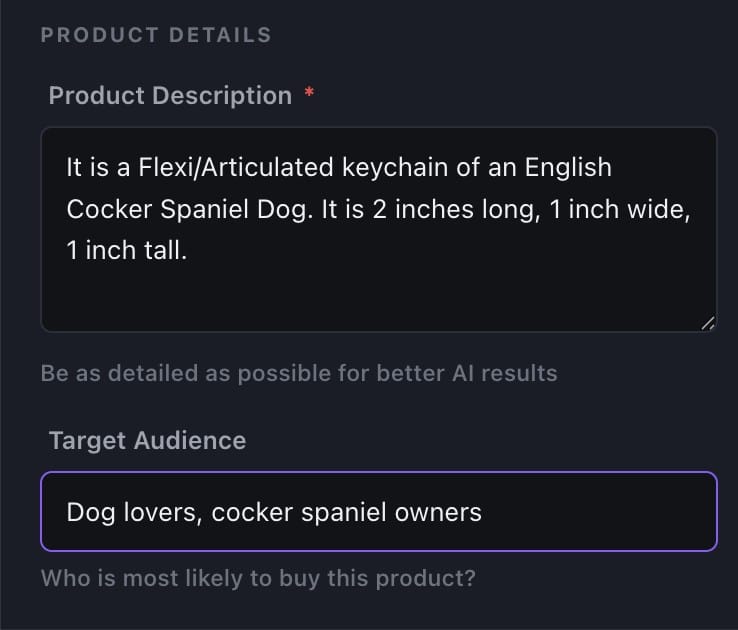
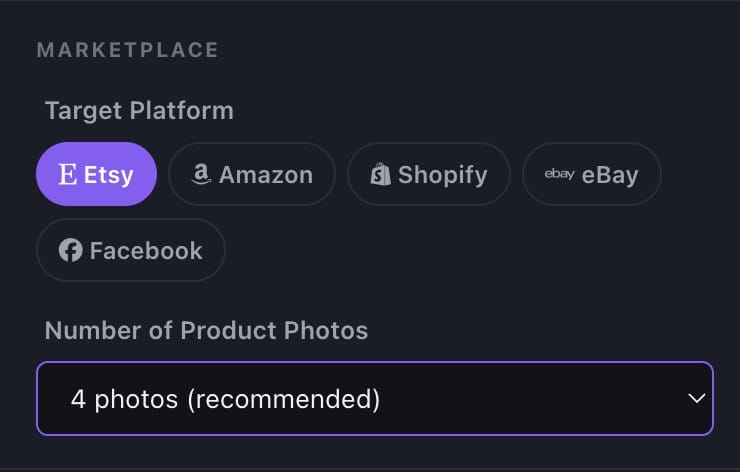
Fill in three fields:Product Description - Tell the AI what this item is. Be specific. Include the material, size, colors, and what makes it unique. For example: "A 4-inch articulated dragon printed in silk rainbow PLA. All joints move and it prints in place with no assembly required."Target Audience - Who are you selling to? Examples: "tabletop gamers," "desk toy collectors," "gifts for kids," "fidget toy buyers." The more specific you are, the better the AI tailors the listing language and keywords. Target Platform - Select Etsy, Facebook Marketplace, Amazon, or General. Each platform has different SEO rules and character limits. The AI adjusts the output format accordingly.
Step 3: Choose How Many Product Photos
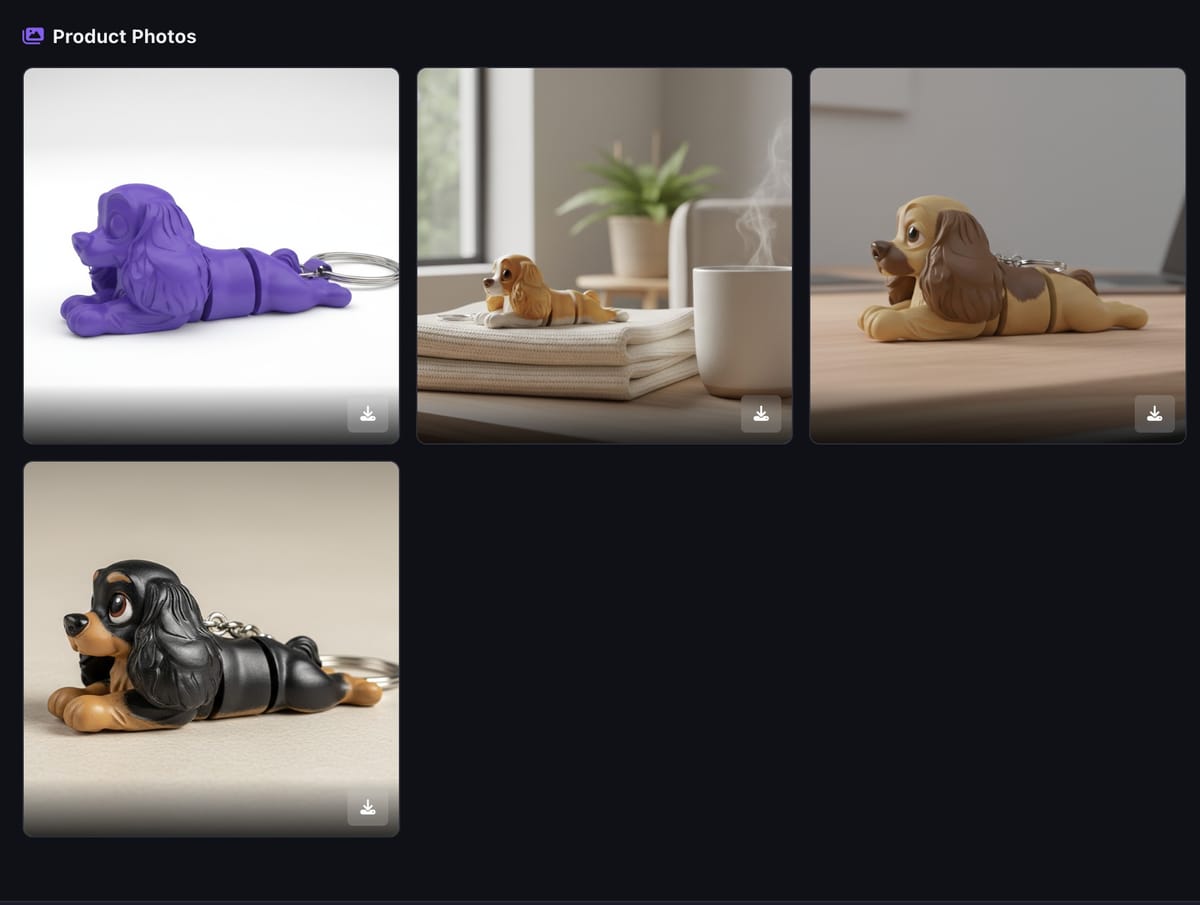
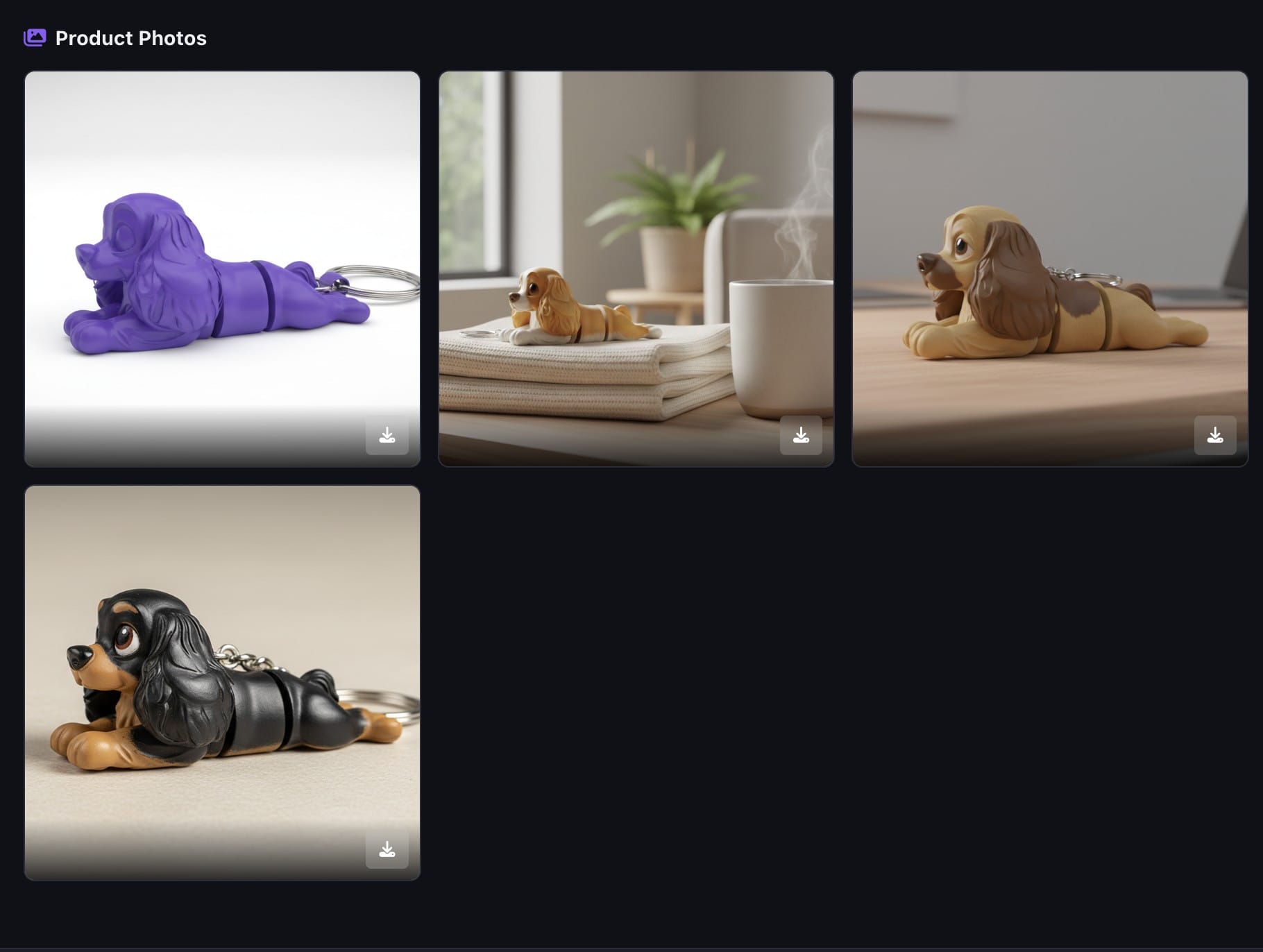
Use the slider to select between 0 and 5 AI-generated product photos. Each photo places your product in a different professional setting: white studio background, lifestyle home setting, wooden desk surface, and close-up detail shots. More photos give you better listing coverage on Etsy. Etsy allows up to 10 images per listing, so generating 4 or 5 here gives you a strong base to work from. The cost display next to the generate button updates in real time. If you have a Pro or Studio subscription, you get free generations each month. Otherwise, it uses API credits.
Step 4: Generate Your Listing
Click "Generate Listing" and wait about 30 to 60 seconds. The tool runs in the background, so you can leave the page and come back. Your generation will still complete. The AI first generates all your text content (title, description, tags, metadata), then produces each product photo one at a time.
Step 5: Copy Your Optimized Listing
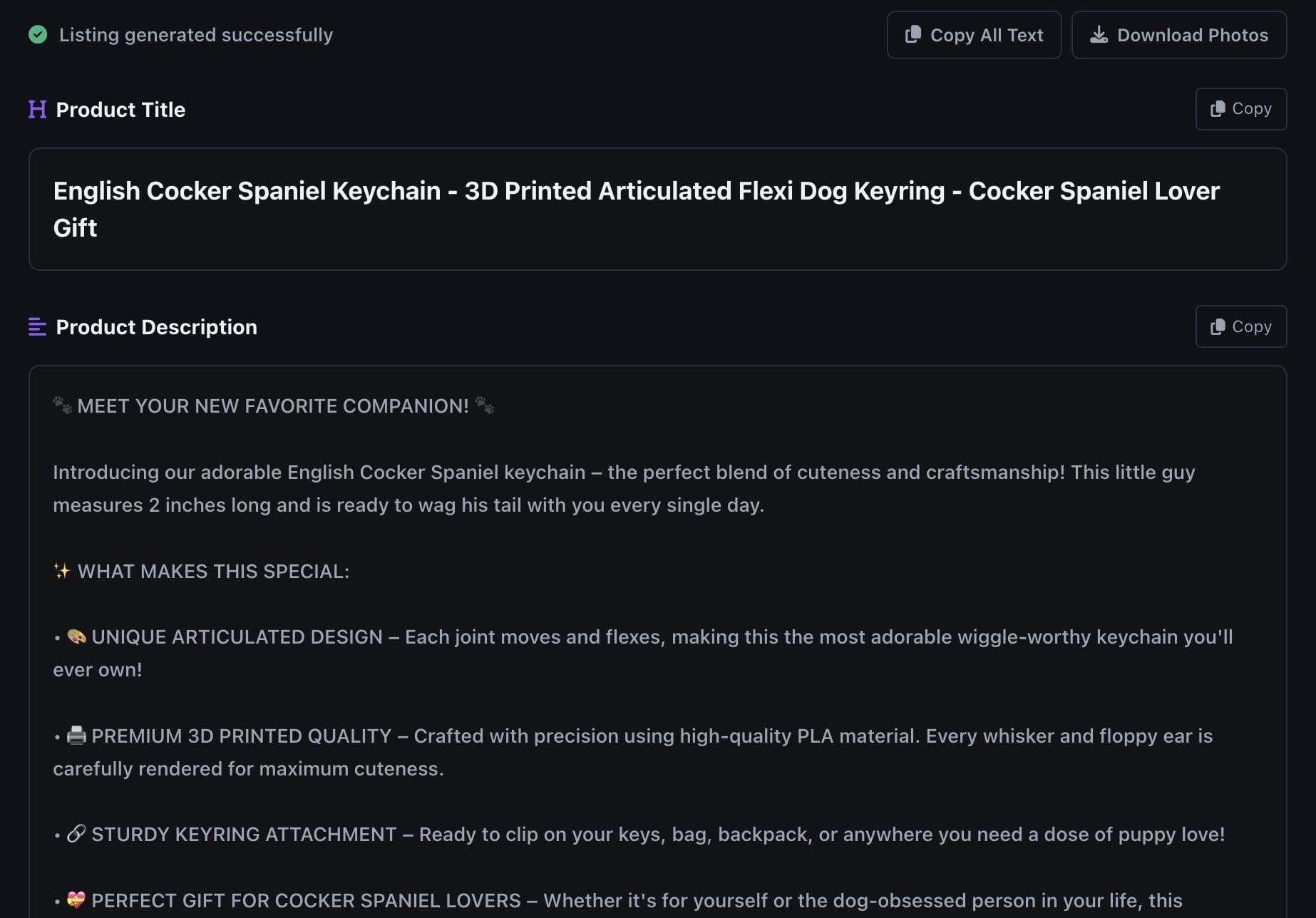
Once generation is complete, you get a full listing ready to paste into Etsy:
SEO Title - A keyword-rich title that fits within Etsy's 140-character limit. It front-loads the most important search terms while still reading naturally to buyers.
Product Description - A structured description with bullet points, feature highlights, dimensions, material info, and a call to action. Written to convert browsers into buyers.
Tags - 13 relevant tags optimized for Etsy search. These cover primary keywords, long-tail variations, and related search terms that your competitors are ranking for.
SEO Metadata - Additional keywords and category suggestions to help with Etsy's internal search algorithm.Each section has a copy button. Click it, paste it directly into your Etsy listing editor.
Step 6: Download Your Product Photos
Below the text results, you will see your AI-generated product photos. Each one shows your product in a different professional setting with clean lighting and neutral backgrounds. Click any image to view it full size. Download the ones you want and upload them to your Etsy listing. These are not mockups or templates. The AI generates unique photos based on your actual product image, so every listing gets original visuals.
Tips for Best Results
Be specific in your description. "3D printed dragon" produces generic results. "6-inch articulated crystal dragon printed in silk dual-color PLA with 14 moving joints, prints in place, no supports needed" produces listings that sell.
Name your audience precisely. "Everyone" is not a target audience. "DnD players looking for desk accessories" is. The AI uses this to choose the right language, keywords, and selling angles. Use all 5 photo slots. Etsy listings with more photos get more clicks. The marginal cost of extra photos is small compared to the conversion boost.
Edit the output. The AI gives you a strong starting point, but you know your product best. Tweak the description, reorder the tags, and add any details the AI might have missed.Regenerate if needed. If the first result is not quite right, adjust your description or audience and run it again. Small input changes produce noticeably different outputs.
Pricing
Pro subscribers get 1 free generation per month. Studio subscribers get 5. After that, generations cost API credits: 5 credits base plus 5 credits per photo. You can purchase credits at printpal.io/buy-credits. Even without a subscription, the tool page is fully accessible so you can explore the interface before committing.
Start Generating Listings
Stop spending 30 minutes per listing. Let the AI handle the SEO research, copywriting, and product photography while you focus on printing and shipping. Try the AI Product Listing Generator
Have questions or feedback? Join our Discord and let us know what you think.