How to Make Custom 3D Printed Name Monograms & Name Plates

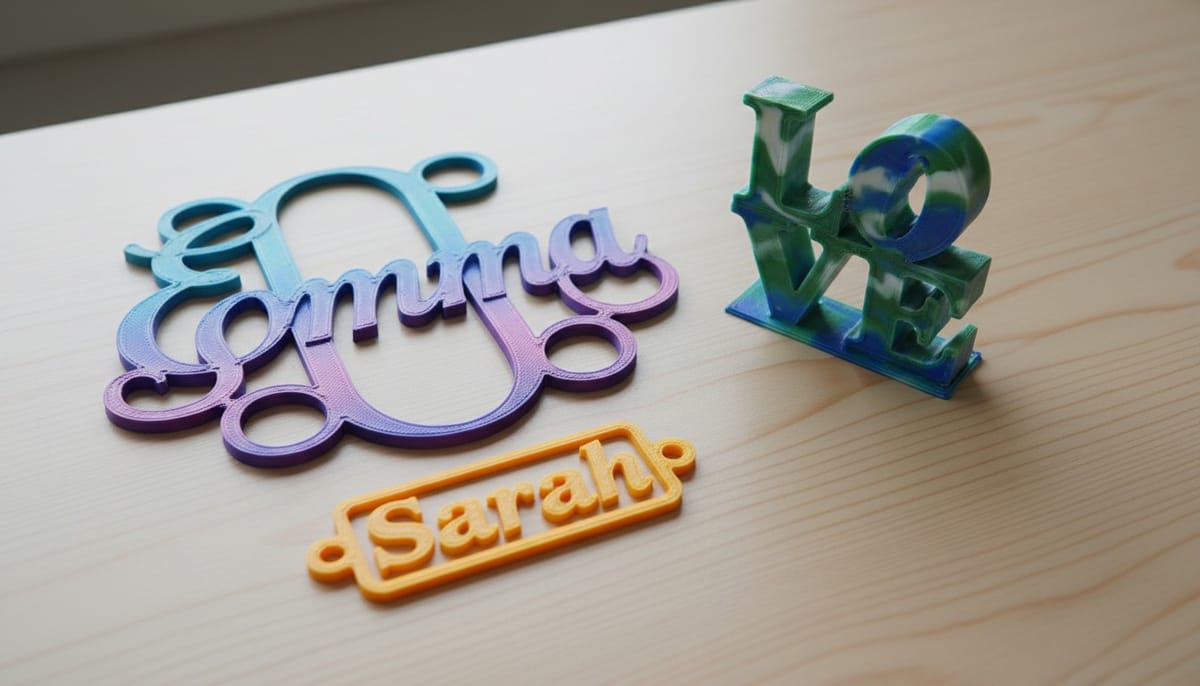
Personalized name signs, monograms, and name plates are among the most popular 3D printing projects. They make great nursery decor, desk accessories, door signs, gifts, and event badges. Instead of wrestling with CAD software, you can use free browser-based parametric generators to design and download print-ready STL files in under a minute.
This guide covers three free tools that handle the most common personalized name projects.
1. 3D Name Sign Generator: Monogram-Style Name Signs
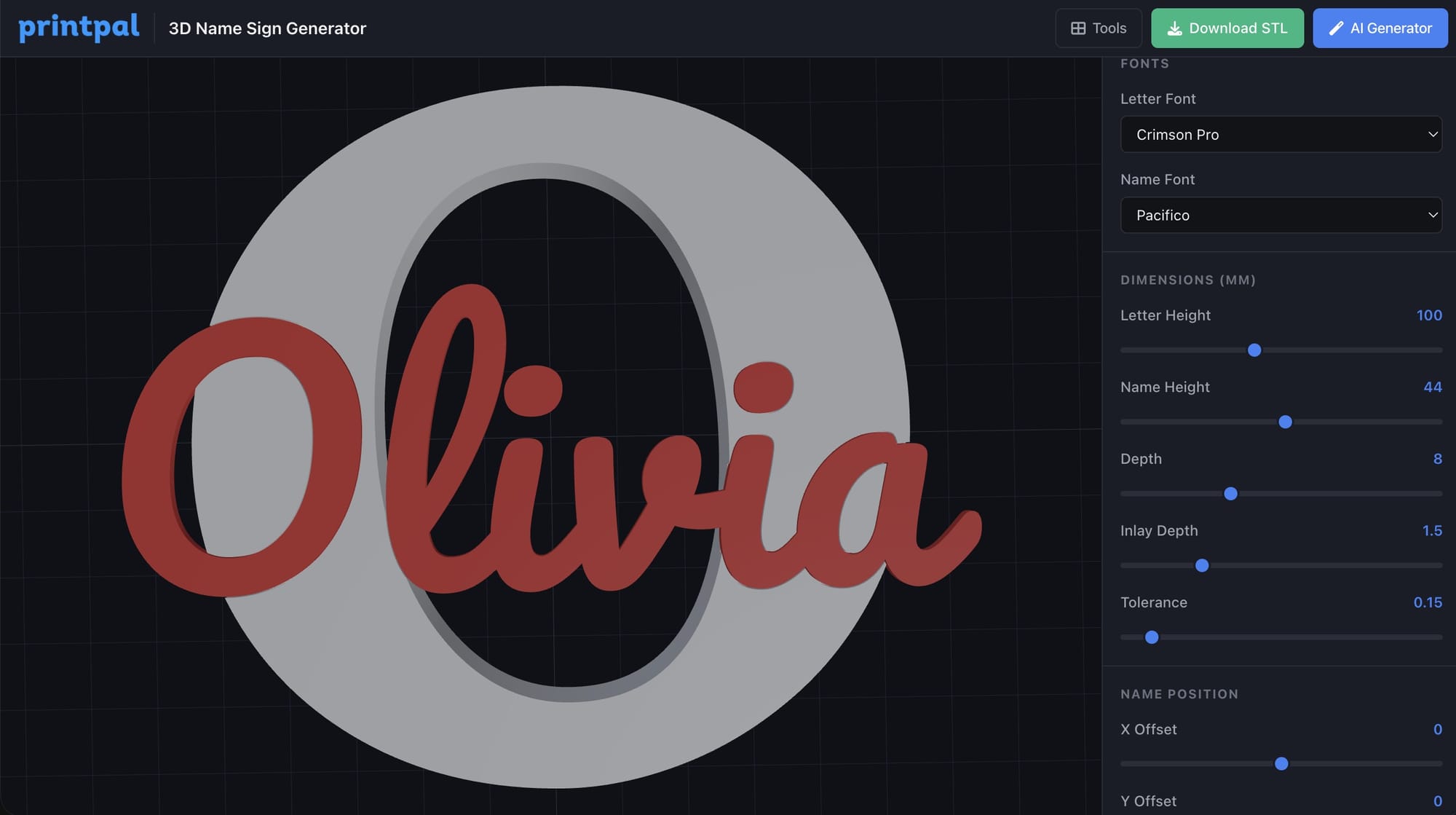
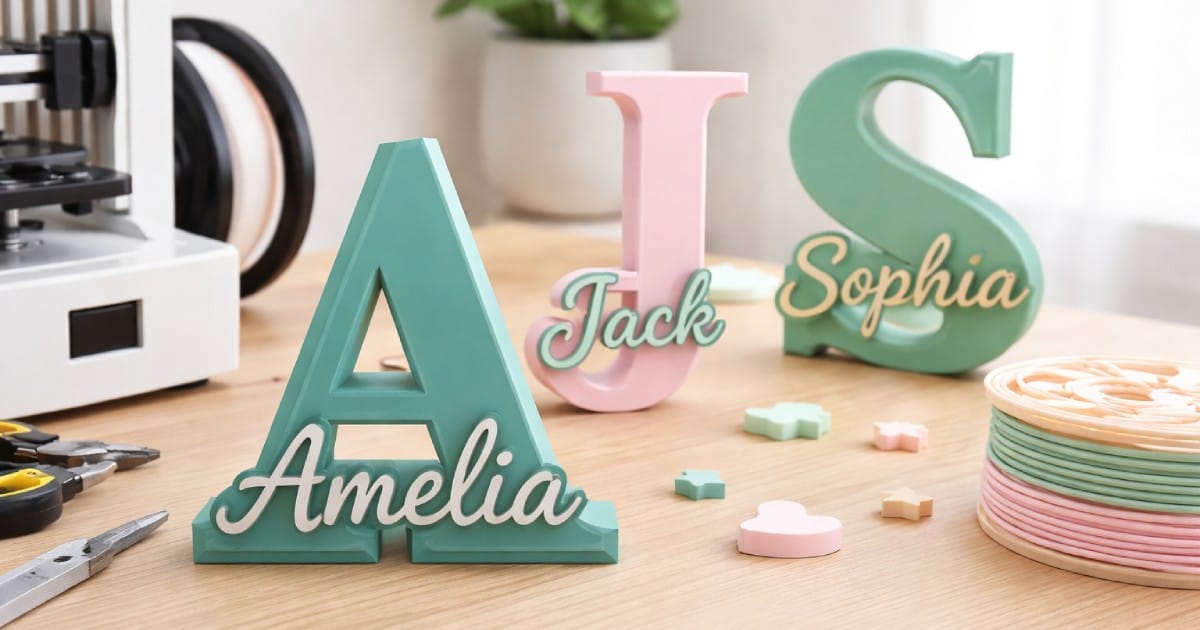
The 3D Name Sign Generator creates personalized signs with a large decorative initial letter and an inlaid name. This is the classic monogram look popular for nurseries, kids' rooms, and gifts.
How It Works
- Enter your name. The tool automatically uses the first letter as the large monogram initial.
- Pick a font. Choose from several styles including modern sans-serif, elegant serif, and playful script options.
- Adjust dimensions. Set the overall height, depth, and inlay depth for multi-color printing.
- Choose a mode. Connected (single piece) or separated (letter stands apart from the name).
- Download STL. Click download and you have a print-ready file.
Multi-Color Printing Tips
The inlay design is specifically built for multi-color or filament-swap printing. Print the base sign in one color and the inlaid name in a contrasting color with no painting required.
- For AMS/multi-material printers: Slice normally. The slicer detects separate color regions automatically.
- For single-extruder printers: Print to the inlay layer height, pause, swap filament, and resume.
- Recommended layer height: 0.2mm for clean text. Use 0.12mm for smaller signs under 80mm.
Best use cases: Nursery wall decor, birthday party signs, wedding table names, teacher desk plates, personalized gifts.
2. 3D Name Plate Generator: Tags, Badges & Door Signs
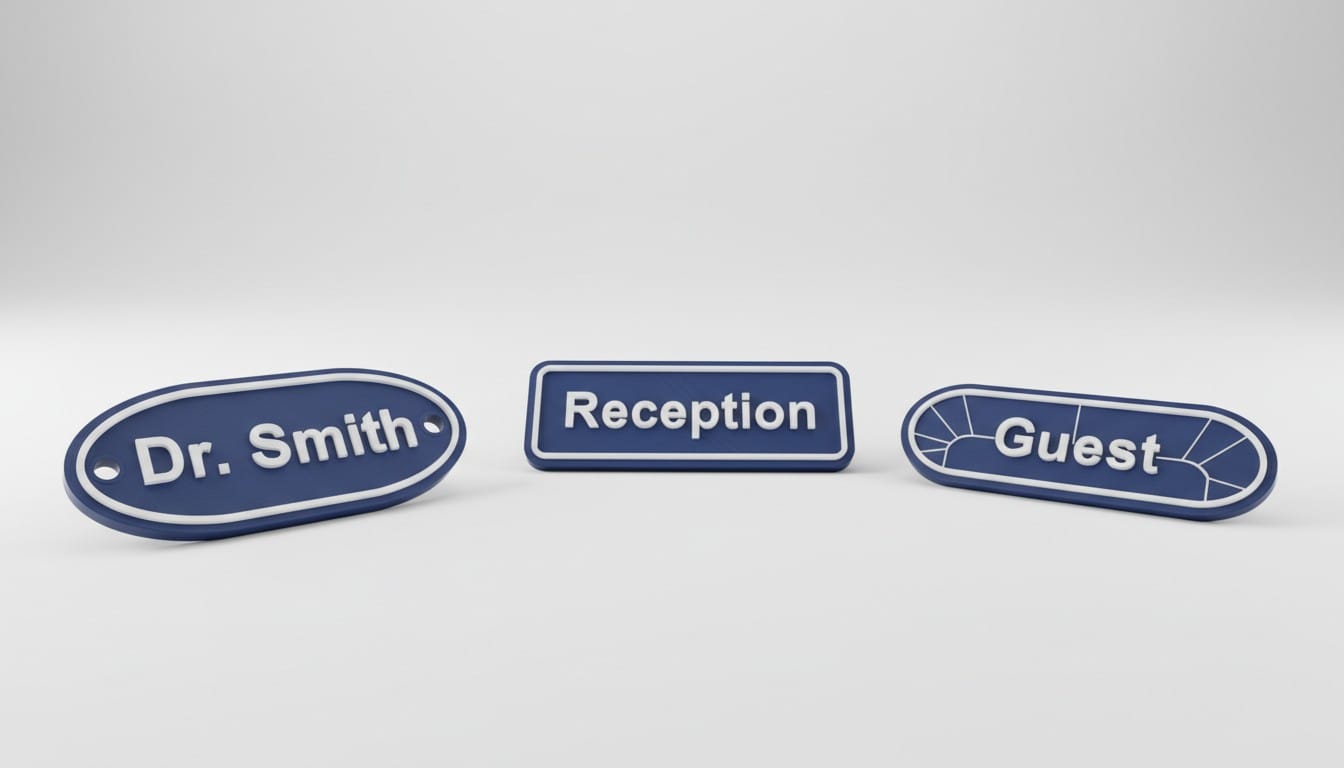
The 3D Name Plate Generator builds structured name plates with borders, selectable shapes, fonts, and optional mounting holes. Ideal for door signs, desk plates, locker labels, pet tags, and event badges.
Key Features
- Shapes: Rectangle, rounded rectangle, oval, and stadium (pill), each with adjustable corner radius.
- Mounting holes: None, single top center, two top corners, or left-right. Holes are automatically positioned inside the plate boundary.
- Raised border: Adjustable border width adds a clean frame around the plate edge.
- Presets: Classic, slim, oval badge, and more. One click to switch between common configurations.
Quick Start
- Type your text.
- Select a shape preset (or customize manually).
- Pick a font and adjust plate dimensions.
- Choose mounting hole layout if needed.
- Download STL.
Printing Recommendations
| Setting | Value |
|---|---|
| Layer height | 0.2mm |
| Infill | 20 to 40% |
| Walls | 3 perimeters |
| Supports | Not needed |
For two-tone name plates, use a filament swap at the border/text transition layer. The raised text and border print as a separate color zone.
Best use cases: Office door signs, desk name plates, employee badges, event name tags, pet ID tags, locker labels, mailbox plates.
3. Text Flip 3D Generator: Ambigram Sculptures
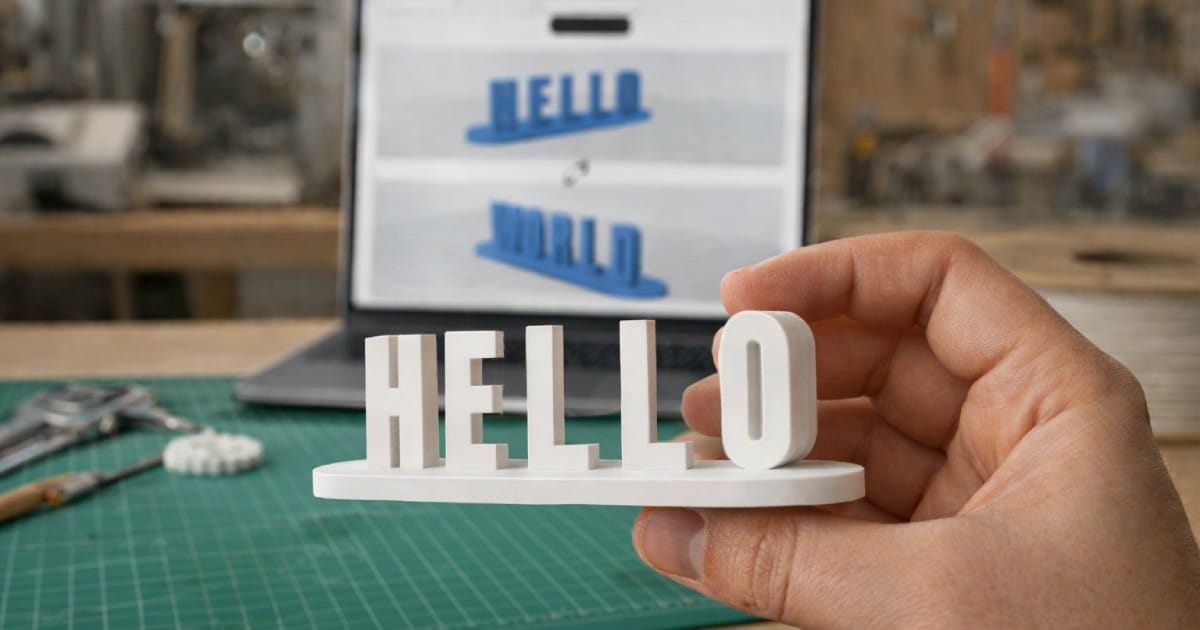
The Text Flip 3D Generator creates a sculpture that reads one word from the front and a completely different word when rotated 90 degrees. These are also called ambigram sculptures or shadow text art.
How It Works
Each character position is created by intersecting two letter extrusions at plus and minus 45 degree angles. The result is a sculptural form where the two words share the same physical space but are visible from perpendicular viewing angles.
- Enter Word 1 (front view) and Word 2 (side view).
- Pick a font. Bold fonts like Anton or Oswald work best since the intersection removes thin features.
- Preview. Rotate the 3D preview or use the Word 1 / Word 2 / Auto Flip view buttons.
- Download STL.
Tips for Best Results
- Use bold, blocky fonts. Thin or script fonts lose too much geometry during the intersection.
- Similar word lengths work best. Mismatched lengths are handled automatically with filler shapes, but equal-length words produce the cleanest result.
- ALL CAPS recommended. Uppercase letters have more consistent geometry for intersections.
- Scale up for detail. Print at 80mm+ height to preserve readable letter features.
Best use cases: Couples' names for wedding decor, "LOVE/HOME" shelf art, "MOM/DAD" gifts, desk sculptures, party centerpieces.
Printing Settings That Work for All Three Tools
These settings produce clean, reliable results across all three generators:
- Material: PLA or PETG
- Nozzle: 0.4mm
- Layer height: 0.2mm (0.12mm for small/detailed prints)
- Infill: 20% for name signs and plates, 40%+ for text flip sculptures
- Supports: None needed for any of these tools
- Orientation: Print flat on the bed (default STL orientation)
Which Tool Should You Use?
| Project | Tool |
|---|---|
| Nursery name sign, monogram gift | Name Sign Generator |
| Door sign, desk plate, badge, tag | Name Plate Generator |
| Two-word sculpture, optical illusion art | Text Flip Generator |
All three tools run entirely in your browser with no signup, no software install, and no credits required. Design, preview in 3D, and download your STL in seconds.
Looking to create something more complex? PrintPal's AI 3D Generator can turn text descriptions or photos into fully printable 3D models including figurines, functional parts, and more.