3D Asset Creation: Using Generative AI for Game Development

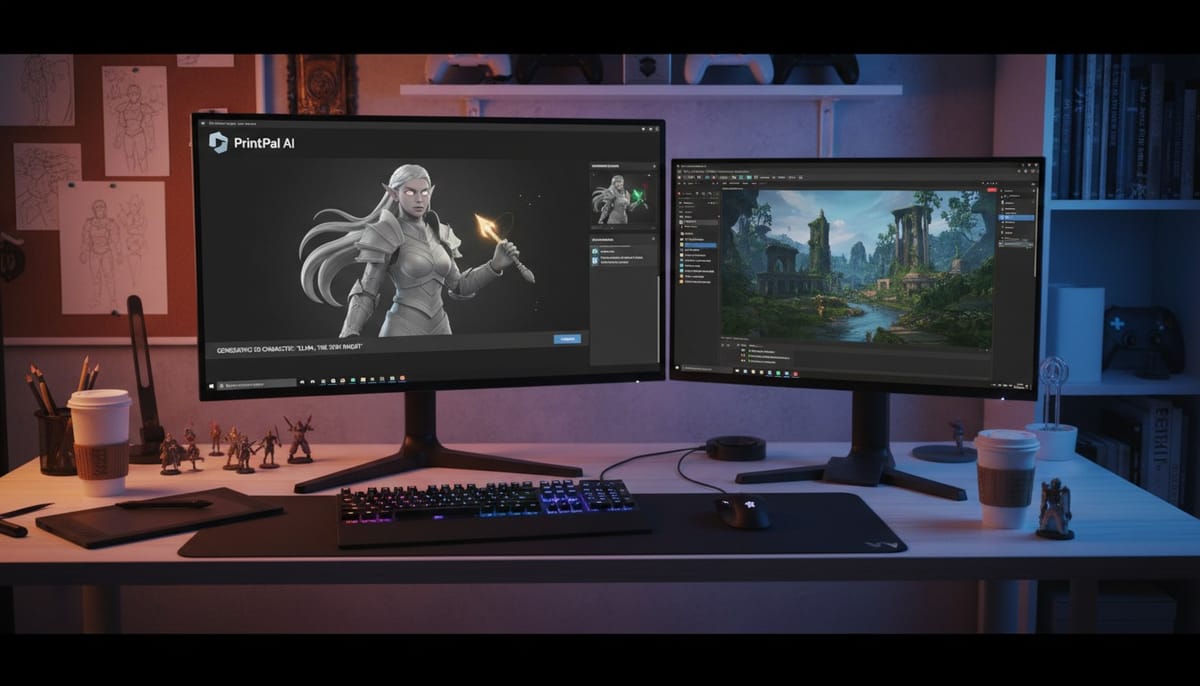
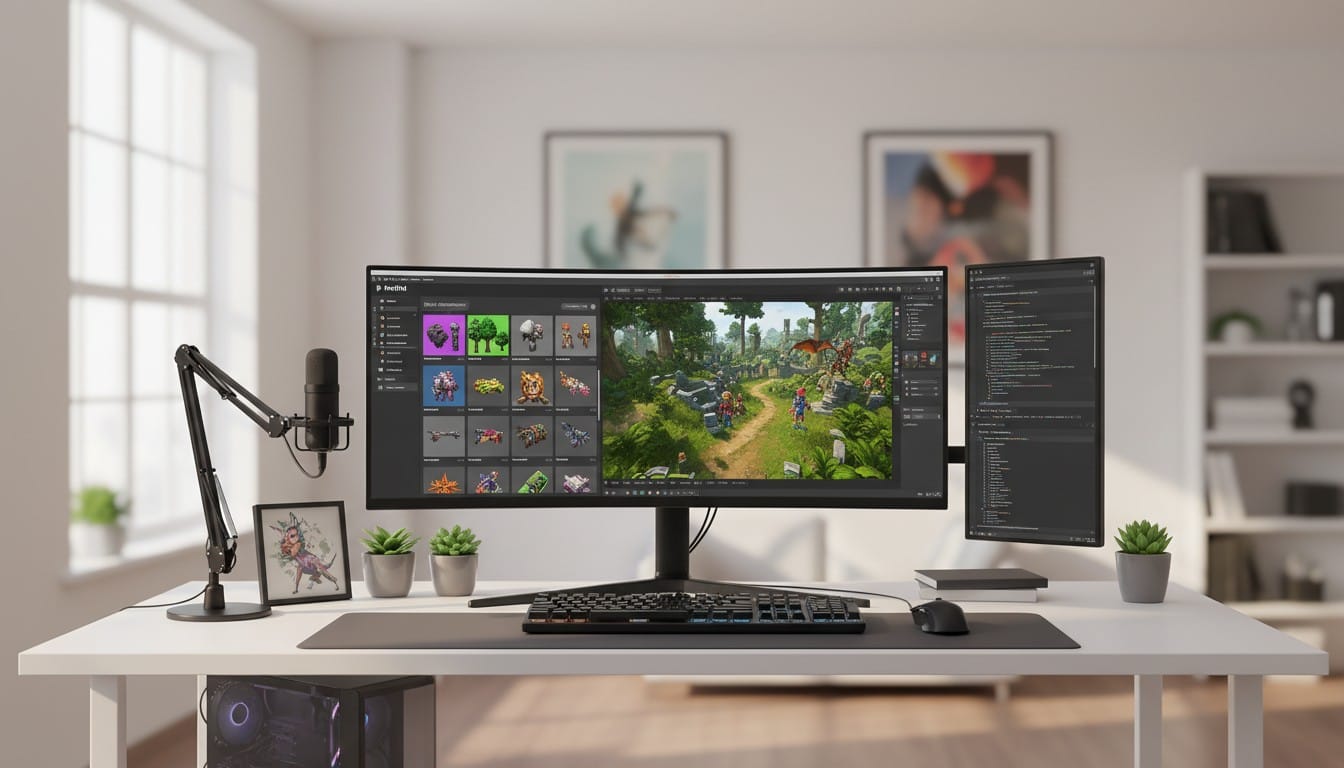
Game developers face constant pressure to create high-quality 3D assets quickly while maintaining creative vision and staying within budget. Traditional 3D modeling requires specialized skills and significant time investment, creating bottlenecks in development pipelines. Generative AI transforms this process by enabling developers to create custom game assets in minutes rather than days. PrintPal's AI-powered 3D generator provides game developers with text-to-3D and image-to-3D capabilities that produce Unity-compatible models instantly. This guide walks you through the complete workflow for generating, optimizing, and integrating AI-created assets into your game development projects.
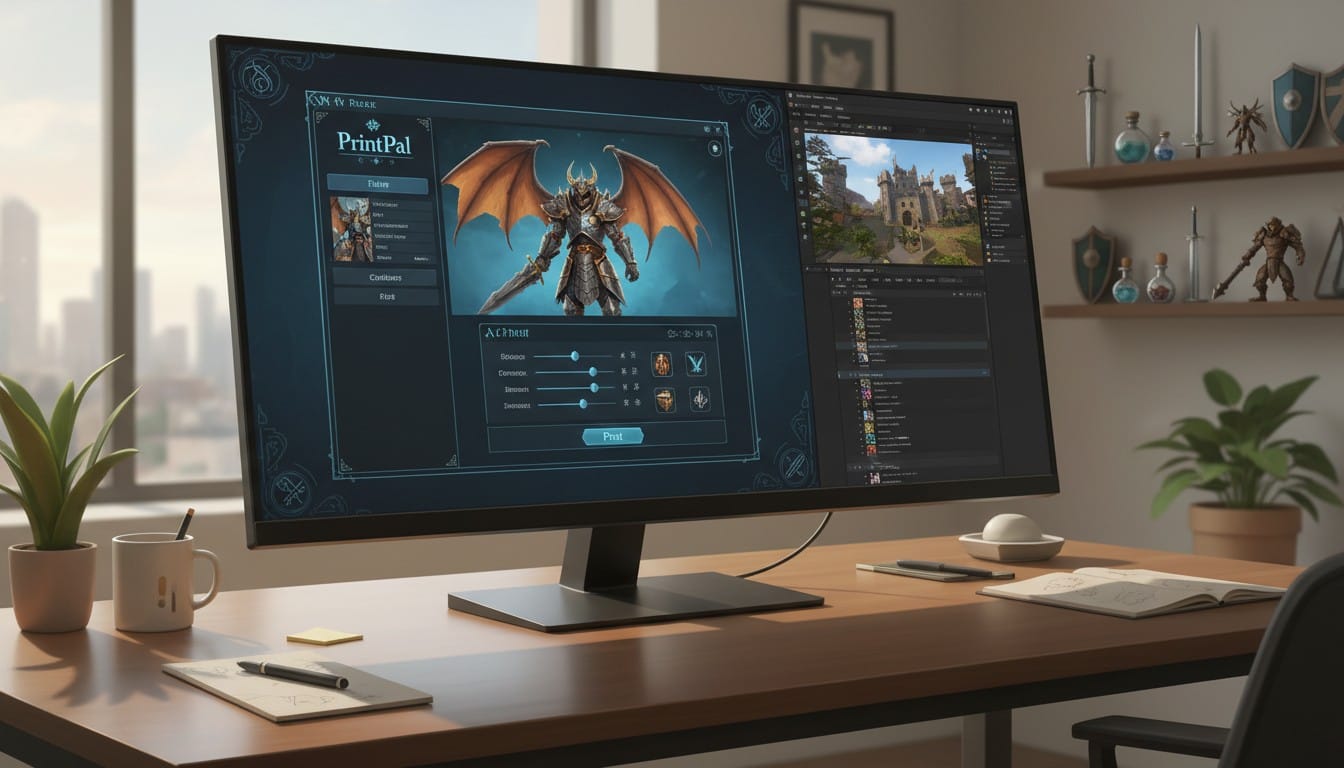
Step 1: Conceptualize Your Asset Design
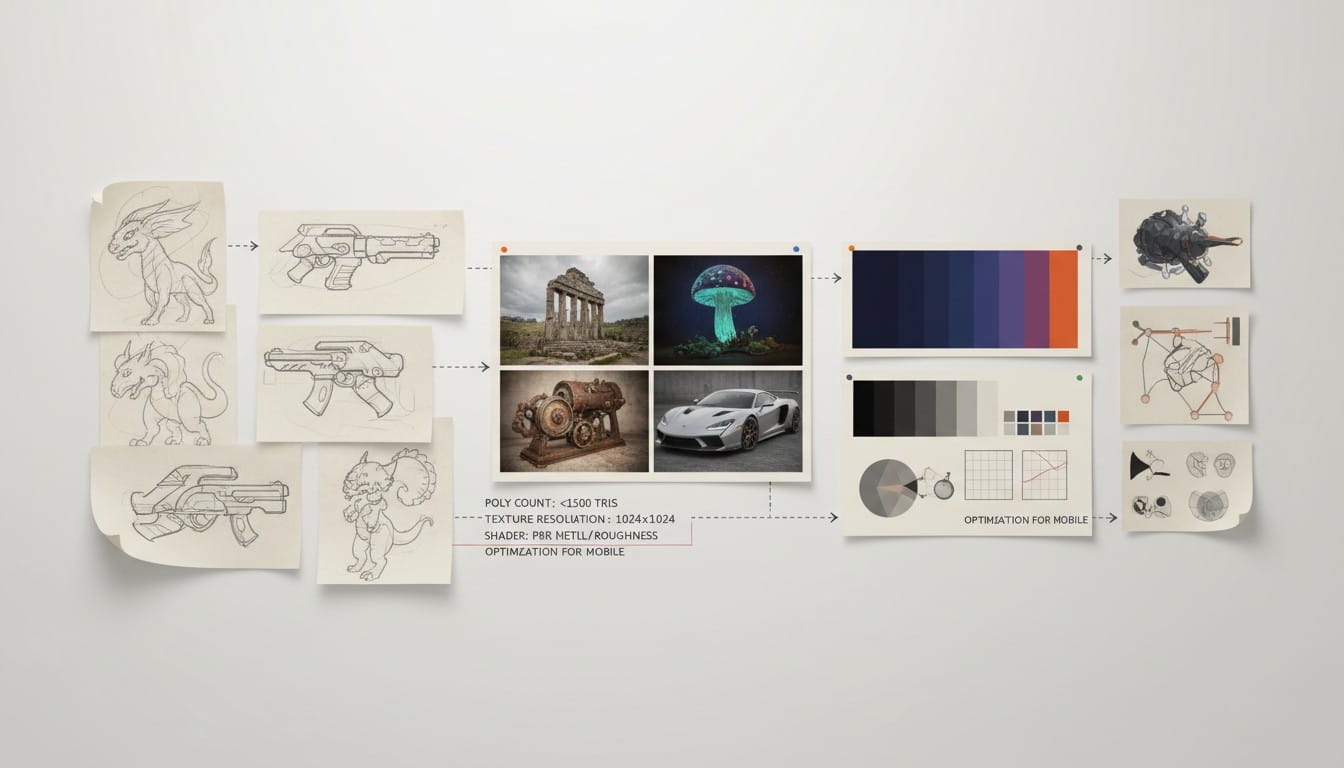
Clear vision ensures AI generates exactly what your game needs. Define purpose, style, and technical requirements before generation.
Define Asset Purpose: Determine whether you need characters, props, environments, or vehicles. Each category requires different considerations for polygon count and detail level.
Establish Art Style: Specify style in your prompts. Fantasy, sci-fi, realistic, low-poly, or stylized aesthetics require different descriptive approaches.
Consider Technical Requirements: Think about polygon budget, texture resolution, and animation needs. Mobile games require lighter assets than PC titles.
Gather References: Collect visual references showing desired shapes, proportions, and details. Reference images improve generation accuracy significantly.
Step 2: Generate Assets Using Text to 3D
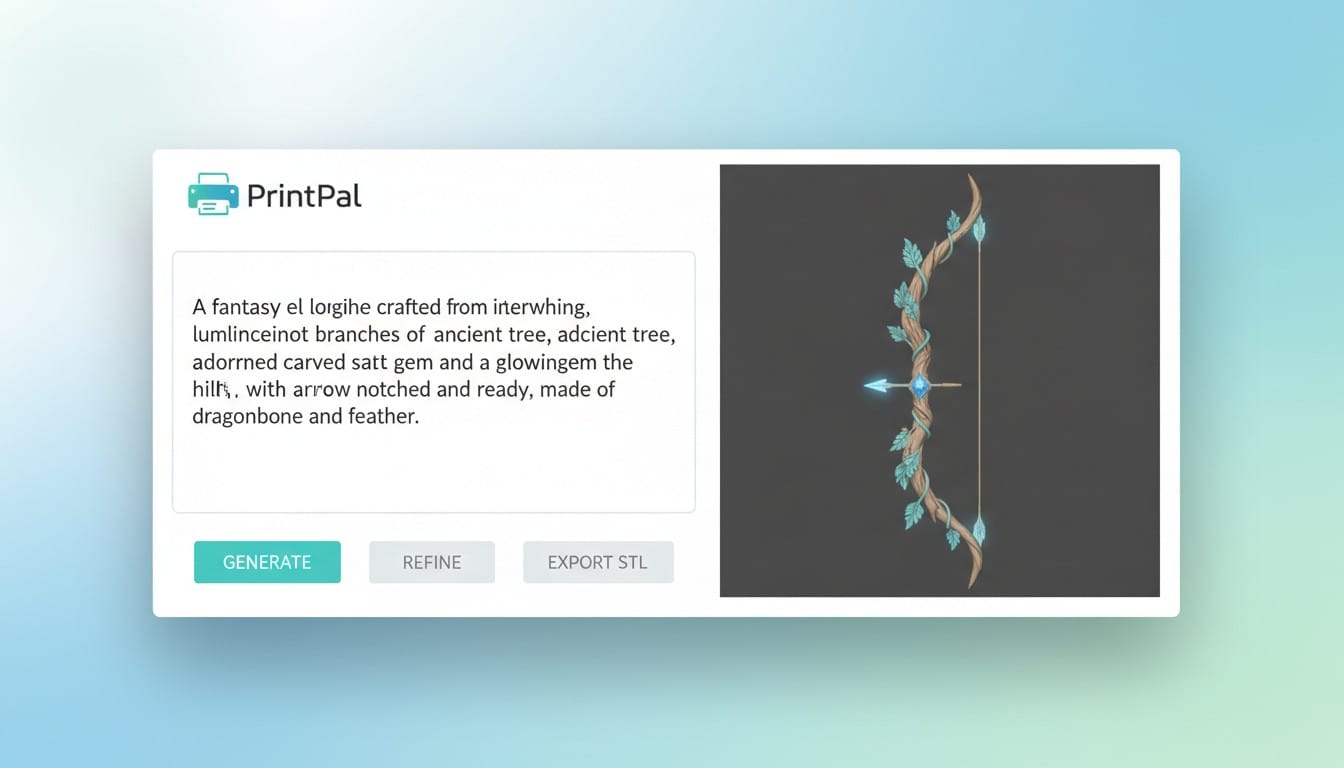
Text-to-3D generation transforms written descriptions into downloadable 3D models ready for game engines.
Craft Effective Prompts: Write detailed descriptions including object type, style, materials, and distinctive features. "Low-poly fantasy sword with glowing blue runes on blade, ornate gold handle" produces better results than simply "sword."
Specify Game Style: Include genre keywords like "game-ready," "low-poly," or "stylized" to guide aesthetic direction appropriate for real-time rendering.
Generate Your Model: Submit your prompt and wait for AI processing. Generation typically completes within minutes.
Review Results: Evaluate generated model for accuracy, detail level, and suitability for your game's visual style.
Step 3: Generate from Concept Art Using Image to 3D
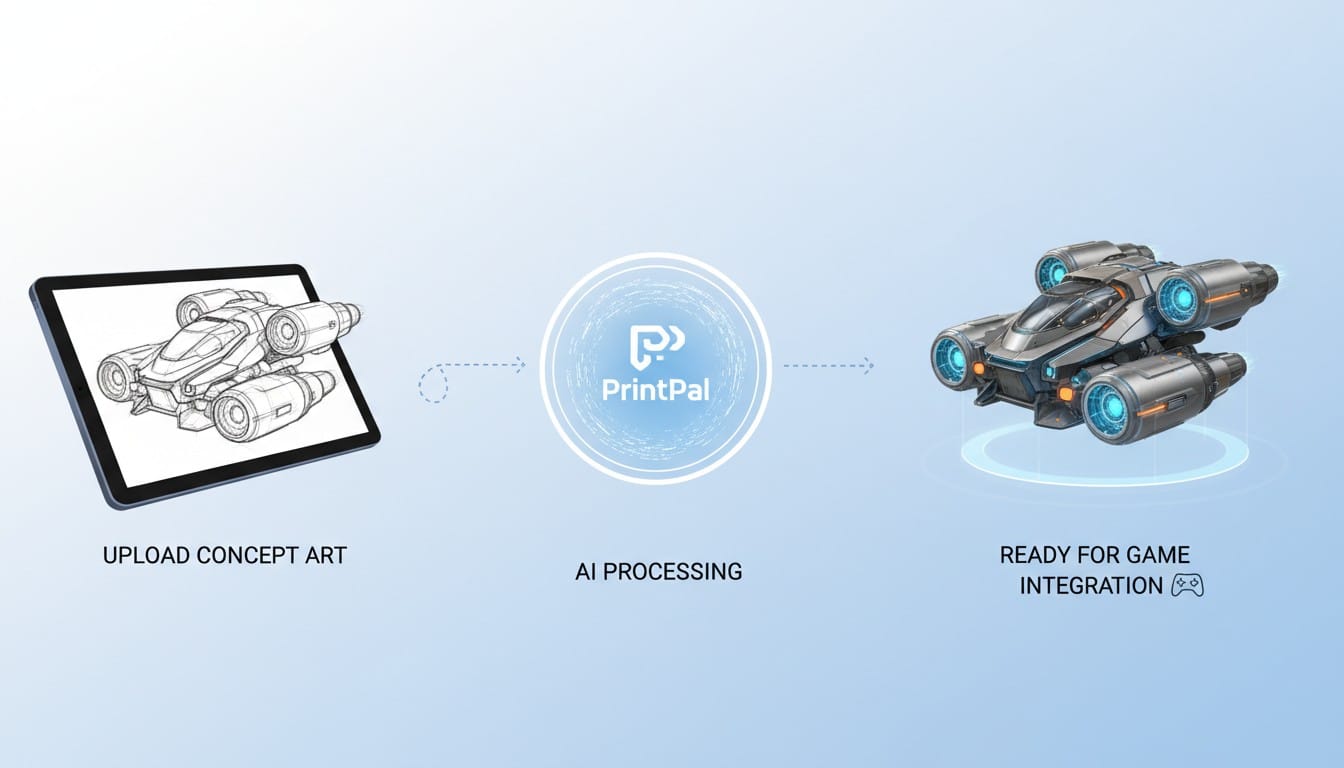
Convert existing concept art, sketches, or reference photos into 3D models when you have visual designs.
Upload Reference Images: Use concept art created by your team or reference photos showing desired objects. Clean images with clear subjects produce best results.
Adjust Generation Settings: Select detail level and quality settings appropriate for your game's performance requirements.
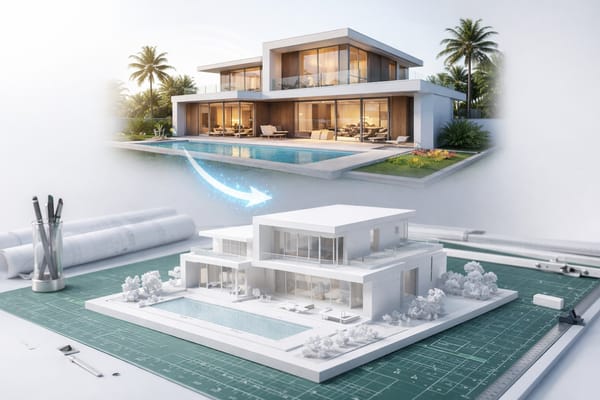
Generate from Image: AI analyzes uploaded image and constructs 3D geometry matching visual reference.
Compare to Original: Verify generated model captures essential characteristics from your concept art.
Step 4: Export Game-Ready Assets
Proper export ensures compatibility with Unity and other game engines while maintaining optimal performance.
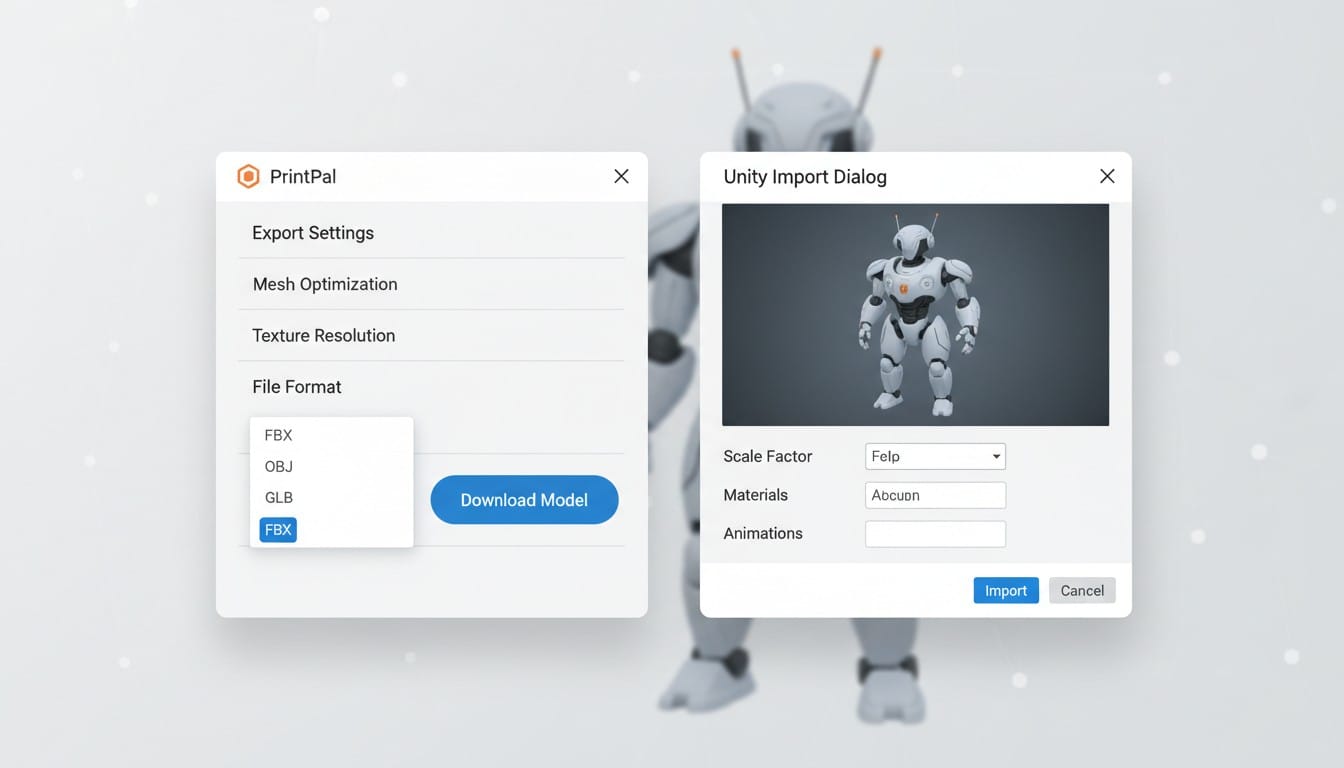
Choose Export Format: Select formats compatible with your game engine. FBX works universally with Unity, Unreal, and other major engines. GLB provides good compatibility with web-based games.
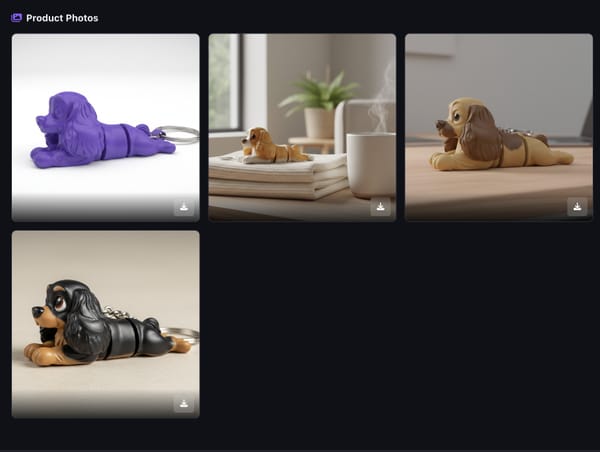
Download Your Model: Export generated 3D model in selected format. Files are ready for immediate import into game development tools.
Verify File Integrity: Open exported files in 3D viewer or game engine to confirm successful export and proper geometry.
Step 5: Import into Unity and Optimize
Integrate AI-generated assets into Unity projects with proper optimization for game performance.
Import to Unity: Drag exported files into Unity project or use Assets menu to import. Unity automatically detects 3D models and creates prefabs.
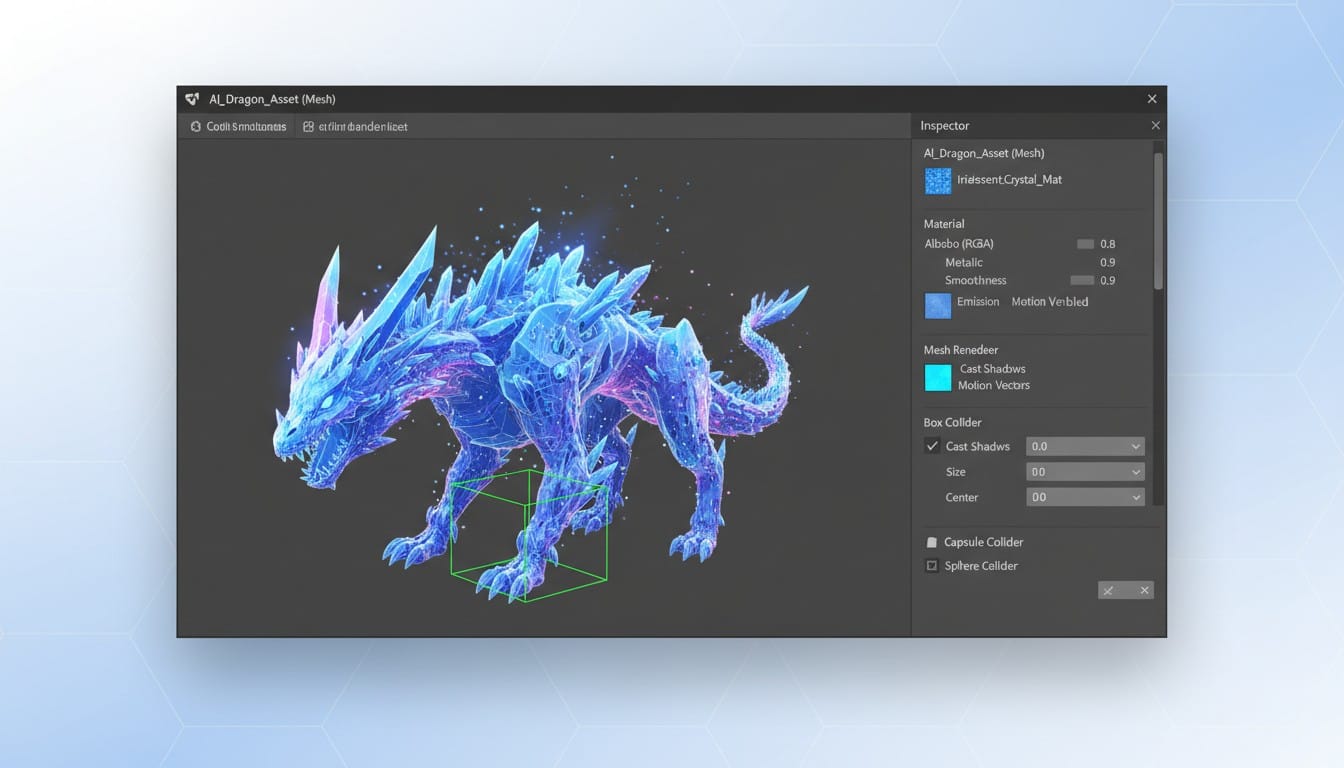
Adjust Materials: Apply game-appropriate materials and shaders. Unity's Standard Shader or URP/HDRP shaders depending on your rendering pipeline.
Optimize Mesh: Reduce polygon count if needed for target platform performance. Mobile games especially benefit from mesh optimization.
Set Up Colliders: Add collision meshes for interactive objects. Use simple colliders for better physics performance.
Step 6: Add Animation and Rigging (Optional)
Some game assets require animation capabilities for characters and interactive objects.
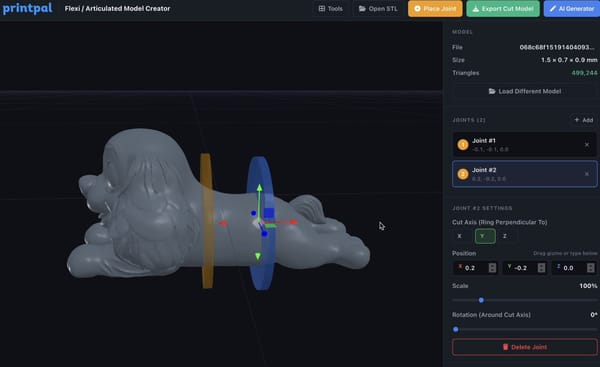
Export with Proper Topology: Ensure generated models have clean topology suitable for rigging. Characters need proper edge loops for deformation.
Use External Tools: Import models into Blender for rigging or use automated rigging services for humanoid characters.
Animate in Unity: Create animation clips using Unity's animation system or import animated FBX files from external animation tools.
Test in Game: Verify animations play correctly in actual gameplay situations before finalizing assets.
Creating Assets for Multiple Game Genres
AI generation adapts to any game genre with appropriate prompt engineering and style specifications.
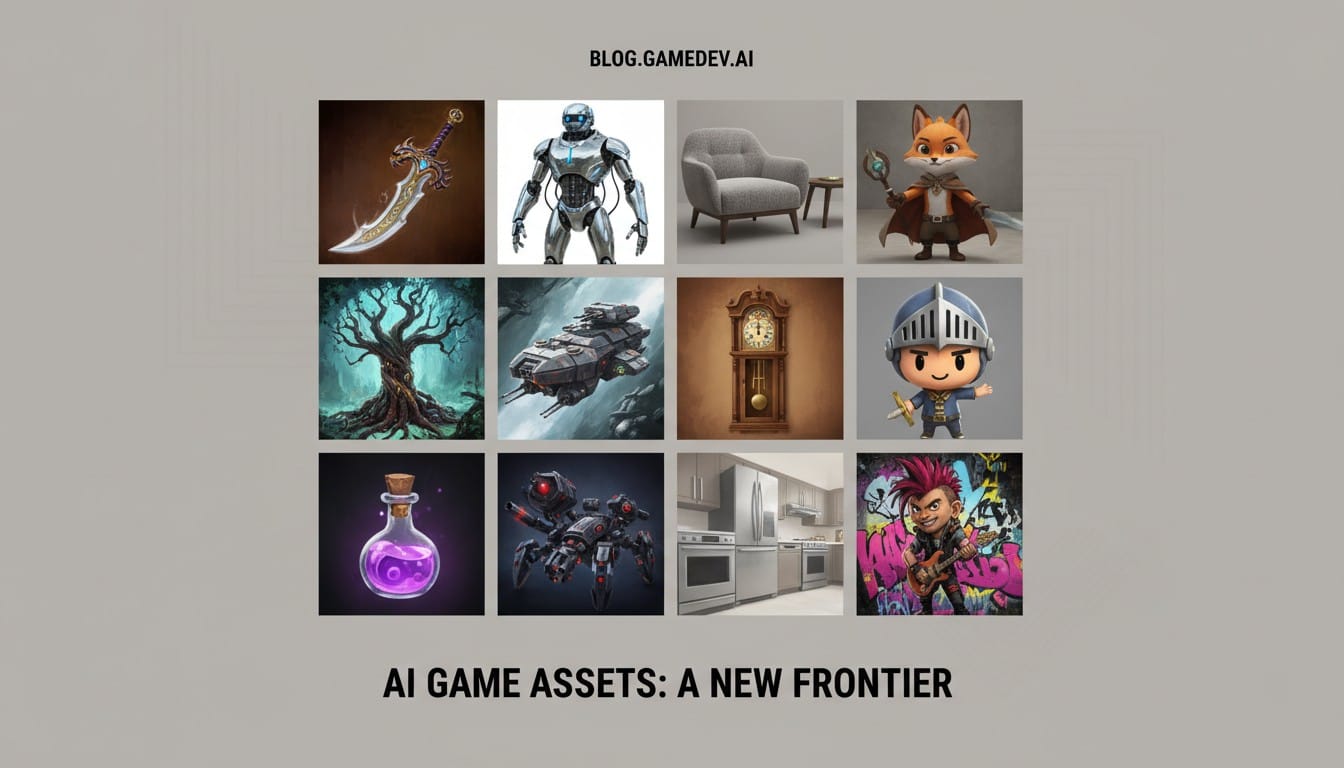
Fantasy Games: Generate magical items, creatures, castles, and mystical environments with detailed ornate designs.
Sci-Fi Projects: Create futuristic weapons, vehicles, space stations, and high-tech equipment with sleek modern aesthetics.
Realistic Titles: Produce photorealistic props, architectural elements, and everyday objects for simulation and adventure games.
Stylized Games: Design low-poly or cartoon-style assets perfect for mobile games and indie projects requiring cohesive art direction.
Your Complete Game Asset Workflow
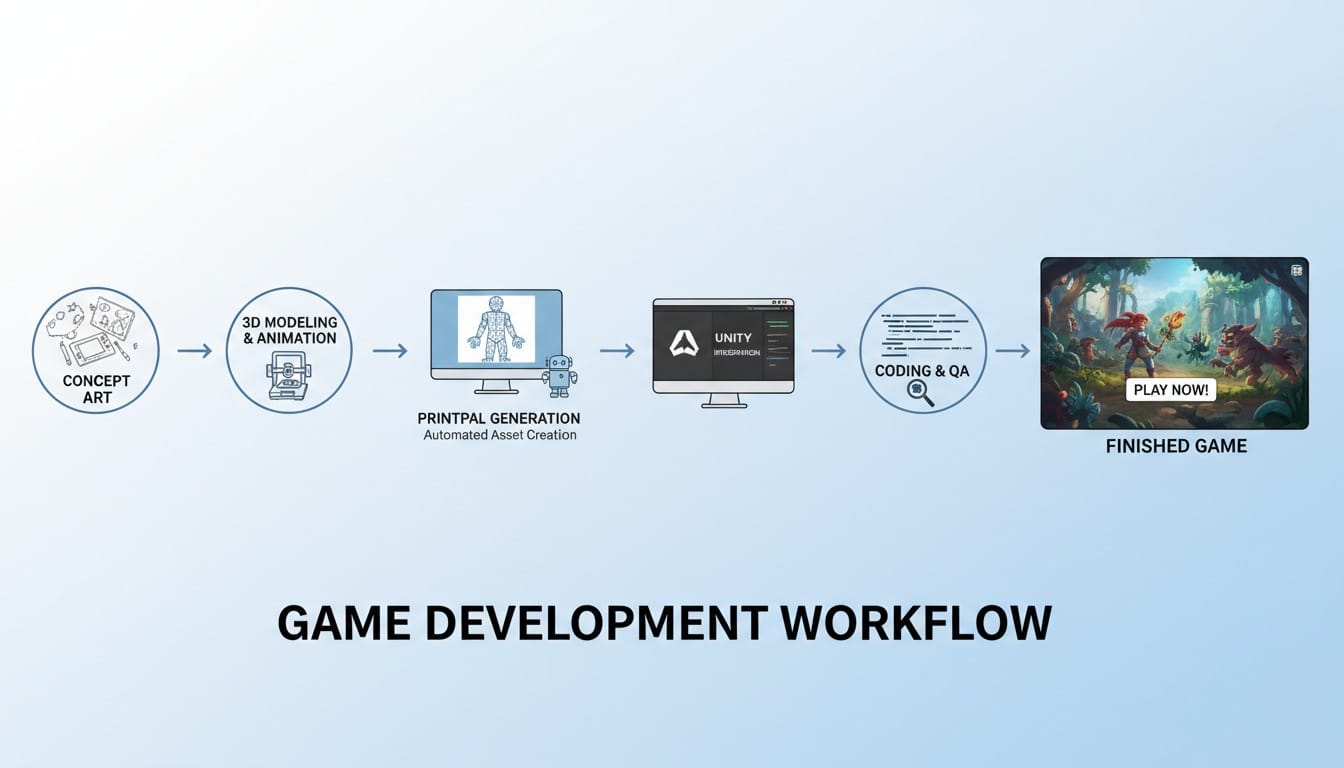
Successful game development combines traditional asset sources with AI-powered custom generation for maximum efficiency and creative freedom.
Use Unity Asset Store for standard components and proven assets. Generate custom models with AI when your vision requires unique designs unavailable in existing marketplaces. This hybrid approach accelerates development while maintaining creative control.
AI-powered asset creation eliminates bottlenecks in 3D production pipelines. Focus development time on gameplay mechanics, level design, and polish rather than waiting for custom asset creation.
Start Creating Game Assets with AI
Ready to accelerate your game development with AI-powered 3D asset creation? Use PrintPal's generative AI tools to create custom game assets from text descriptions or concept art. Generate characters, props, environments, and vehicles optimized for real-time rendering in Unity and other game engines. Export in multiple formats including FBX and GLB for universal compatibility. Transform your game development workflow with unlimited custom asset generation. Whether you are building fantasy RPGs, sci-fi shooters, or realistic simulations, AI-powered 3D generation provides the assets you need exactly when you need them. Start creating your game assets today.